KDP publishing
Publish your manuscript
Already wrote your book? Bring the manuscript and ColorCraft lays it out as a print-ready paperback for Amazon KDP and a Kindle ebook: chapters, title page, contents, page numbers and margins, in a design you choose. Your words stay exactly as you wrote them.
It’s for novels, memoirs, nonfiction and other books that are mostly text. To make a coloring book, storybook or comic, start with Paige instead.
Before you start
- Use a Word file (.docx), or paste your text. Google Docs can save a .docx: File, Download, Microsoft Word.
- A PDF won’t work well: it loses your chapters and italics. Save it as .docx from the program you wrote it in.
- Chapters are found most reliably when each chapter title uses Word’s Heading 1 style. Lines such as Chapter 3 or Prologue are found too.
Step by step
- 1
Import it
Upload your .docx or paste your text. ColorCraft reads it, finds your chapters and keeps your italics and bold.
- 2
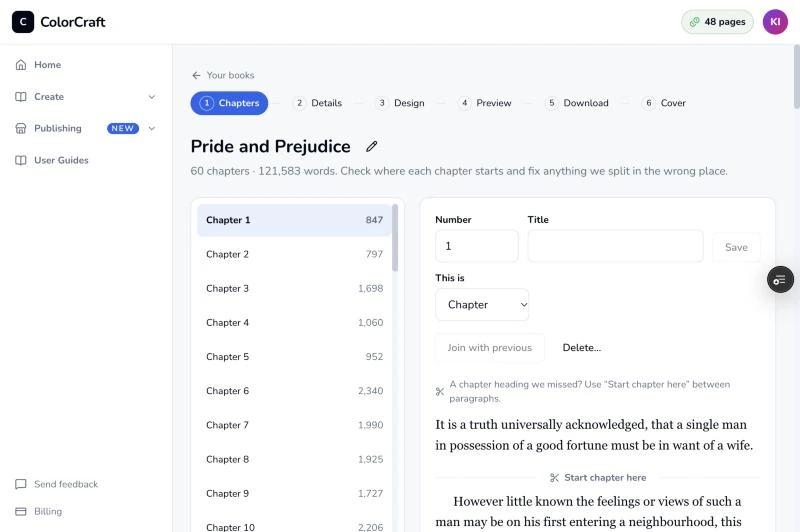
Check your chapters
You see every chapter it found. Rename one, merge two, split one where a chapter starts, or remove a section. A chapter that looks too long is flagged, in case a heading was missed.
- 3
Add the pages around your story
Your title, author name and copyright year. Add a dedication and an about-the-author page if you like. The title page, copyright page and table of contents are made for you.
Under About the book, pick the language your book is written in and add a book description: the blurb for your back cover. Draft it for me writes one from a few sentences you type about your book. It works from those sentences only, never your manuscript, and you can edit the draft before you use it.
- 4
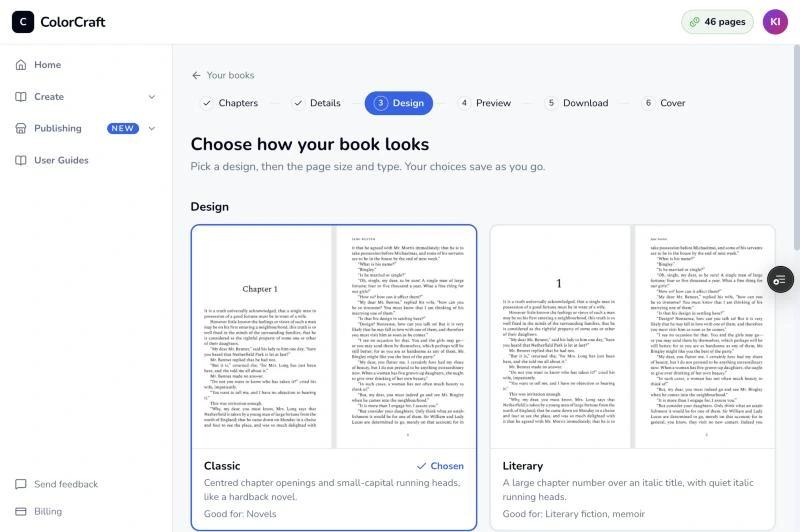
Choose a design and size
Pick one of 4 book designs and a trim size: 5 × 8 in, 5.5 × 8.5 in or 6 × 9 in. You can change the font size, the line spacing and whether chapters start on a right-hand page.
- 5
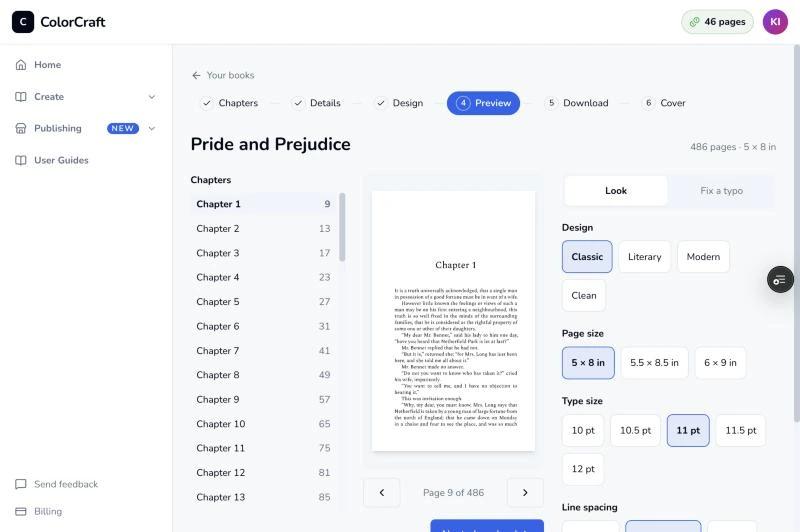
Preview every page
The preview shows the printed pages exactly as the PDF will. Spot a typo? Fix it right there, and the pages after it reflow.
- 6
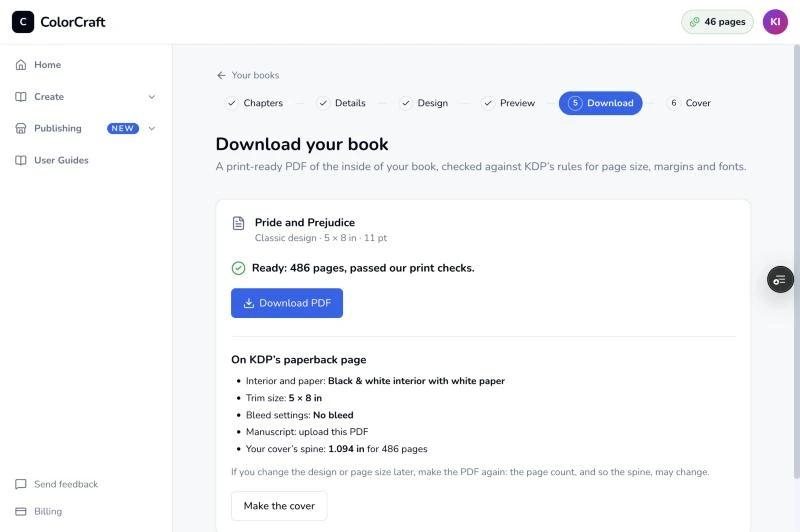
Download the interior and the ebook
ColorCraft checks every page against KDP’s rules (size, margins, embedded fonts, page count), then you download the interior PDF. The download page lists what to pick on KDP’s paperback page.
Under it, Make my ebook makes a Kindle ebook of the same book: an EPUB that reflows on any Kindle, phone or tablet, and, once you’ve made a cover, the 1600 × 2560 cover picture KDP asks for. On KDP’s Kindle eBook page, upload the EPUB as the manuscript and the picture as the cover. More about the Kindle ebook.
- 7
Make the cover
The Cover step opens the cover editor with your title and author filled in and the spine sized from your page count. Pick your genre (literary, thriller, romance, fantasy, memoir and more) for a picture cover, or Type only to set your title on a plain colour. Start from one of five looks made for novels and nonfiction if you like. The back starts with the book description you wrote. If you change your book after downloading it, the cover asks you to download it again first, so the spine always matches the page count. Then upload both to KDP.
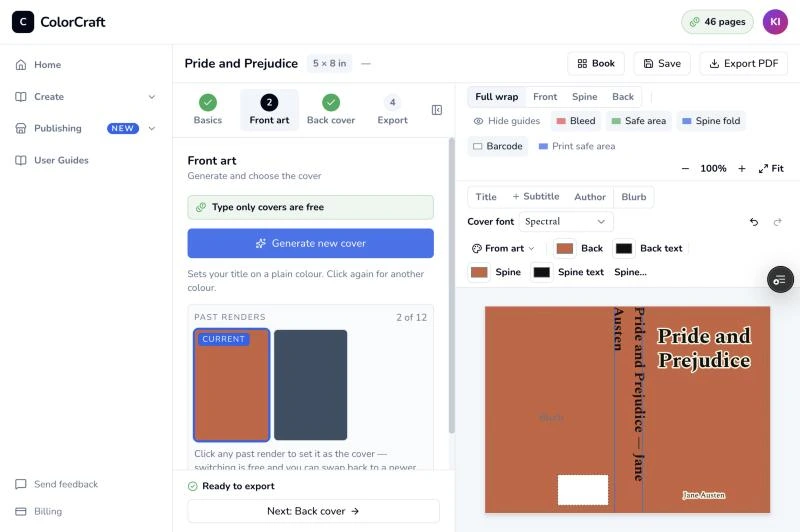


Your words, unchanged
What KDP gets
- Inside margins sized to your page count, as KDP requires for a paperback.
- Every font embedded, every page at your trim size, and an even page count.
- Chapter openings without running heads or page numbers, and blank pages left clean.
- For Kindle: a reflowable EPUB of the same book with a working table of contents, and a 1600 × 2560 cover picture.
Plans and the free trial
- Every plan. Formatting a manuscript uses no pages; a picture cover uses pages like any cover, and a type-only cover is free.
- On a free trial you can import, design and preview the whole book; downloading the PDF and the ebook needs a plan.
- See every plan.
Not yet included
- Hardcovers: the print download is a paperback interior PDF.
- Pictures, tables and footnotes inside the text.
- Books written right to left.
Publish your manuscript
Import your book, choose a design and preview every page.
ColorCraft’s 7-day trial needs a card.