Editor
Canvas & tools
The editor is where a book comes together. You add pages with AI, put them in order, adjust each page for print, and export the interior PDF you upload to Amazon KDP. Everything saves automatically — there is no Save button to remember.

Use a laptop or desktop
Open your book
- 1
Go to Home
Click Home in the left-hand menu. Your books are listed under Your books.
- 2
Click the book
Click the book’s cover picture or title. The editor opens on page 1. A book you just made with Paige also has an Open in editor button on its final screen.
No book yet? See Your first coloring book or Three ways to start.
The top bar

- Undo / Redo (the two curved arrows) step back and forward through your changes to the page you’re on.
- The book title. Click it to rename the book, then press Enter to save or Esc to cancel. The listing writer uses this name, so make it the real title.
- The page size (for example 8.5 × 11 in). It was set when the book was created and can’t be changed.
- Save status: Saving… while a change is being stored, then a green Saved. When it says Saved, it’s safe to close the tab.

- Cover, Mockups, Listing jump to this book’s cover, mockups and KDP listing.
- Gallery shows every page of the book as a grid.
- Share opens Share project, where you can create a read-only link to the book. Anyone with the link can view it without signing in, and the link doesn’t expire.
- Export PDF downloads the interior — see Export your interior PDF.
- ? opens the Upload to Amazon KDP checklist.
A single reminder bar can appear under the top bar: a balance warning such as “5 pages left.” or “You’re out of pages.”, or, once a book has five pages, “Pages looking good? Make a cover →”. Click its × to hide it (the out-of-pages bar stays until you get more).
Add a page from a prompt
The left sidebar holds everything you can add to the book. Click a panel name to open it; only one panel is open at a time.
- 1
Open Coloring Page
It’s open when the editor loads. If another panel is open, click Coloring Page.
- 2
Choose where the picture goes
Under Place Image On, choose New Page to add a page at the end of the book, or Current Page to replace the picture on the page you’re looking at (see Replacing a page’s picture).
- 3
Pick a style
Style starts on your book’s style. Pick another for this page only, or choose Custom and describe your own — the result is always black line art on white.
- 4
Describe the page and click Generate
Type what you want in Prompt — one clear subject and a setting works best (“a cheerful red fox peeking out from behind a pine tree”). Click Generate.
The page shows Generating… while the picture sharpens. When it’s done the new page opens and you’ll see “Image generated — Your coloring page is ready.” Each coloring page uses 1 page from your balance; the green box under the button shows how many pages you have left.

If something goes wrong
- “Empty prompt — Describe what you want on the page.” Type a prompt first.
- “Generation failed” with a reason: click Generate again. A generation that fails doesn’t come off your balance.
- Not enough pages: the Out of pages panel opens with a button to get more (Upgrade now on a trial), and a bar above the page says how many you have left.
Add text to a page
Any coloring, storybook or comic page can carry words: a title, a caption, a name to color in, a line of a story. The words print in the PDF where you put them on the page.
- 1
Click + Text
It’s the first button in the text bar above the page. An empty text box appears near the top of the page (a storybook’s goes at the foot), already selected. Until you type, it shows a grey hint that never prints. On a comic page it makes a speech balloon instead.
- 2
Type your words
Double-click the box to edit in place. Cmd/Ctrl + Enter keeps your words, Esc cancels. Drag the box to move it; drag a corner to resize it. The box grows to fit as your words get longer or bigger.
- 3
Style it from the text bar
With a box selected, the text bar sets its font (more than twenty, grouped as everyday, rounded, handwritten, display, serif and comic), size, bold and italic, alignment and color. Outline draws a border around the letters, and Box fill puts a colored box behind them, with its own opacity, so words stay readable over busy line art. Spacing sets the line spacing, and the bin deletes the box.
Some display fonts have only one weight, so Bold and Italic are grayed out for them. The right sidebar keeps the words themselves and Fit height, which sizes the box to its text.
Puzzle pages
Sudoku, maze, word-search, cryptogram and crossword pages draw their own headings, so they don’t take a text box.
Draft a batch with the Prompt Generator
The Prompt Generator is Paige inside the editor: give it a theme and it writes a set of page prompts for you. It adds pages to the book you have open. To plan a whole new book from scratch, use the Paige coloring-book wizard instead.
- 1
Set the theme and count
Open Prompt Generator. Pick a Style, type a Theme (who and what the book is for, for example “woodland animals, young kids”) and drag Count to the number of pages you want.
- 2
Draft the prompts (free)
Click Generate N prompts. Drafting is free. You’ll see “Prompts ready — Paige drafted N prompts.” and a list of drafts.
- 3
Render them
Click Generate all N pages to turn every draft into a page (each uses 1 page from your balance). Each row shows Rendering, then Done, and the new pages appear at the end of the page strip. Keep the tab open until they finish.
Or click Use this → on one draft to copy it into the Coloring Page prompt box, then open Coloring Page to tweak it and click Generate.


If something goes wrong
- The Generate all button is greyed out with “Inline batches cap at 10 pages.” The editor renders up to 10 at a time. Set Count to 10 or fewer, or use the Paige wizard for a larger book.
- A row shows Retry: click Retry on that row. Don’t use the button at the bottom to re-run — it renders every prompt again and charges for each one.
- “Theme required — Tell Paige what your book is about.” Fill in Theme.
- “Generation failed — No pages were created. Check how many pages you have left and try again.”
Reuse a prompt
Prompt History lists the last 20 prompts used in this book, newest first, with the number of saved prompts next to its name. Click Use this → to copy one into the Coloring Page prompt box, then open Coloring Page to change it and click Generate. It’s the easiest way to keep new pages consistent with the old ones. A new book shows “No prompts yet — generate a page to start your history.”

Other panels
- Cover — Open cover generator takes you to the cover editor for this book.
- Puzzle books show a panel for adding more puzzles of the same kind (Sudoku, Maze, Word Search, Crossword or Cryptogram). See Sudoku, Mazes, Word search, Crosswords and Cryptograms. Coloring books also show a Sudoku panel for mixing sudoku pages in. New puzzles go after your last page; the book prints in page-strip order, with every solution gathered at the back.
- Storybooks have their own panels — Storybook, Characters and Add page — instead of Prompt Generator and Coloring Page, plus a Text button by the zoom controls for adding text boxes. See Paige for storybooks.
Arrange your pages
The strip along the bottom shows every page in order.
- Click a thumbnail to open that page.
- Drag a thumbnail left or right to move the page. The new order saves straight away (Undo doesn’t reverse it — drag it back instead).
- Add (the dashed tile at the left) adds a blank page. Cover opens the cover editor.
- Hover a thumbnail to show two small buttons: copy (duplicate the page) and the bin (delete it). You can also right-click a thumbnail and choose Duplicate or Delete.
- Deleting asks “Delete page N?” — click Delete to confirm. The remaining pages renumber. A book must keep at least one page.


For a bigger view, click Gallery in the top bar. Every page shows as a card; drag cards to reorder, right-click for Duplicate or Delete, click a card to open it, and click Editor to go back.

Adjust a page
- 1
Select the picture
Click the picture on the page. Blue handles appear around it: drag the picture to move it, or drag a corner handle to resize it.
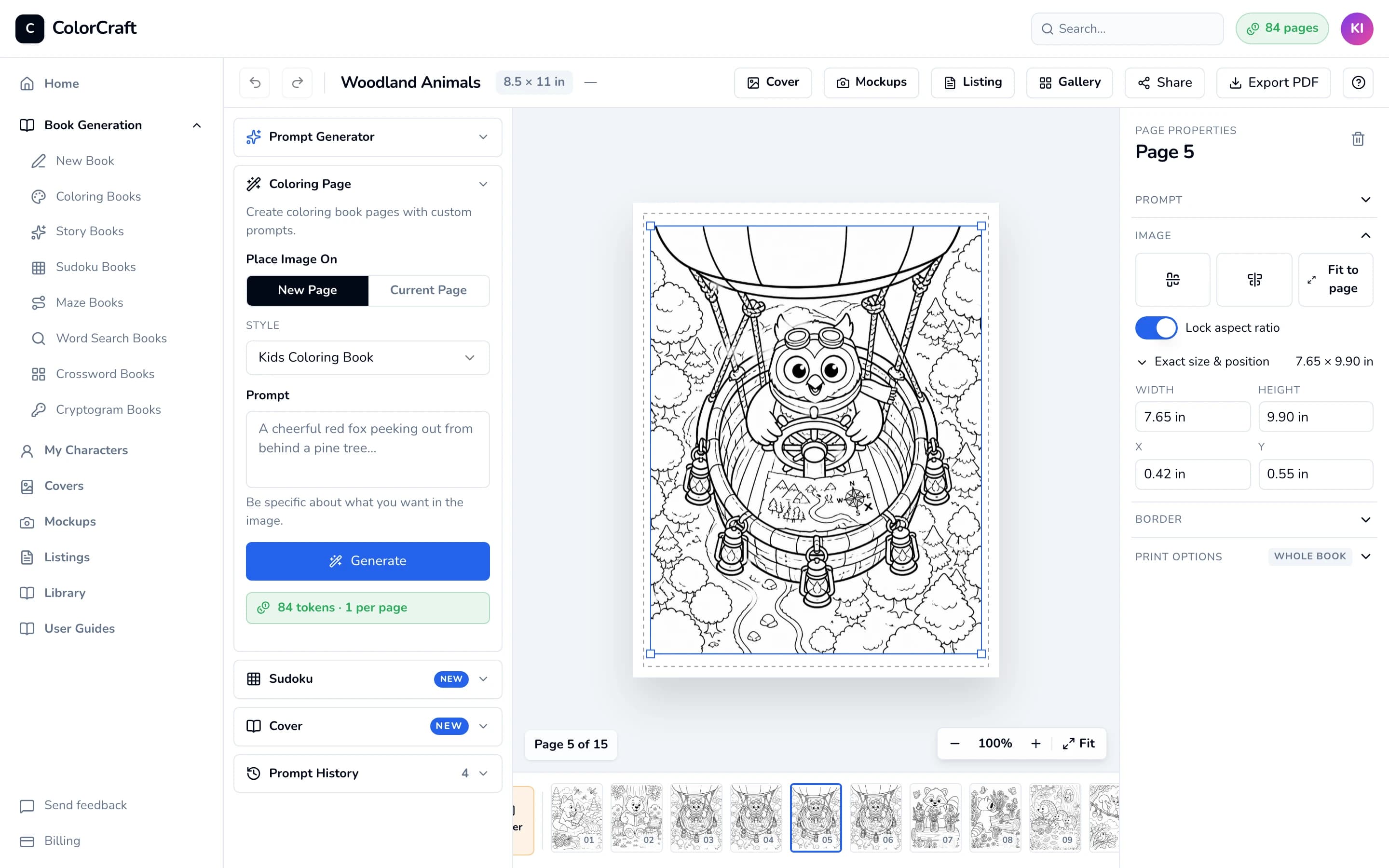
A selected picture, with the Image settings open on the right. - 2
Use Page Properties for exact changes
The right sidebar, headed Page Properties and the page number, has four sections. Click a section name to open it; the editor remembers which one you had open.
- Image — center the picture across or down the page, Fit to page (as large as it can be inside any border, without stretching), Lock aspect ratio, and Exact size & position for typing Width, Height, X and Y in inches (press Enter after each).
- Border — None or Margin. Margin draws a frame: Inset sets how far it sits from the page edge (0–0.5 in, starting at 0.25 in) and Line thickness sets the line (0 means no visible line). Apply to all N pages copies this page’s border to every page in the book.
- Print options (marked Whole book) — see single-sided printing below.
- Prompt — the prompt the page was made from, when one is stored (often just “—”).
The bin at the top right of the sidebar deletes the page.


Single-sided printing
Open Print options and switch on Single-sided (insert blank backsides). Your exported PDF then puts a blank page behind every page, so each picture sits on its own sheet. It doubles the printed page count, and the cover’s spine width updates to match. It applies to the whole book.

Why coloring books are usually single-sided
If something goes wrong
- “Applied to N pages — M skipped”: some pages were still saving. Wait for Saved and click Apply to all again.
- The save status shows Save failed or “Could not save page”: check your connection, then press Cmd/Ctrl + S to save again.
- “Page updated elsewhere — Reloaded the latest version of this page.” The book was open in another tab; keep editing in one tab only.
Zoom, undo and saving
- The bottom-left corner of the page shows Page N of M. The bottom-right has the zoom controls: −, the zoom percentage (click it to return to 100%), + and Fit (fit the page to the window).
- Undo covers changes to the page itself — position, size, border and text, up to 20 steps per page. It resets when you reload. Adding, deleting and reordering pages save straight away and can’t be undone.
- Changes save about a second and a half after you stop. If you try to close the tab with something unsaved, your browser asks you to confirm.
| Shortcut (Cmd on Mac, Ctrl on Windows) | Does |
|---|---|
| Cmd/Ctrl + Z | Undo |
| Cmd/Ctrl + Shift + Z | Redo |
| Cmd/Ctrl + S | Save now |
| Cmd/Ctrl + = / − / 0 | Zoom in / out / back to 100% |
| Cmd/Ctrl + / | Show all keyboard shortcuts |
Export your interior PDF
- 1
Click Export PDF
In the top bar, click Export PDF. Smaller books download in seconds. From 25 pages the button reads “Rendering N pages at 300 DPI…” while it works — keep the tab open until the file downloads.
The file saves as your book title, for example Woodland Animals.pdf.
- 2
Match the settings on KDP
The Upload to Amazon KDP panel opens with the six settings to match on KDP’s Paperback Content page: Trim size, Bleed settings (choose Bleed (PDF only)), Ink and paper, Manuscript, Book cover and Preview. Reopen it any time with the ? button. For every KDP screen in order, see Upload your book to KDP.
If the panel starts with a red warning that a page is empty or printed without its picture, fix that page (or delete it) and export again.
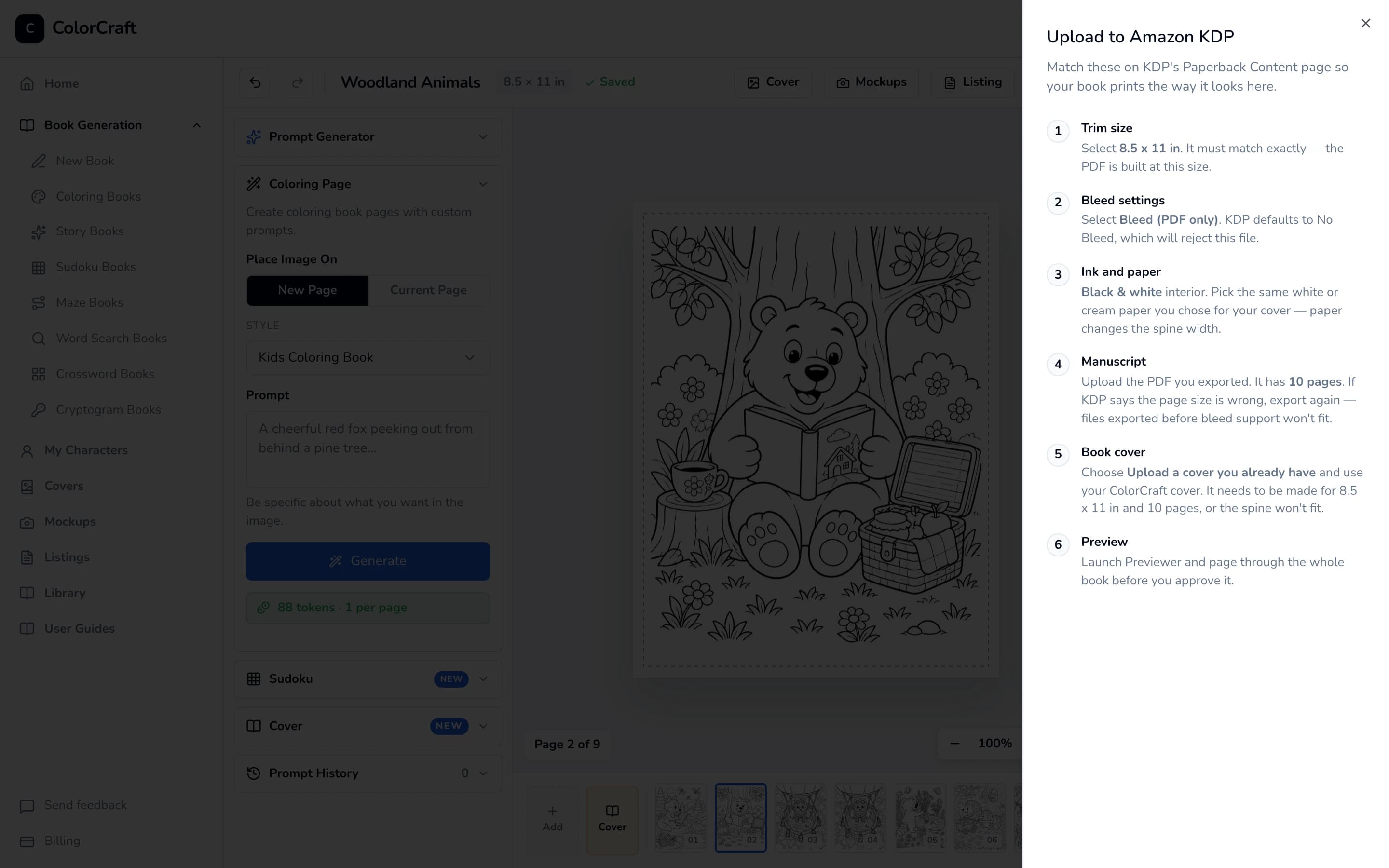
After every export: the settings KDP needs to accept your file. - 3
Make the cover
The interior PDF has no cover. Design the front, spine and back in the cover editor and upload that PDF too.

During the free trial
If something goes wrong
- “Export failed” or “Export is taking longer than expected. Please try again.” Click Export PDF again.
- “Couldn’t check your plan”: nothing was downloaded. Click Try again in the message, or wait a moment and export again.
Open the editor
Open any book to add pages, arrange them and export a KDP-ready PDF.
ColorCraft’s 7-day trial needs a card.