Getting started
Your first coloring book
This walkthrough takes you from a brand-new account to a finished coloring book you can download. You’ll use Paige, the assistant that writes a prompt for every page and then draws them all for you.
Just want to see the line art first?
Before you start
- A credit or debit card. The 7-day free trial costs $0 today, but ColorCraft asks for a card to start it.
- An idea for a book: a theme and who it’s for. “Friendly forest animals for young kids” is plenty.
- About ten minutes. Most of that is waiting while Paige draws.
Want to build a book page by page instead? See Three ways to start a coloring book.
Walkthrough
- 1
Create your account
Go to colorcraft.ai/auth/login. The page opens on the Login tab, so click Register first.
- Type your Email and choose a Password.
- Tick I agree to the Terms & Conditions and Privacy Policy. The newsletter box above it is optional.
- Click Create Account. Or skip the form and click Continue with Google.
Next you’ll land on the trial page. If ColorCraft emails you a confirmation link instead, click it to continue. Google sign-ups see a one-time Before you continue page: tick the box and click I agree — continue.

Click Register before filling in the form. The page opens on Login. If something goes wrong
“Please accept the Terms & Conditions to create an account.” Tick the Terms box and click Create Account again.
“Please use a non-disposable email address…” Temporary inbox services are blocked. Use your regular email.
- 2
Start your free trial
The trial page reads Step 1 of 1 — Start your free trial. Pick the plan you want after the trial ends. You can cancel before then and pay nothing.
- Mini — 40 pages a month, $9/month after the trial
- Starter — 100 pages a month, $14/month after the trial
- Creator — 320 pages a month, $32/month after the trial (selected for you, marked Most popular)
Click Start your free trial · $0 today. Stripe, our payment provider, asks for your card. The trial page shows the exact date of the first charge. Once you finish, you’re back in ColorCraft with a balance of 40 pages: each coloring page Paige draws uses one.
If something goes wrong
“Checkout was cancelled. Pick a plan below when you’re ready to start.” You left Stripe before finishing. Click the button again.
Right after paying, the top bar shows Get pages or 0 pages. Your trial takes a few seconds to set up. Wait a moment and refresh.
You’re sent to the billing page instead. Each person gets one free trial, and this account has already used it.
- 3
Open Paige and pick Coloring book
After the trial starts you’ll see What would you like to create? Coloring book is already selected, so click Next. Clicking a card only selects it. Next moves you on.
To get back here later, open Book Generation in the left rail and click Coloring Books. You can also click the Coloring book button on your dashboard.
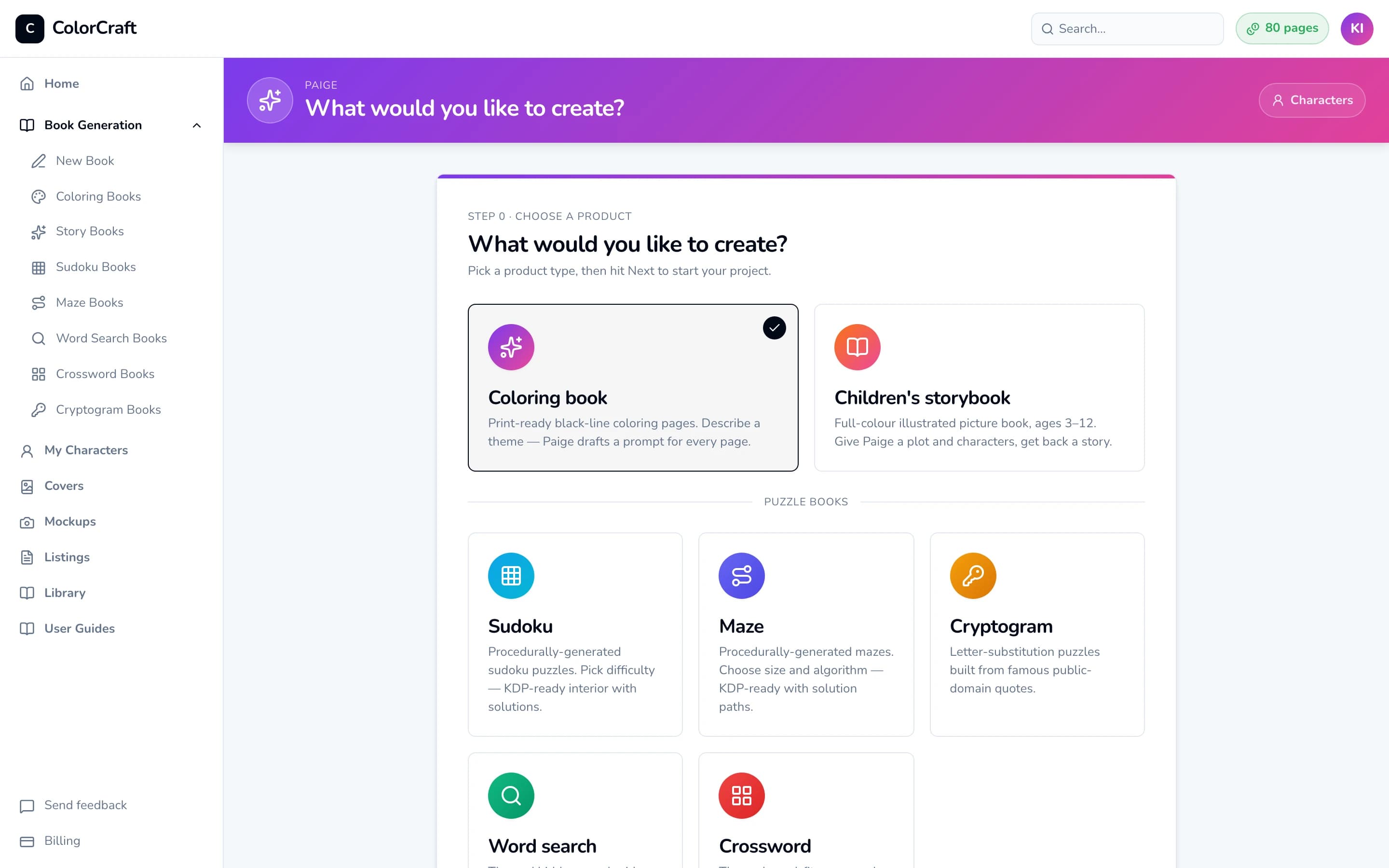
Coloring book is selected for you. Click Next to start the four-step wizard. 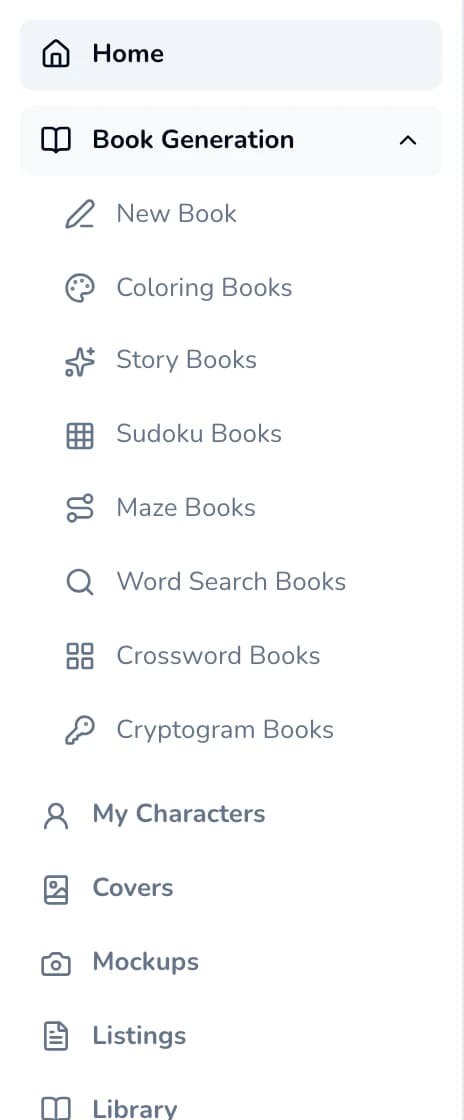
Book Generation → Coloring Books takes you straight to the coloring-book wizard. - 4
Describe your book
The first screen is Brief (Step 1 of 4). Fill in:
- Book title (required). A working title is fine. You can rename the book later.
- Theme & subject (required). Paige writes every page from this, so be specific. List a few scenes, the mood and the setting.
- Marketing description (optional). Used for your KDP listing later.
- Audience: Kids (4–8), Tweens (9–12), Teens (13–17), Adults or All ages.
- Art style: Kids Coloring Book is selected for you. It’s the best place to start: bold outlines and big spaces to color.
- Characters (optional). Leave this empty for your first book.
Stuck for an idea? Open Not sure where to start? and click Suggest niches. Click any idea and it fills in the title, theme and description for you. Ideas are free.
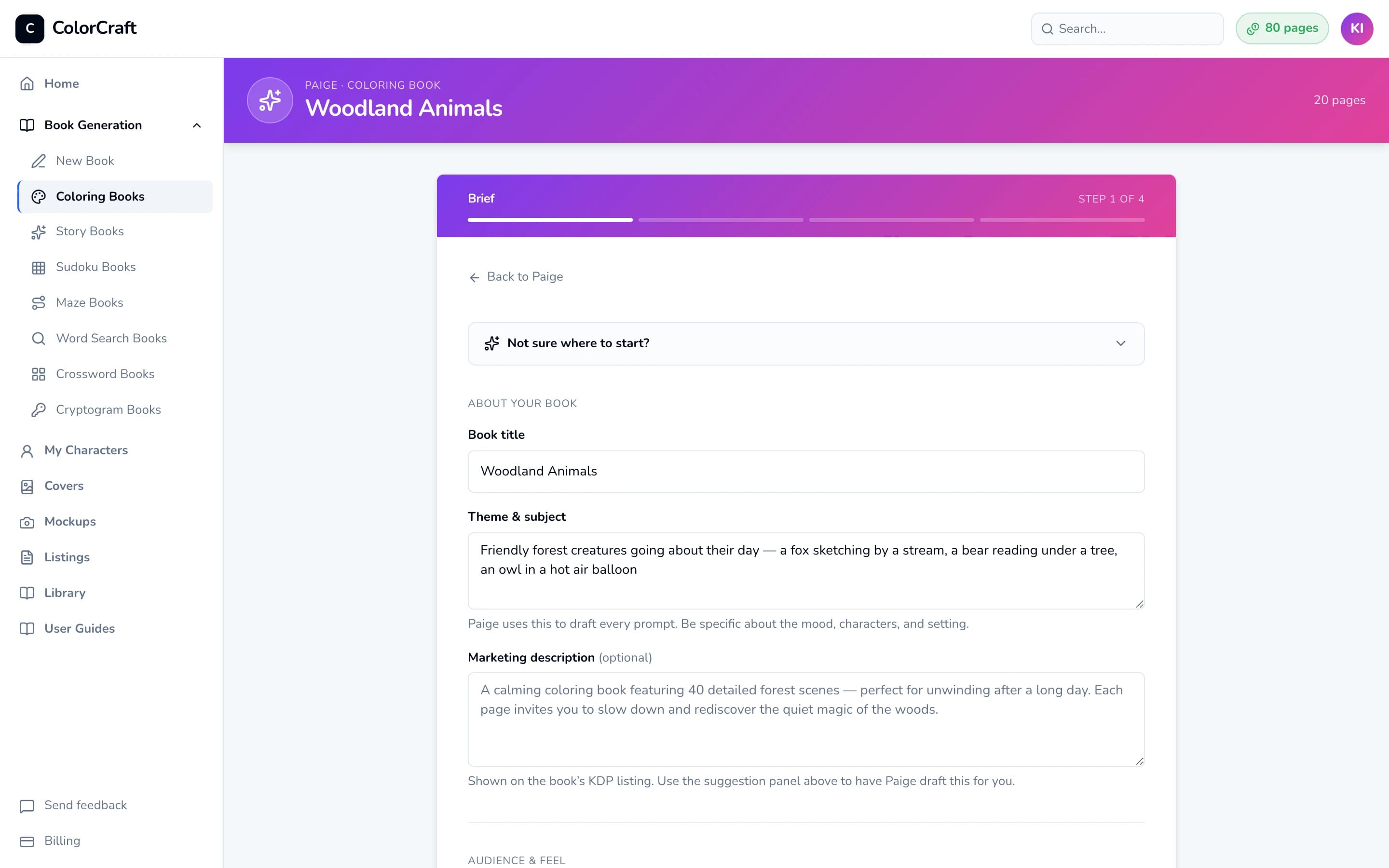
The brief. Only Book title and Theme & subject are required. 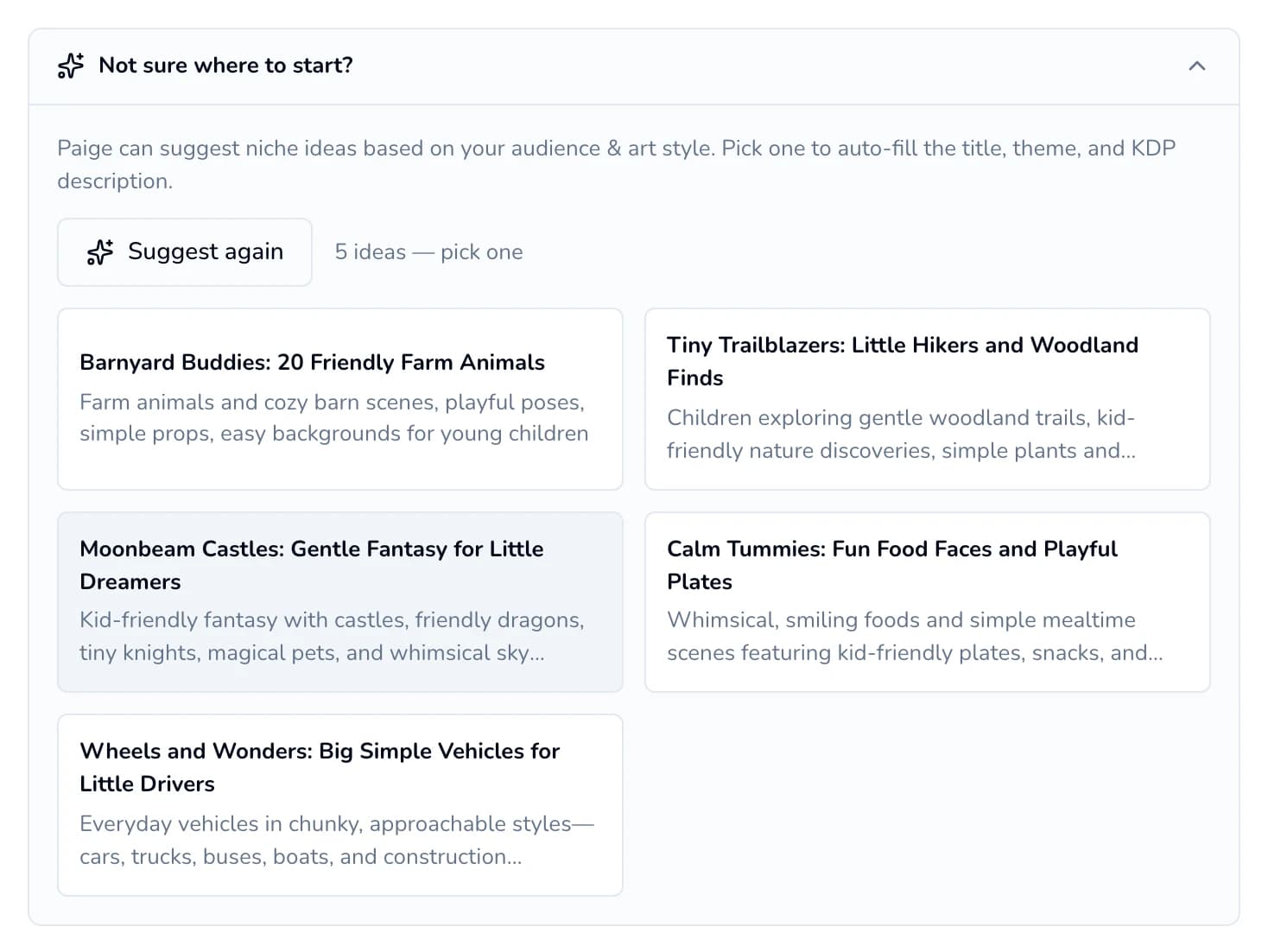
Suggest niches gives you five ideas. Click one to fill in the brief. - 5
Choose the page count and size
Scroll down to Format.
- Page count: during the free trial, pick 8, 16, 24, or type any number from 5 to 24. On a paid plan the buttons go from 20 to 100.
- Page format: 8.5 × 11 is selected and is the most common size for coloring books. 8 × 10, 7 × 10 and 6 × 9 are also available.
Click Draft N prompts (N is your page count). Drafting is free. Paige writes one prompt per page, which takes a few seconds. Then the next step opens. Save as draft saves the brief without drafting.
Cost: nothing yet. Each coloring page uses 1 page from your balance when Paige draws it in step 7.
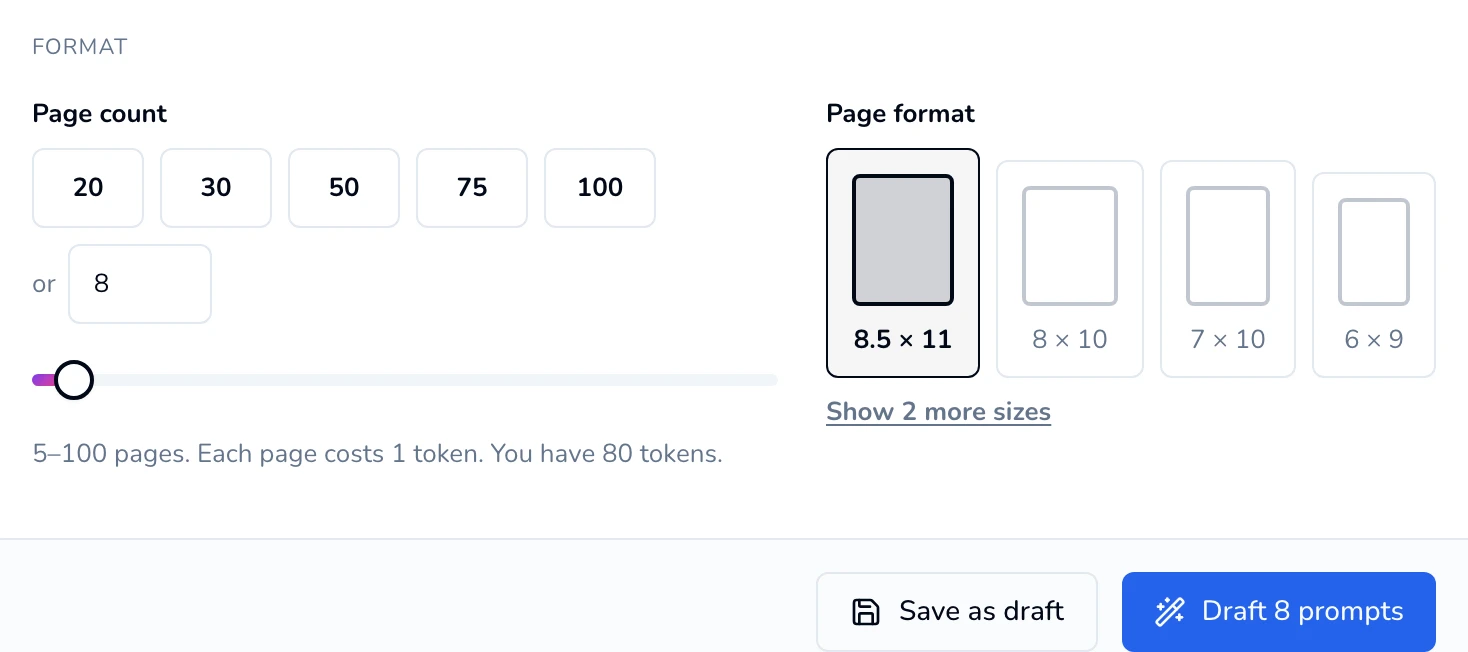
Shown on a paid plan. During the trial the presets are 8, 16, 24 and the line reads "5–24 pages on trial, each from your trial balance." If something goes wrong
The buttons are greyed out. Fill in both Book title and Theme & subject.
“Not enough pages — you have X pages and this book needs Y pages.” Lower the page count, or click Upgrade now in the message to start your plan today.
“Could not draft prompts.” Click Draft N prompts again. Your brief is still there.
- 6
Review the prompts
The Prompts screen (Step 2 of 4) lists one prompt per page. You can:
- Click into any prompt and edit the words.
- Drag the handle on the left to reorder pages.
- Click + to add a prompt below, or the trash icon to remove one. A book needs at least 5.
- Click Re-draft all for a fresh set. It replaces every prompt, so copy any you want to keep first. Re-drafting is free.
When the list looks right, click Looks good — render N pages.
Cost: each coloring page uses 1 page from your balance, so an 8-page book uses 8. Your balance needs to cover the whole book before Paige starts.
Prompt style matters
Describe a scene (“a fox sketching by a stream”) rather than giving instructions (“draw a fox”). See Writing better prompts for examples.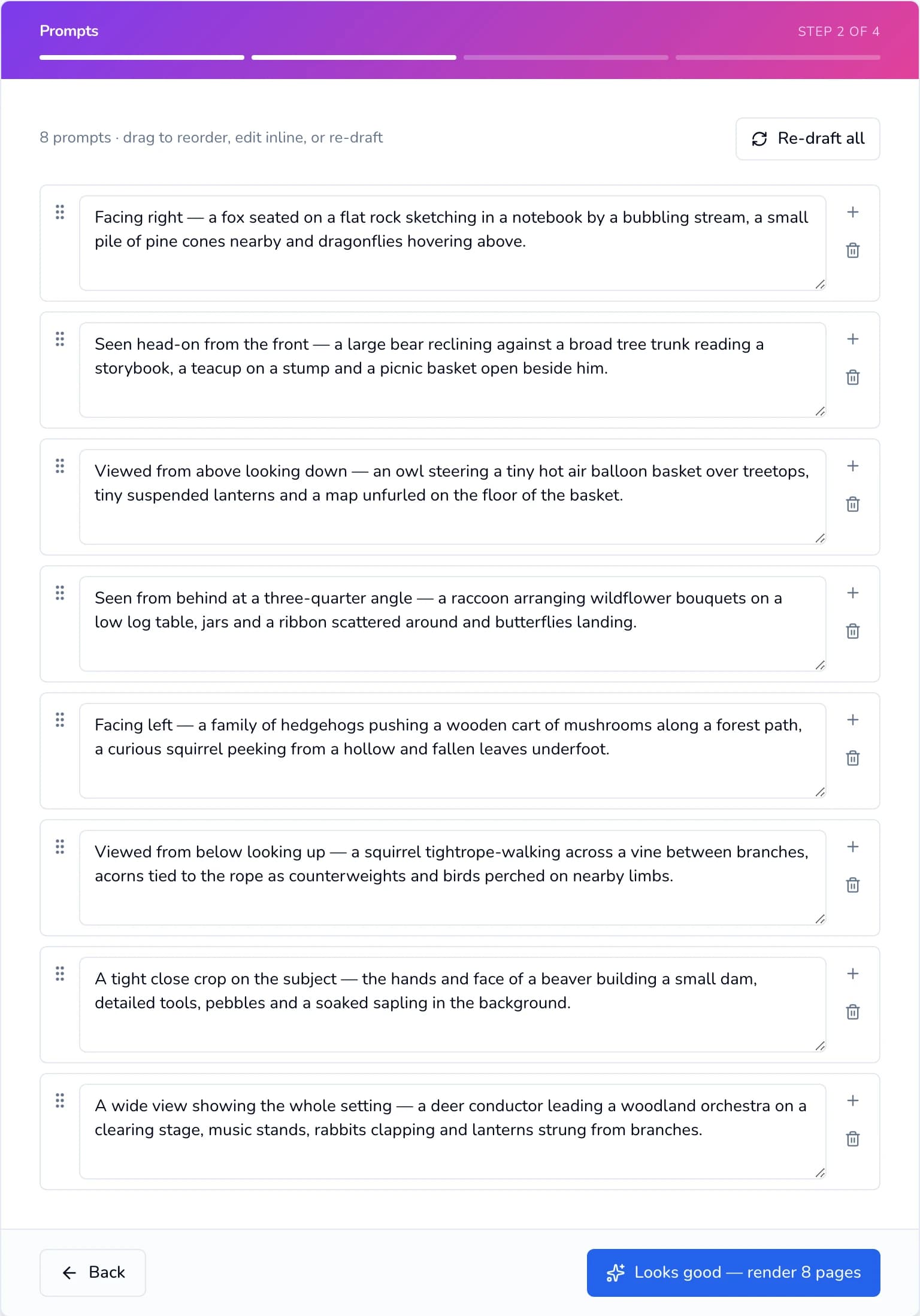
Edit, reorder, add or remove prompts, then click Looks good — render N pages. If something goes wrong
“At least 5 prompts required.” Add prompts with + until you have five or more.
“Not enough pages.” Remove a few prompts. During the trial you can also click Upgrade next to your balance in the top bar to start your plan early.
- 7
Let Paige draw every page
The Rendering pages screen (Step 3 of 4) fills in a tile for each page as it finishes. The counter shows how many are done, for example “2/8 rendered”. Click a finished tile to see it full size.
You don’t have to wait. Drawing keeps running on our servers after you close the tab, and the finished book shows up on your dashboard. A small book usually takes a few minutes.
When every page is done you’ll see All N pages rendered. Click Continue to review.
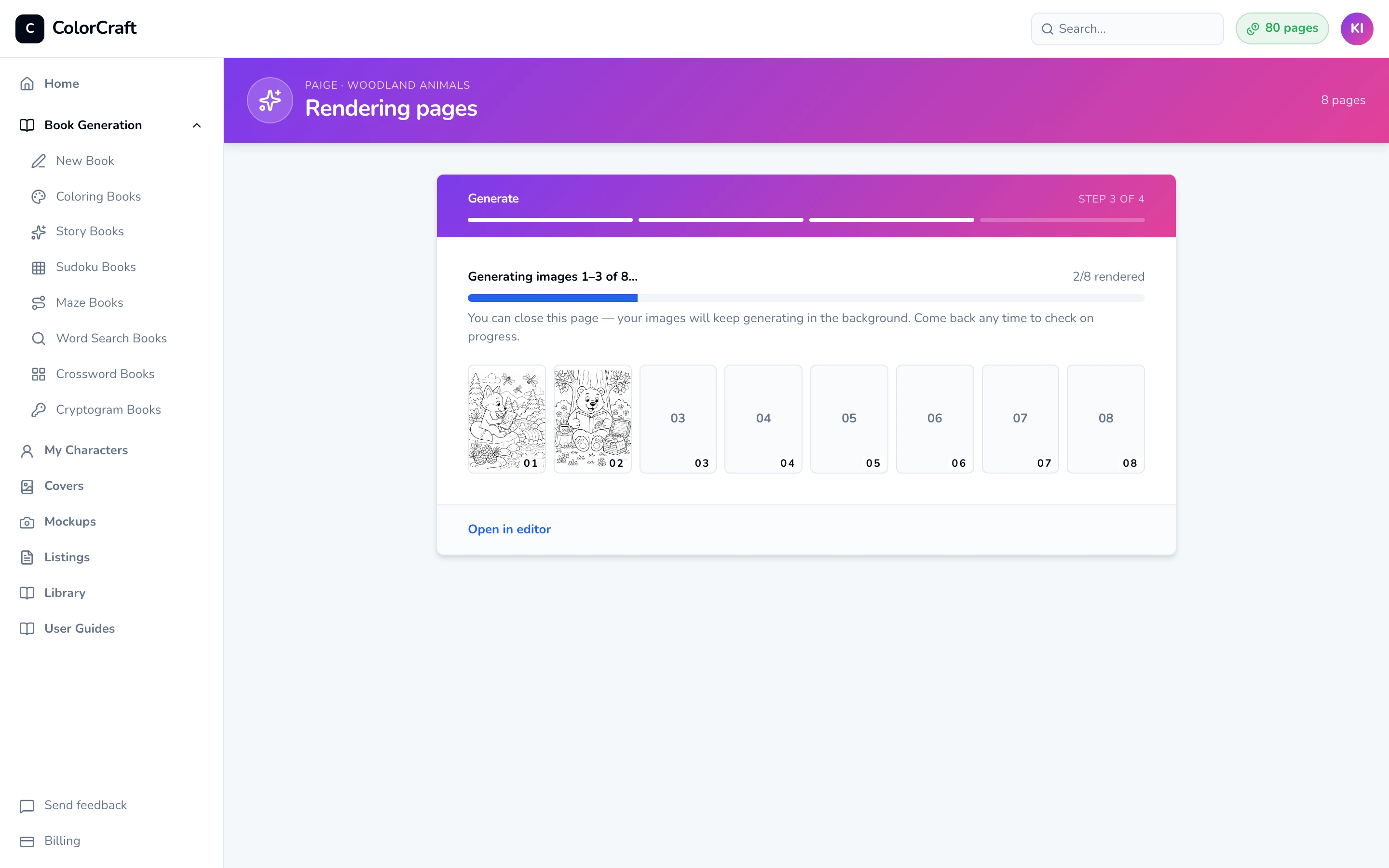
Tiles fill in as each page is drawn. Safe to close the tab. If something goes wrong
“Generated X of N — Y failed.” Click Retry Y failed pages, or Continue with X to go on with what you have. Only pages that finished come off your balance.
“Stopped at X/N.” Click Retry.
- 8
Open your book in the editor
The last wizard screen says Your book is ready. Click Open in editor. Your first finished coloring book also earns +10 bonus pages (a starter quest).
In the editor you can redraw any page, change a prompt, reorder pages or add more. See Canvas & tools and Replacing a page’s picture.
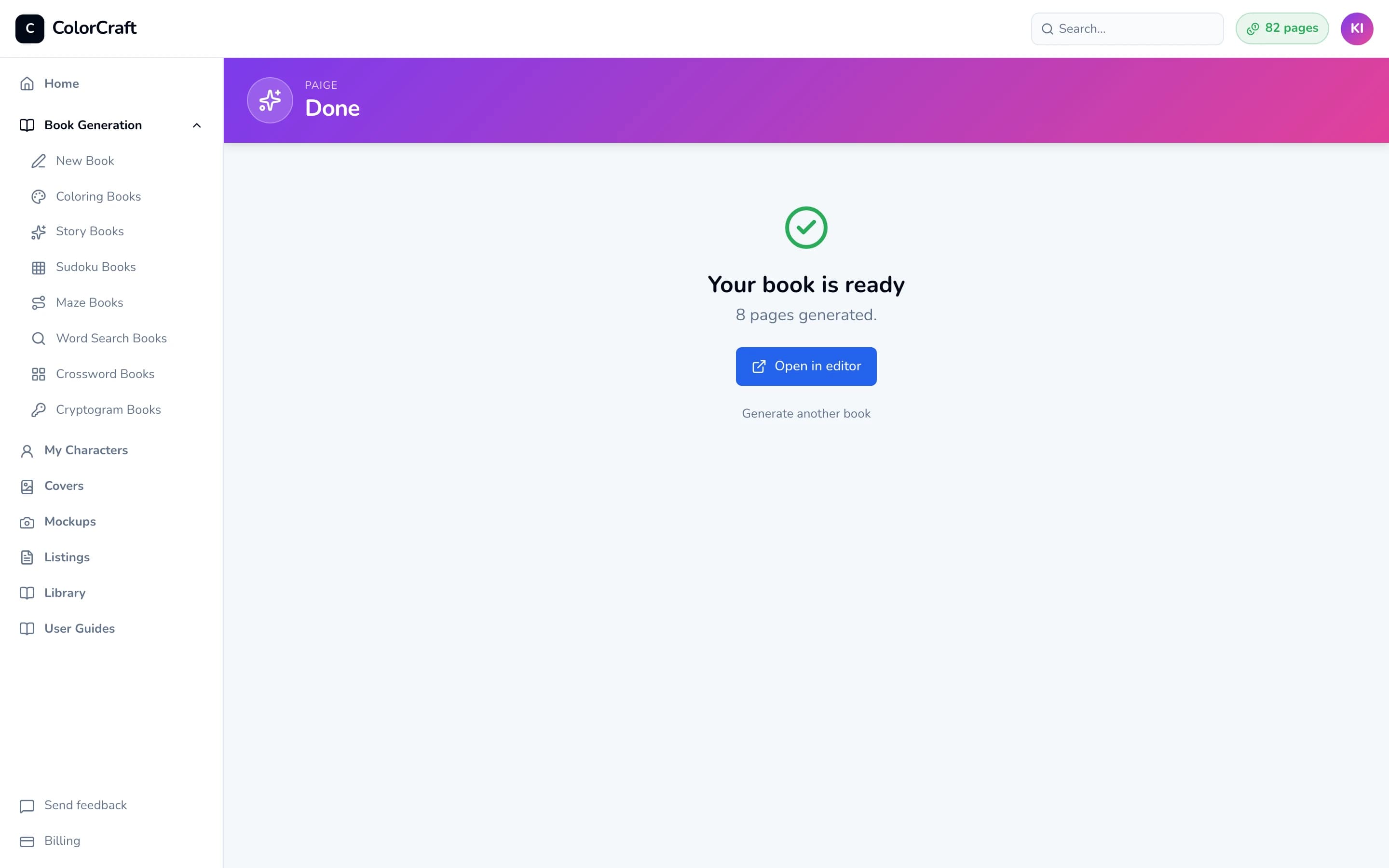
Open in editor takes you to your new book. 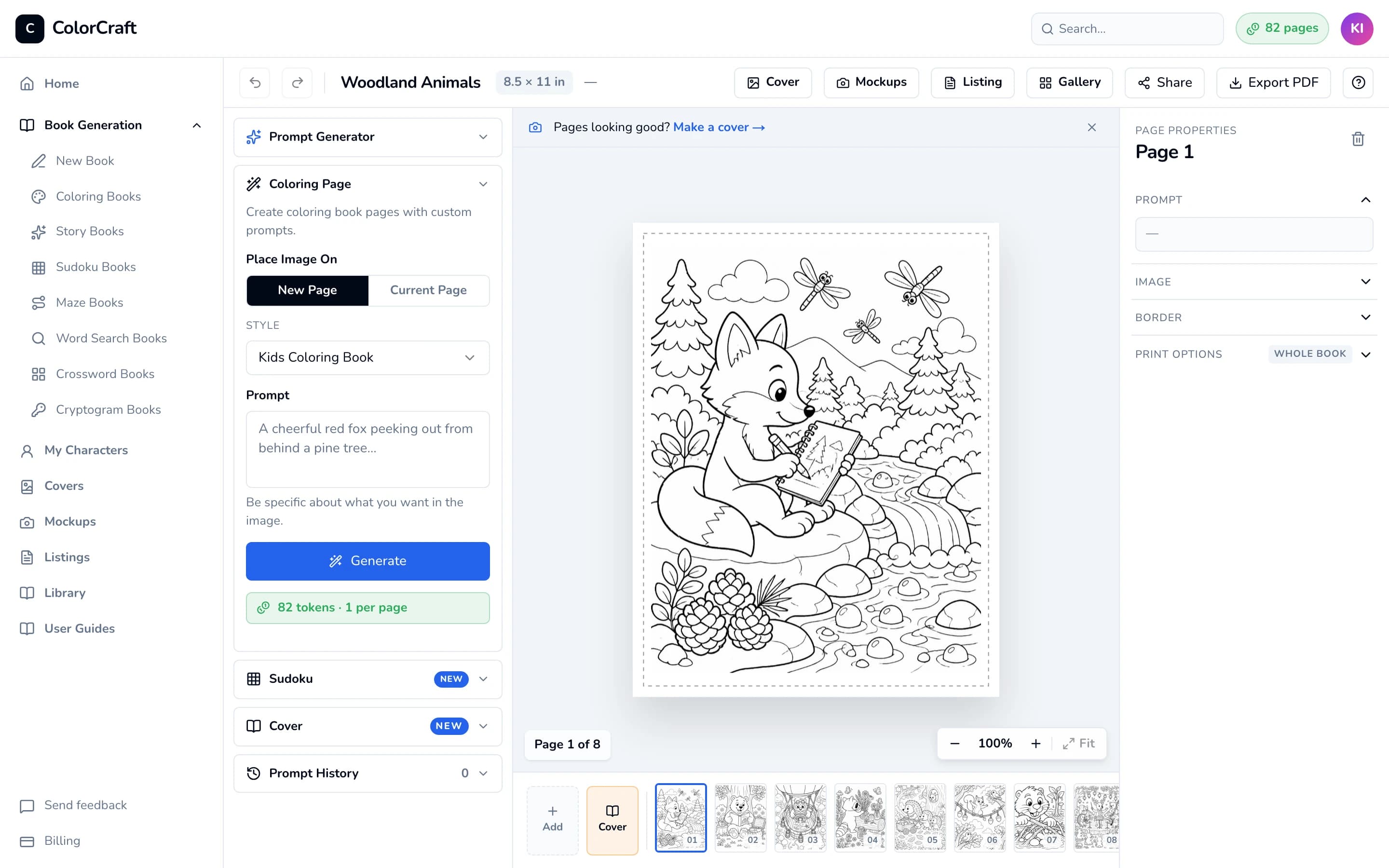
Your book in the editor. The banner at the top links to the cover editor. - 9
Download your book
In the editor’s top bar, click Export PDF. Downloading doesn’t use any of your pages.
- On a plan, the print-ready PDF downloads. Then the Upload to Amazon KDP guide opens with the settings to use on KDP.
- During the free trial, a window titled Download your print-ready book opens. Choose Start my … plan now (your card is charged today), Just this book — $24 one-time, or Download a watermarked preview (free).
Trial downloads are watermarked previews. The print-ready file comes with your plan, or unlock one book for $24.
For the cover, click Cover in the same top bar. See Cover editor.

Export PDF downloads the interior. Cover, Mockups and Listing sit beside it. If something goes wrong
“Couldn’t check your plan.” Click Try again in the message.
“Watermarked preview downloaded — This preview isn’t for upload.” That file is a preview. Don’t send it to KDP. Click Get print-ready file for the clean version.


What’s next
- Pages & billing — what each action costs and how the trial turns into a plan.
- Paige for coloring books — every option on the wizard.
- Cover editor — front, back and spine sized to your KDP trim.
Ready to try it?
Start a free trial and make your first coloring book in about ten minutes.
ColorCraft’s 7-day trial needs a card.