KDP publishing
Upload your book to KDP
Your book goes on Amazon as a KDP paperback. You need two files from ColorCraft — the interior PDF and the cover PDF — and a free KDP account. This guide walks through every KDP screen, using a real 8.5 × 11 coloring book as the example, and lists the fixes for the errors people hit most.

Before you start: two PDFs from ColorCraft
- 1
Export the interior PDF
First decide on blank backs. Most coloring books print each design on its own sheet: in the editor, open Print options and switch on Single-sided (insert blank backsides). It doubles the page count — 30 designs become 60 pages.
Then click Export PDF in the editor’s top bar (see Export your interior PDF). The file is in KDP’s bleed format: every page is the trim size plus 0.125″ on the top, bottom and outer edge, so an 8.5 × 11 book exports at 8.625 × 11.25 inches. The Upload to Amazon KDP panel that opens afterwards lists the settings you’ll match on KDP.
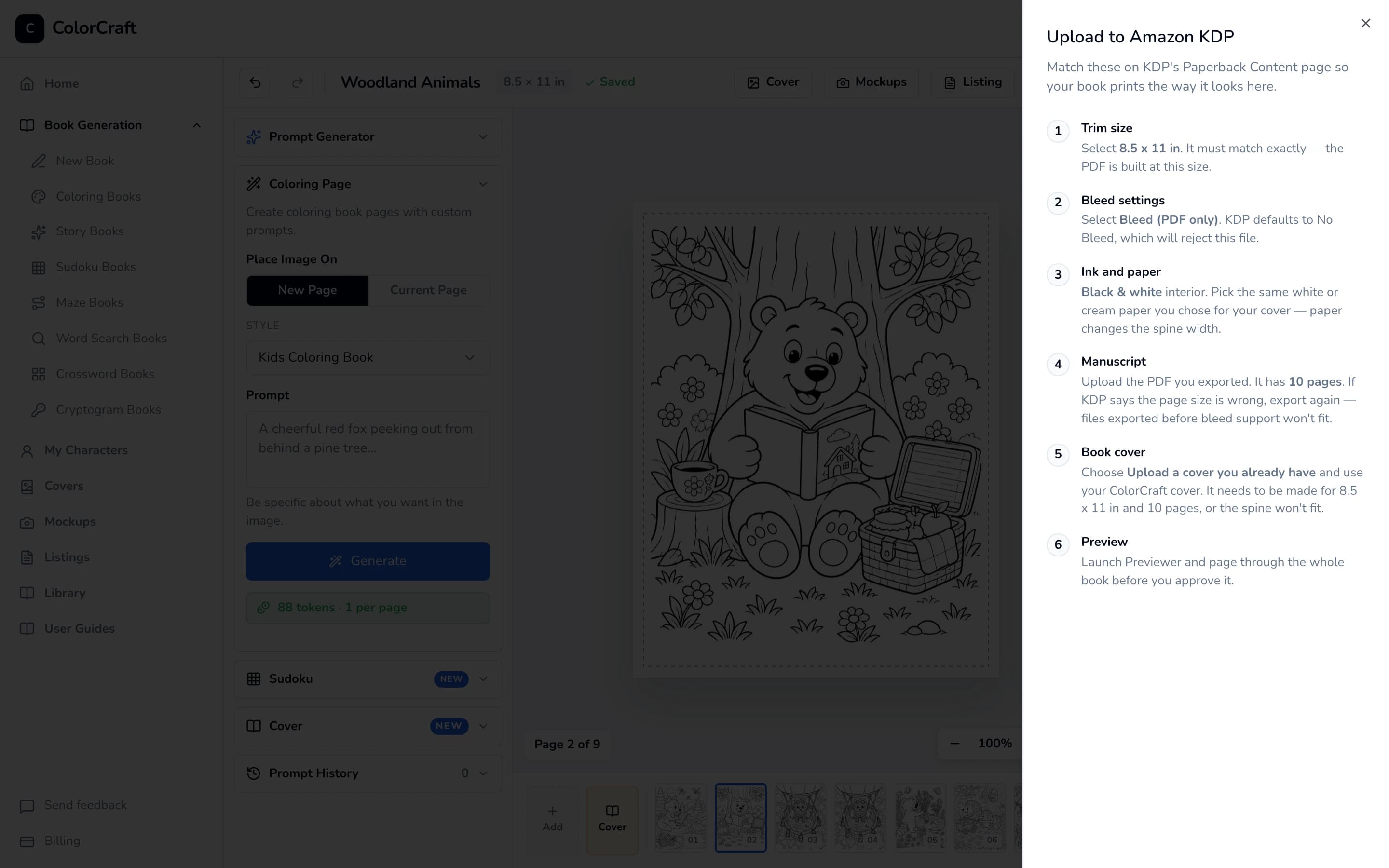
After every export, the editor lists the settings KDP needs. - 2
Export the cover PDF — after the page count is final
The spine width is the page count times the paper’s thickness (0.002252″ a page on white paper), so export the cover last. In the cover editor, the Designed for box shows the trim size, page count, spine width and paper the cover is built for. For an 8.5 × 11 book on white paper, 60 pages make a cover 17.3851 × 11.25 inches; 80 pages make it 17.4302 inches wide.
KDP only allows spine text on books of 80 pages or more. On a thinner book the cover editor leaves the spine title and author off for you, so the spine prints plain color.
- 3
Give the files clear names
Both files are named after the title on your cover: the interior downloads as, for example, Woodland Animals-interior.pdf and the cover as Woodland Animals-cover.pdf. Rename them so they can’t be mixed up — for example
KDP-INTERIOR_Woodland_Animals.pdfandKDP-COVER_Woodland_Animals.pdf. Uploading the interior into KDP’s cover slot is the most common mistake, and it happens because the two names look alike.

- The files can be big: a 60-page interior is around 100 MB and an 80-page one can be over 250 MB. KDP accepts files up to 650 MB, so they upload fine — give them a few minutes on a slow connection.
- On a free trial, Export PDF offers a watermarked preview. A preview isn’t for uploading to KDP; see Subscription & plans.
- At the time of writing, KDP lets an account create only 2 new paperbacks a week, resetting on Sunday at 00:00 UTC. Limits change, so check KDP’s help pages if Create is unavailable.
Step 1 — Create the paperback
Sign in to KDP, go to your Bookshelf, click + Create and choose Paperback. KDP opens three tabs in order: Paperback Details, Paperback Content and Paperback Rights & Pricing. Your progress is saved each time you click Save and Continue, so you can stop and come back later.
Step 2 — Paperback Details
- 1
Title, subtitle and author
Type the Book Title exactly as it appears on your cover, then the Subtitle if your cover has one. Under Author, enter your name or pen name — again, matching the cover. Leave Series and Edition Number empty unless they apply. KDP only lets you change the title and author for 72 hours after the book goes live, so check the spelling.
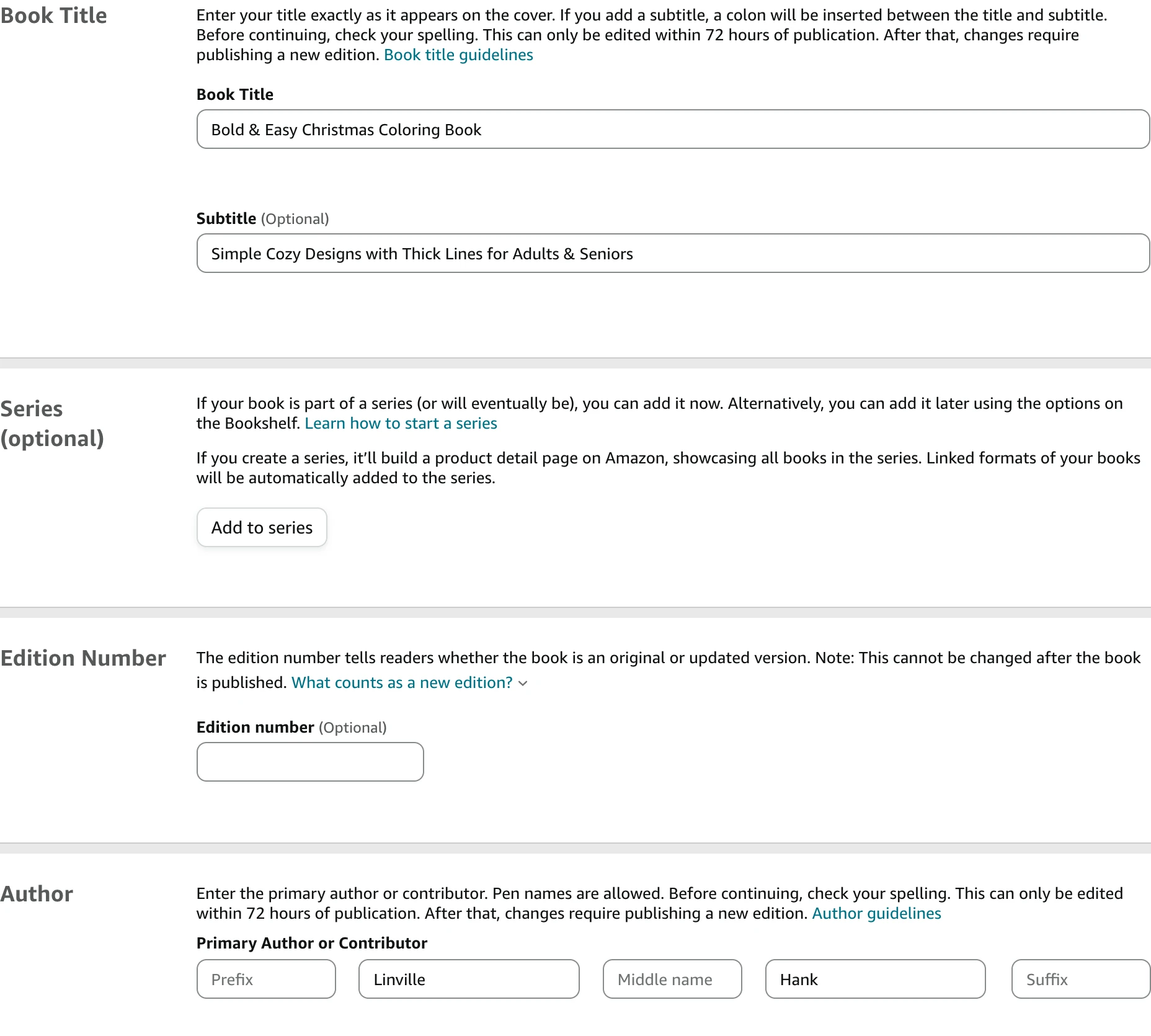
Title, subtitle and author, exactly as on the cover. - 2
Description
Paste your book description. ColorCraft’s Listing Assistant writes one for free, with bold text and bullet points that KDP’s description box understands. KDP shows how many characters you have left underneath.
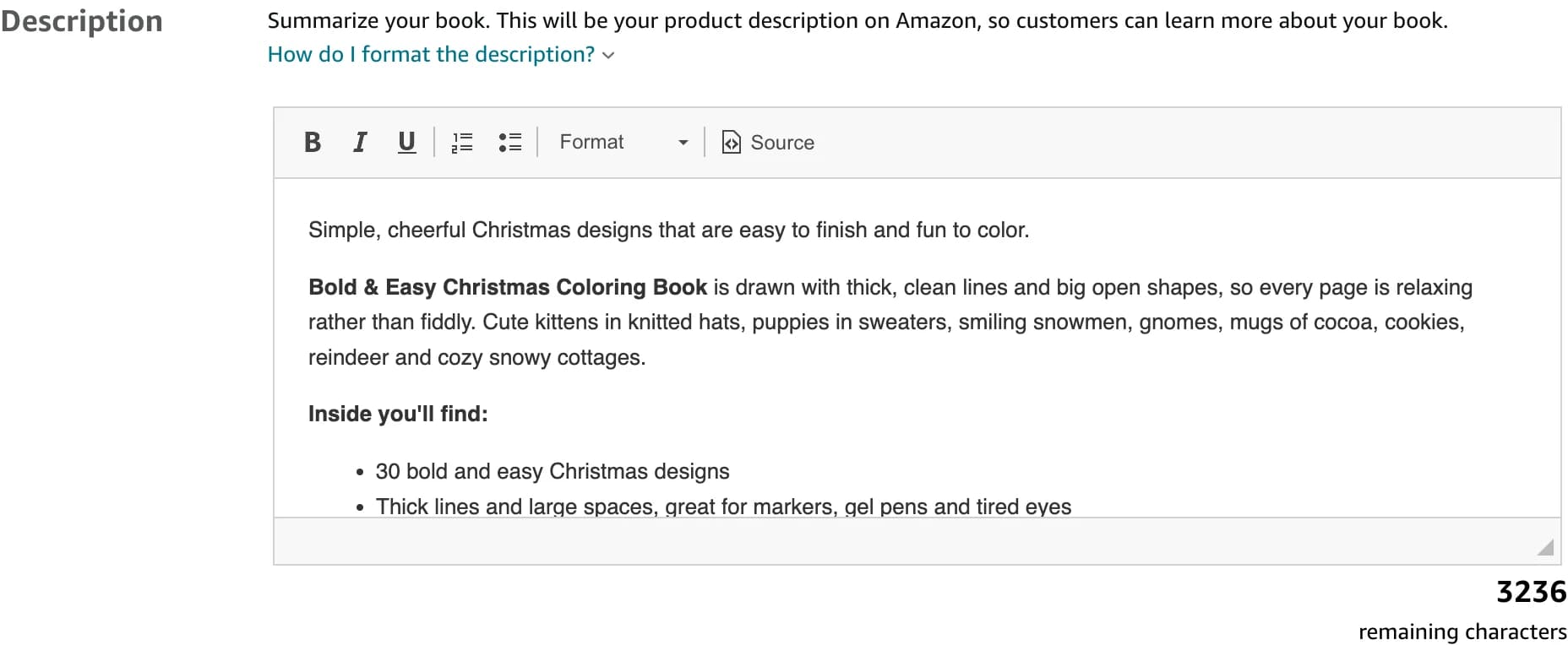
A description from the Listing Assistant, pasted into KDP. - 3
Publishing rights and audience
Under Publishing Rights, choose I own the copyright and I hold necessary publishing rights. Under Sexually Explicit Images or Title, choose No.
Reading age is optional: leave it blank for a book for adults, and set the minimum and maximum ages for a children’s book.
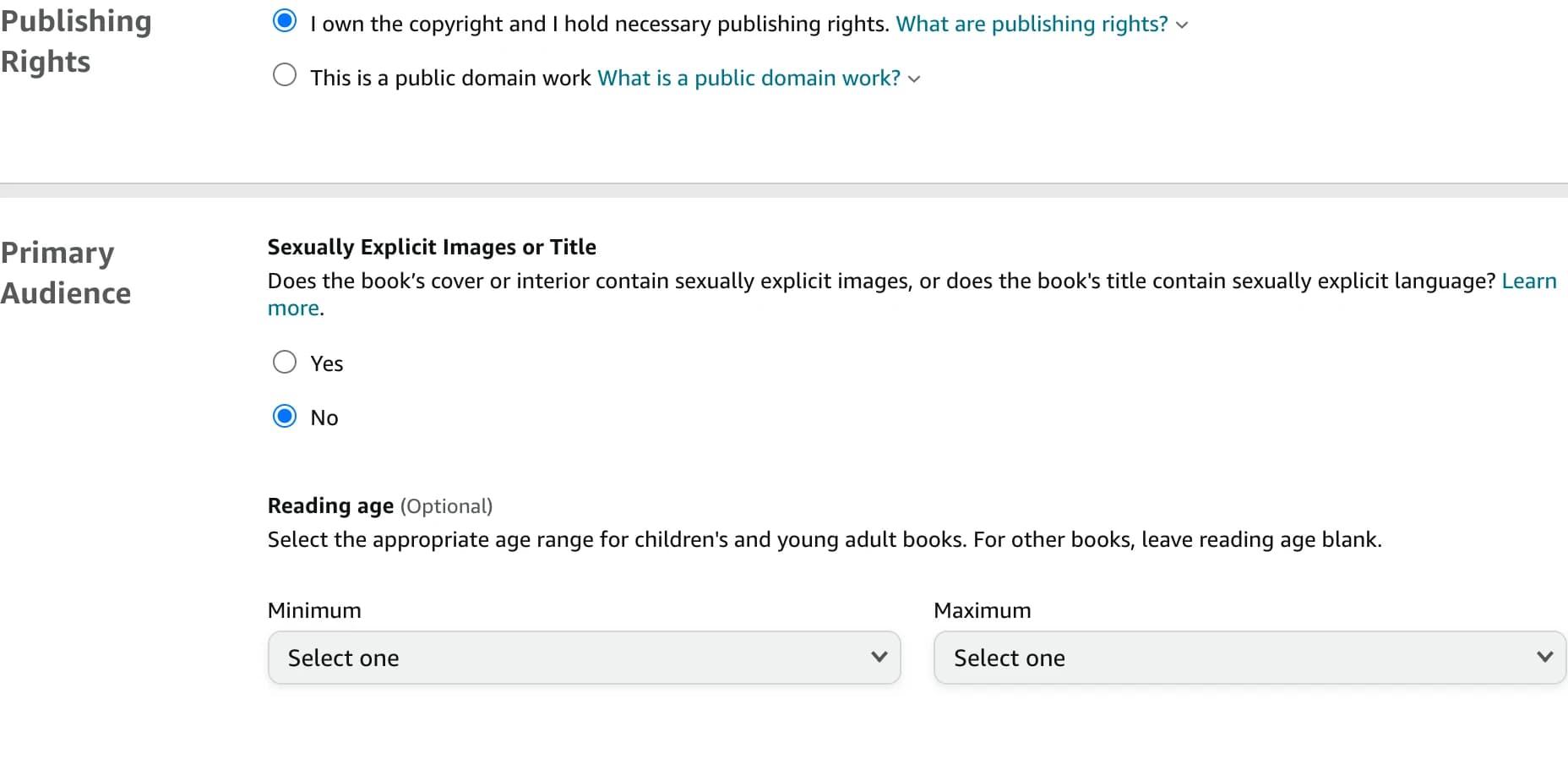
You own the rights; reading age stays blank for adult books. - 4
Categories
Under Categories, open the category picker and choose up to three placements. For an adult coloring book, start with Crafts, Hobbies & Home › Coloring Books for Grown-Ups, then the placement that fits — General, Animals and so on. There’s no holiday placement under Coloring Books for Grown-Ups, so for a Christmas or Halloween book use Crafts & Hobbies › Seasonal as one of the three.
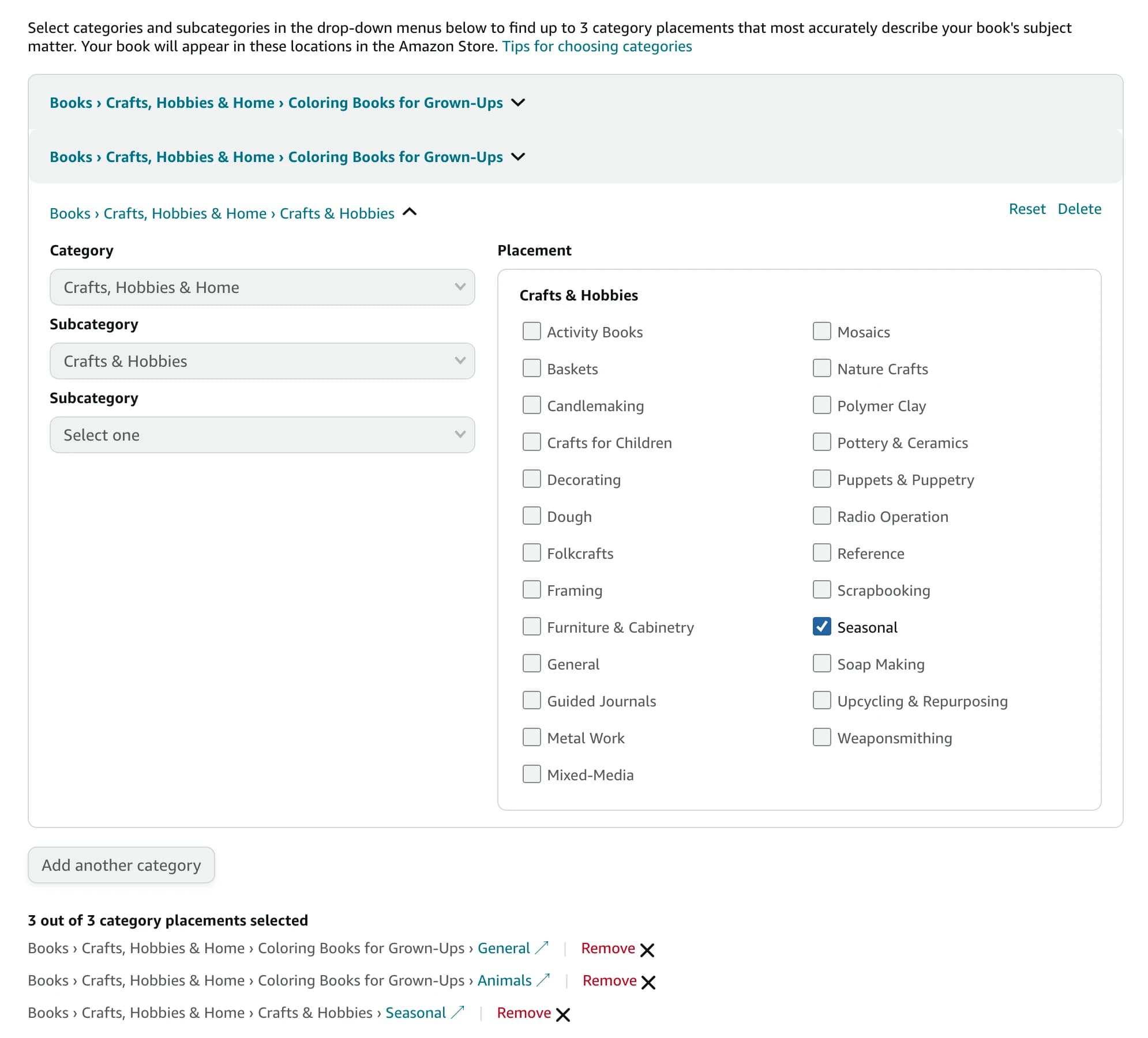
Three placements: two under Coloring Books for Grown-Ups, plus Seasonal. Below the categories, leave Low-content book and Large-print book unticked. A coloring book has pictures on every page, and large print is about text size.
- 5
Keywords
Fill the seven keyword boxes, up to 50 characters each. The Listing Assistant gives you 20 ranked ideas to choose from — pick phrases a buyer would actually type. Then click Save and Continue at the bottom of the page.
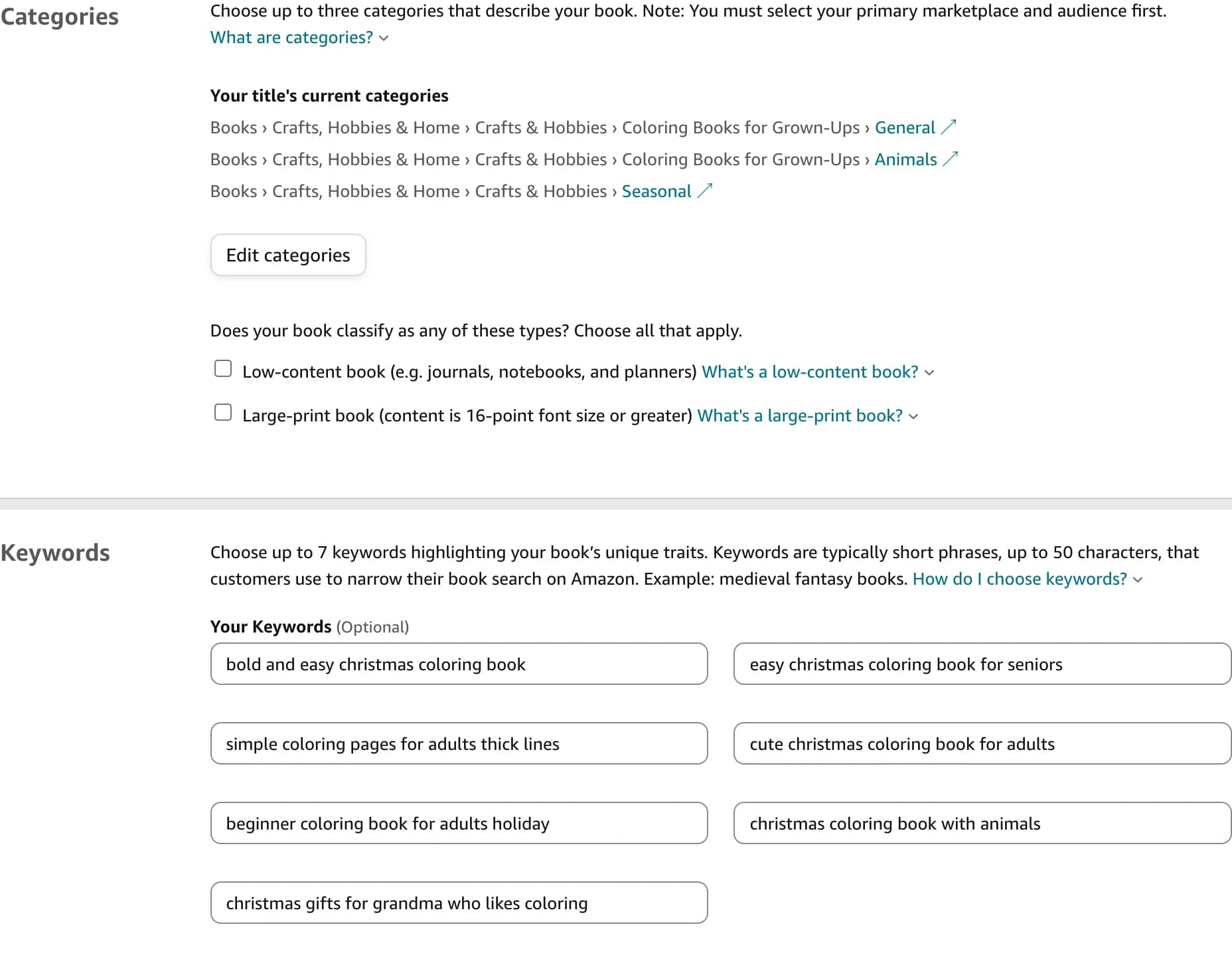
Categories saved, low-content and large-print unticked, seven keywords.


Step 3 — Paperback Content
- 1
Get a free ISBN
Under ISBN, choose Get a free KDP ISBN and click Assign ISBN. KDP asks you to confirm: a free KDP ISBN is permanent for this book and can only be used on KDP.

Confirm with Assign ISBN. 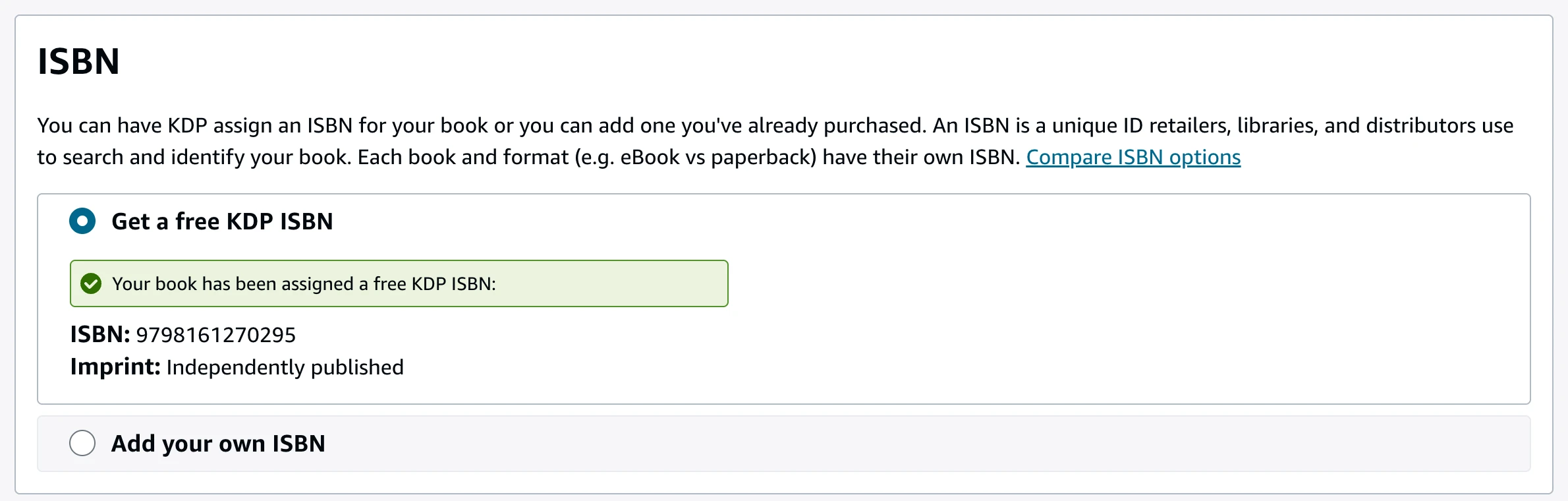
The ISBN is assigned straight away. - 2
Print options
These must match the files you exported:
- Ink and Paper Type — the same ink and paper the cover was built for. For a coloring book, that’s Black and white interior with white paper. Paper changes the spine width, so a cover built for white paper won’t fit cream.
- Trim Size — your book’s size, for example 8.5 x 11 in.
- Bleed Settings — choose Bleed (PDF only). This is required: ColorCraft exports in the bleed format, and KDP rejects the file under No Bleed.
- Cover Finish — Matte or Glossy, whichever you prefer.
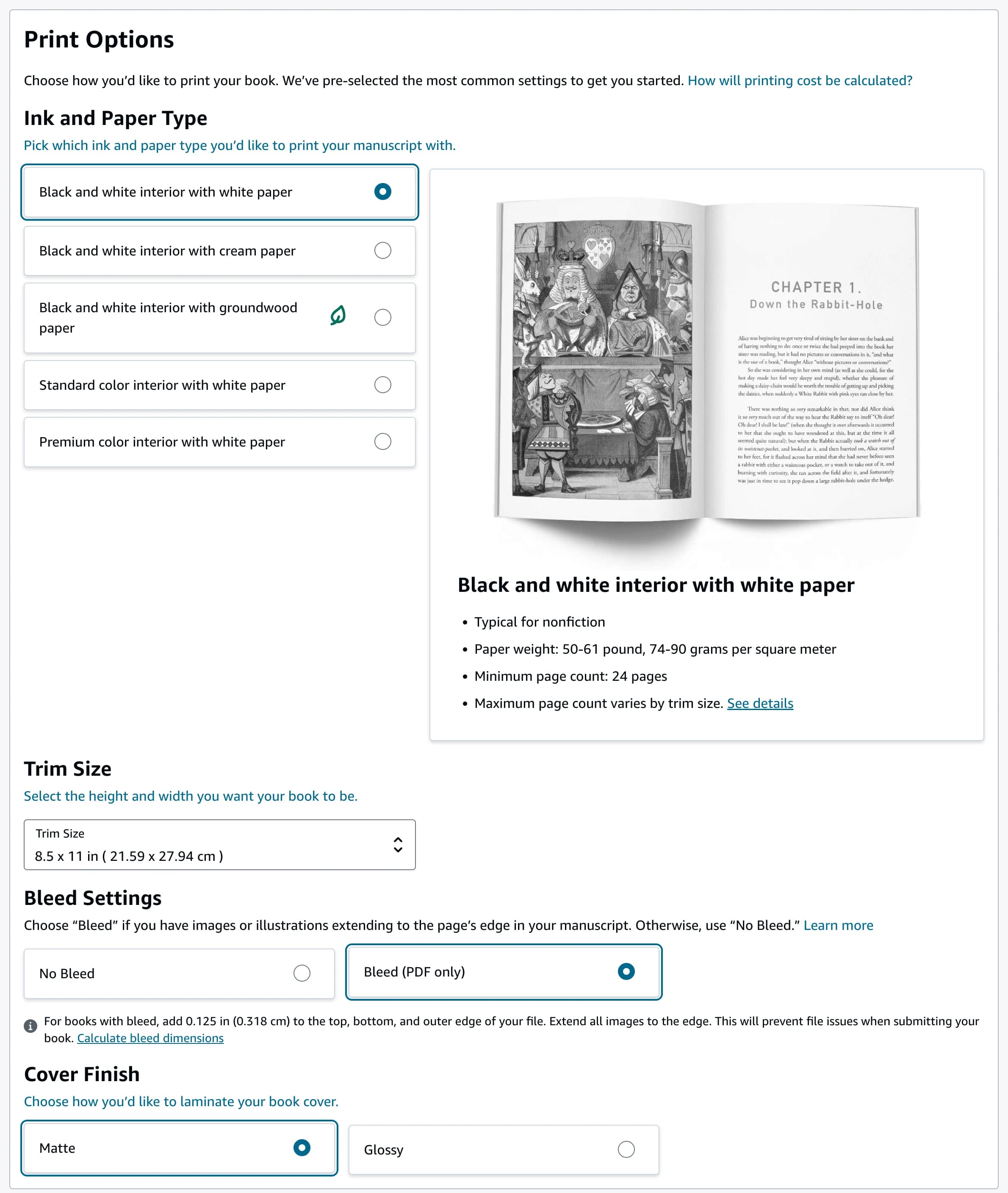
Black and white on white paper, your trim size, Bleed (PDF only). - 3
Upload the manuscript
Under Manuscript, click Upload manuscript and choose your interior PDF. Wait for the green “uploaded successfully” message before moving on.
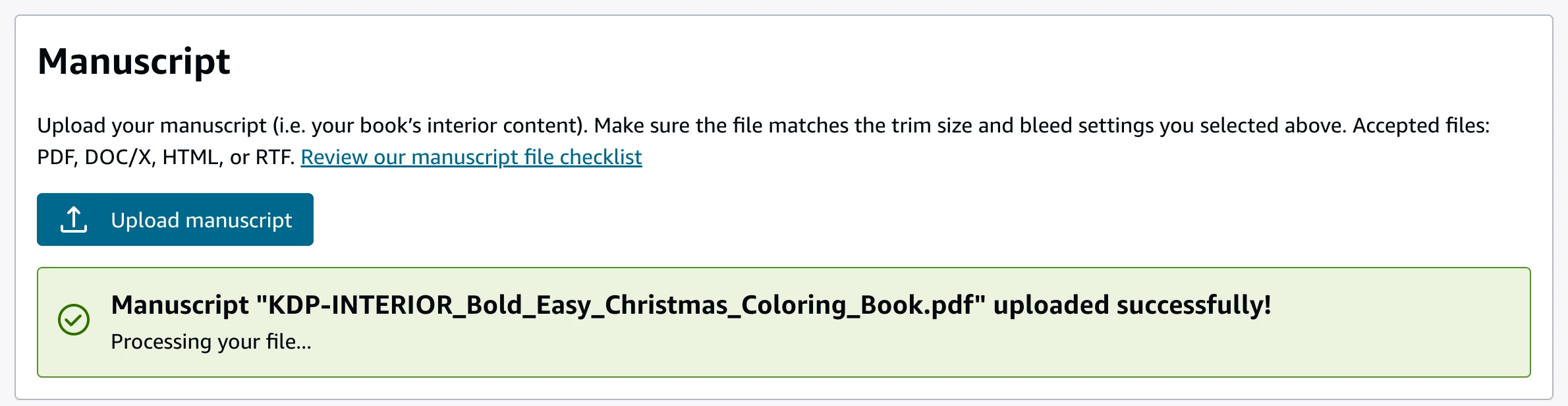
The interior goes in Manuscript — note the KDP-INTERIOR file name. - 4
Upload the cover
Under Book Cover, choose Upload a cover you already have (print-ready PDF only), click Upload your cover file and choose your cover PDF.
Leave Yes, my cover has a barcode unticked. KDP then prints its barcode on the back, in the white box ColorCraft keeps clear for it.
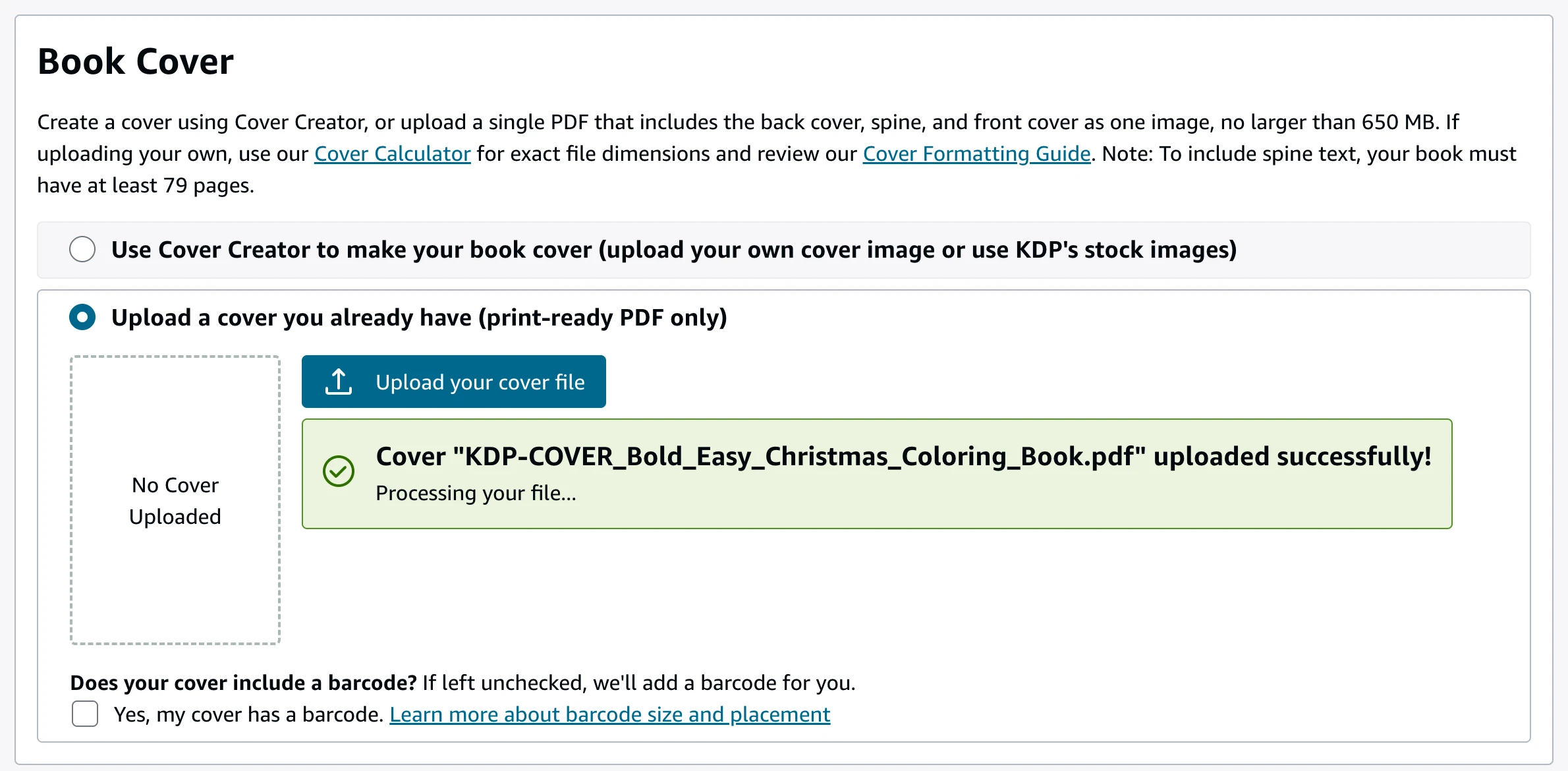
The cover PDF in Book Cover, with the barcode box left unticked. - 5
AI-generated content
KDP asks whether you used AI tools for texts, images or translations. Choose Yes, then:
- Images — Many AI-generated images, with minimal or no editing (or the option that matches how much you changed them). For the tool, enter ColorCraft.
- Texts — if ColorCraft’s Listing Assistant or another AI tool wrote your description, back-cover blurb or story, say so and pick the option that fits (for example Some sections, with minimal or no editing). If you wrote every word yourself, choose None.
- Translations — None.


Step 4 — Check the book in the Print Previewer
- 1
Launch Previewer
Under Book Preview, click Launch Previewer. It needs a browser window at least 1200 × 600 pixels — on a small laptop, make the window full-screen. KDP then takes a few minutes, showing Preparing your files…, Checking your manuscript… and Checking your fonts….
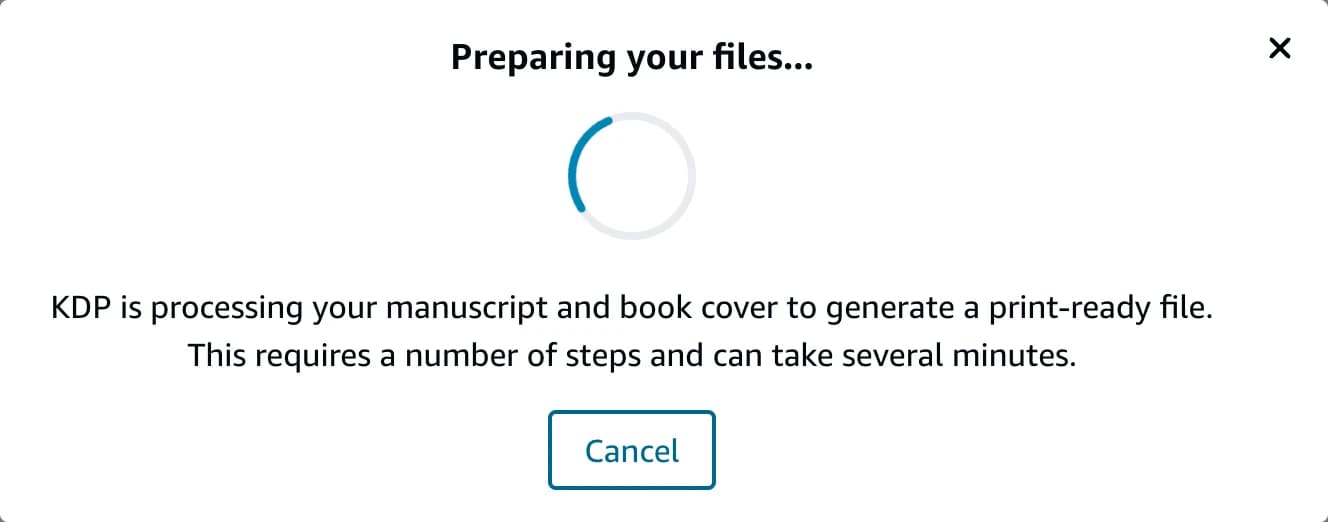
Processing takes a few minutes. - 2
Check the cover
The previewer opens on the cover (see the picture at the top of this page). Check that KDP’s barcode sits inside the white box on the back, that nothing important is cut off at the edges, and that the spine looks right.
- 3
Page through the interior
Use Page Range (or Thumbnail View) to go through every page. In a single-sided book, each design sits on a right-hand page with a blank page facing it. Keep Guides ticked: the dashed lines show KDP’s margins, and your pictures should sit inside them. The Quality Check panel on the left lists anything KDP flags.
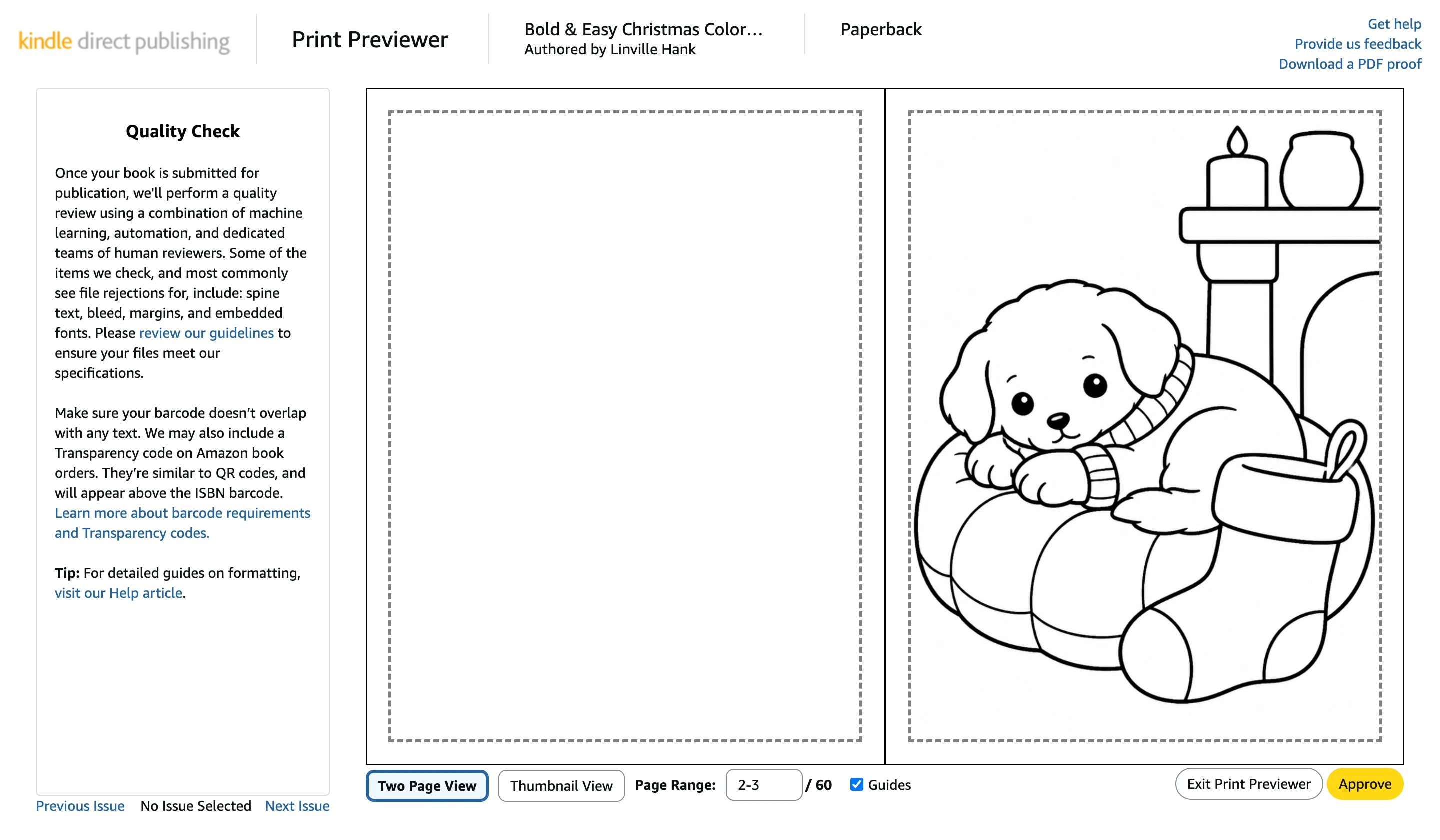
Single-sided: a blank back on the left, the design on the right. - 4
Approve
When the cover and every page look right, click Approve (bottom right). If something is wrong, click Exit Print Previewer, fix it in ColorCraft, export again and re-upload the file — see Troubleshooting. Then click Save and Continue.


Step 5 — Rights & Pricing, then submit
- 1
Territories and marketplace
Under Territories, choose All territories (worldwide rights) — you own the rights to your book everywhere. Under Primary marketplace, choose the Amazon store where you expect most sales, such as Amazon.com.

All territories (worldwide rights) is the usual choice. - 2
Set the list price
Enter a list price for your primary marketplace. KDP shows the printing cost and your royalty for each marketplace as you type. The royalty rate depends on the list price, so check the figure KDP shows rather than assuming one (KDP explains it on its paperback royalty page). To try prices before you start, use our free KDP royalty calculator.
Expanded Distribution (bookstores and libraries) is optional. It pays a lower royalty, so it often needs a higher list price to earn anything.
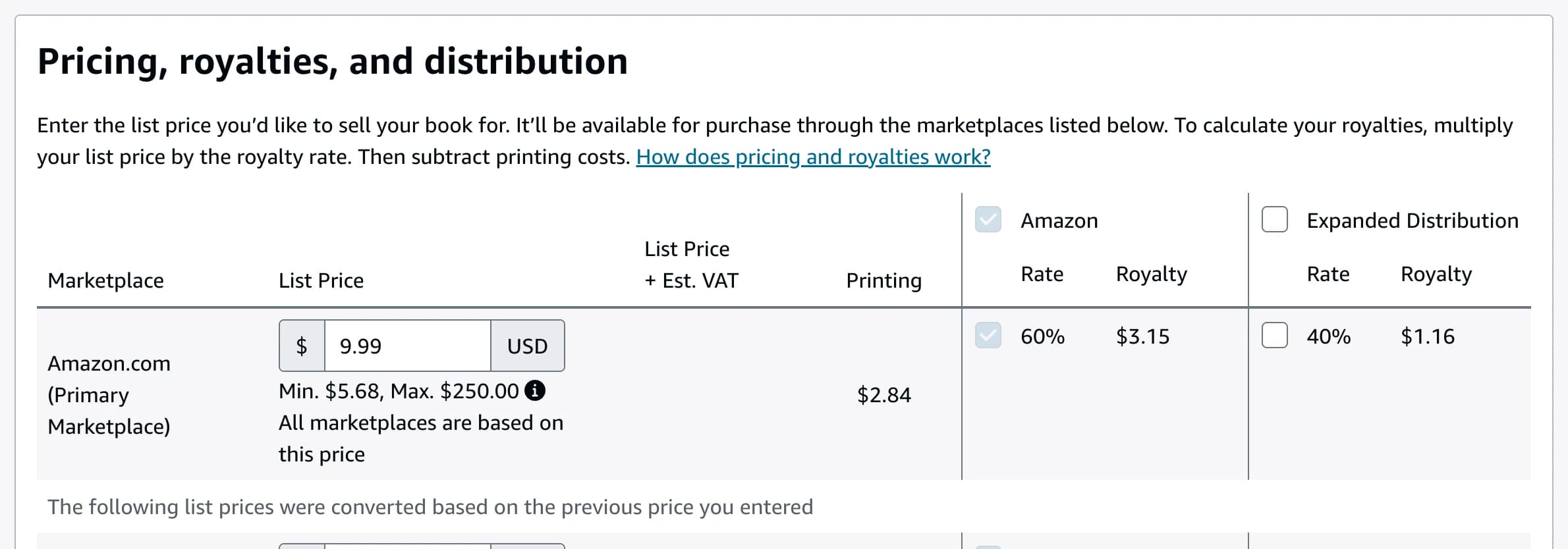
A 60-page 8.5 x 11 coloring book at $9.99: KDP shows printing and your royalty per marketplace. - 3
Click Publish
Click KDP’s Publish button at the bottom of the page. Your book shows as In review on the Bookshelf. KDP’s review takes up to 72 hours; you’ll get an email when the book is live, or when something needs fixing.


Checklist
- Single-sided set (if you want blank backs) before the final export.
- Interior exported, then the cover exported for the same page count.
- Under 80 pages: no spine text (the cover editor leaves it off).
- Files renamed KDP-INTERIOR_… and KDP-COVER_….
- Title, subtitle and author match the cover.
- Black and white interior with white paper, your trim size, and Bleed (PDF only).
- Interior in Manuscript, cover in Book Cover, barcode box unticked.
- AI-generated content: Yes.
- Cover and every page checked in the Print Previewer.
- Royalty checked at your list price.
Troubleshooting
- “Your expected cover size is 17.430x11.250 but the submitted file size is 8.625x11.250” (or similar): the submitted size is a single page, so the interior was uploaded as the cover. Under Book Cover, upload the KDP-COVER file instead.
- The cover size is off by a little (for example KDP expects 17.43 and the file is 17.385): the cover was built for a different page count or paper. Check Designed for in the cover editor, make sure the paper on KDP is white, export the cover again and re-upload it.
- KDP says the manuscript’s page size is wrong: check that Bleed (PDF only) is selected and the trim size matches your book. If it still fails, export the interior again — files exported before ColorCraft supported bleed are too small.
- KDP flags spine text on a book under 80 pages: the cover was exported before ColorCraft left it off. Export the cover again and re-upload it.
- The Quality Check flags a page, or art runs outside the dashed guides: fix that page in the editor, export the interior again and re-upload the manuscript. If you changed the page count, export the cover again too.
- The Print Previewer won’t open: make the browser window at least 1200 × 600 pixels.
- The back of the cover has no barcode: you ticked Yes, my cover has a barcode. Untick it so KDP adds its own in the white box.
- You can’t create another paperback: you may have reached KDP’s weekly limit on new titles. Try again after it resets.
Get your book ready for KDP
Export the interior and cover PDFs from ColorCraft, then follow this guide.