Puzzle books
Sudoku
Make a whole book of Sudoku puzzles, with a matching solutions section, from one settings screen. Puzzles come from a Sudoku engine, not AI, and every puzzle ships with its solution.
At a glance
- Cost: each puzzle uses 1 page from your balance. Solution pages are free, and so is exporting. The free trial (card required) includes 40 pages.
- Size: 1 to 100 puzzles per book, four difficulty levels, four KDP trim sizes.
- What you get: one page per puzzle, then the solutions. You can print solutions one, four, or nine to a page.
- Where it lands: the standard editor, ready to review and export.
Make a Sudoku book
- 1
Open the Sudoku wizard
In the left menu, click Book Generation to expand it, then click Sudoku Books. You can also start from Paige’s product chooser: under Puzzle books, click the Sudoku card and then Next.
Both routes open the Sudoku settings screen. A coloured bar across the top shows Paige · Sudoku, your book title, and how many puzzles you’ve picked.
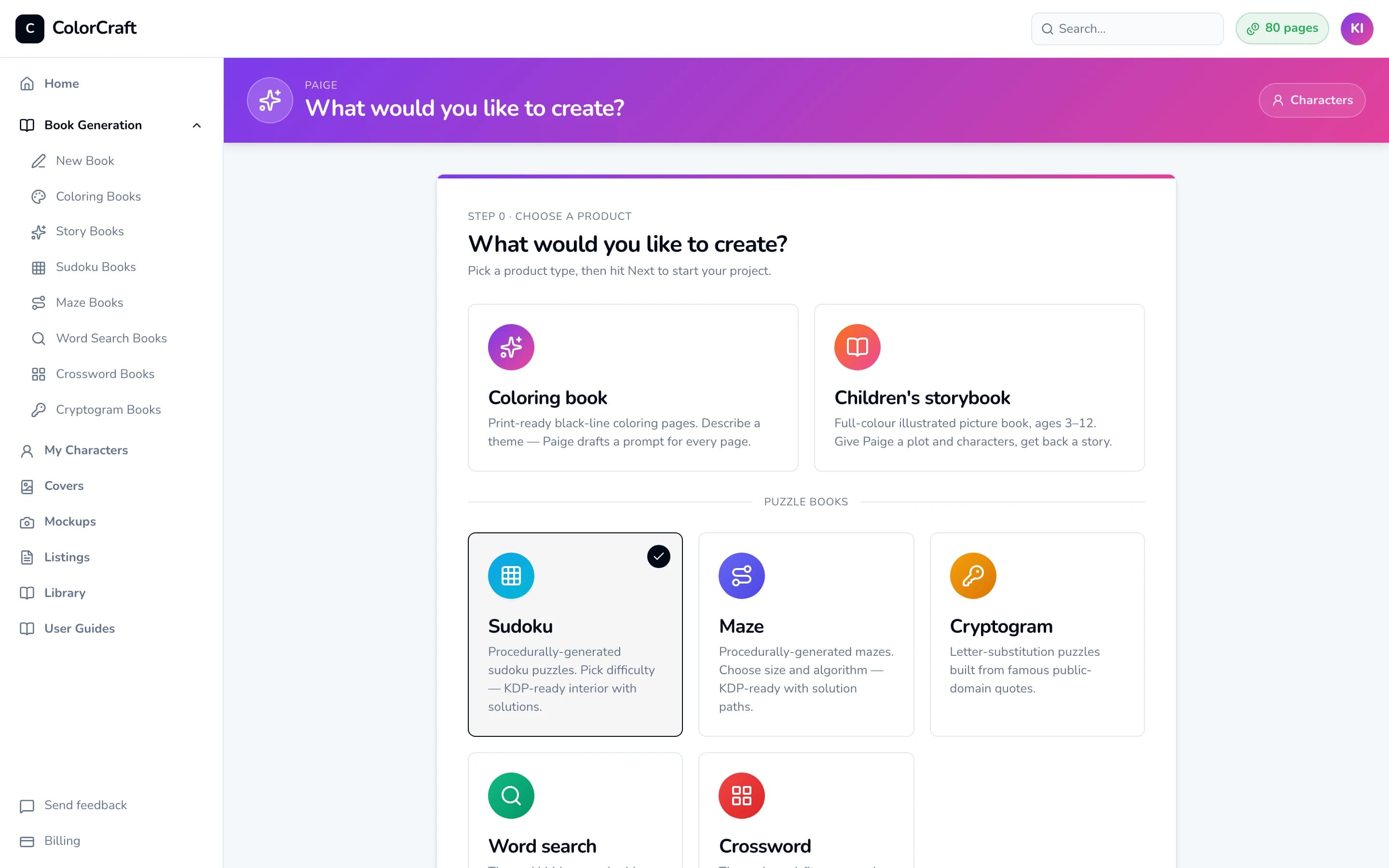
The Paige chooser lists every puzzle type under Puzzle books. Pick one, then click Next. - 2
Name the book and pick how many puzzles
In Project title, type your book’s working title (up to 100 characters). It starts as “Sudoku Volume 1”, and you can rename it later in the editor.
Under Number of puzzles, click 10, 20, 30, 50, or 100. You can also type any number from 1 to 100 in the box after “or”, or drag the slider. The line underneath confirms the price and your balance: “Each puzzle uses 1 page. Solutions are free. You have N pages.”
- 3
Choose a difficulty
Under Difficulty, pick Easy (~40 blanks), Medium (~50 blanks, the default), Hard (~55 blanks), or Expert (~58 blanks). The blank count is how many of the 81 squares start empty. The whole book uses the level you pick.
A sample grid on the right redraws whenever you change the level. Click New sample to see another example. The sample is free.
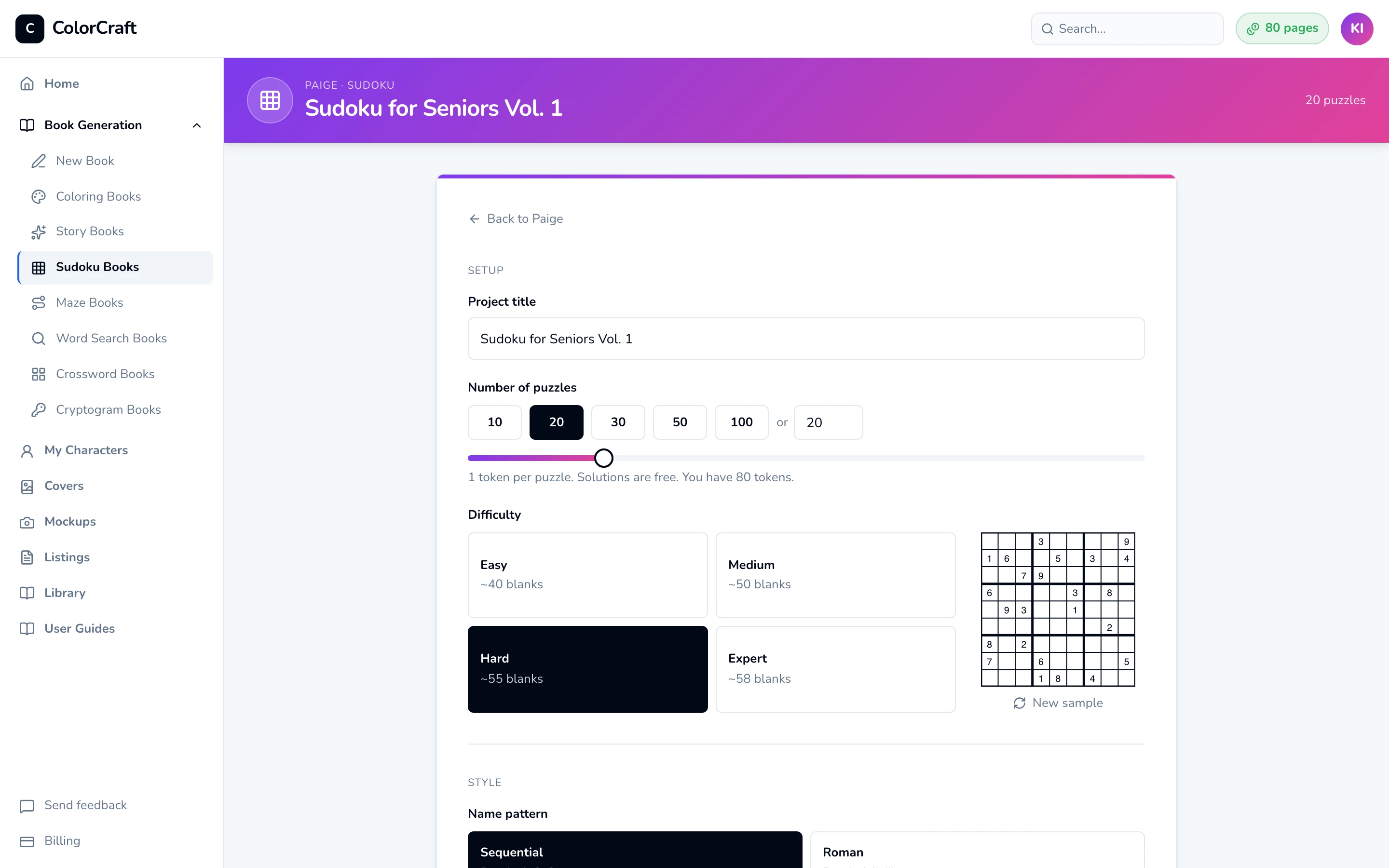
The Setup section with Hard selected. The sample grid shows what a Hard puzzle looks like before you spend anything. - 4
Pick the solutions layout and trim size
Scroll down to Solutions per page and choose 1 per page (full size, easiest to read), 4 per page (a 2×2 grid that saves paper), or 9 per page (a 3×3 grid, most compact). For Sudoku you can change this later from the editor’s sidebar.
Under Trim size, pick the size you’ll publish at on KDP: 8.5 × 11 (the default), 8 × 10, 7 × 10, or 6 × 9 inches.
Name pattern sets how pages are numbered: Sequential (“Puzzle 1”, “Puzzle 2”, …) or Roman (“Puzzle I”, “Puzzle II”, …); solutions follow the same pattern. Font sets the typeface for the puzzles and solutions: Helvetica, Times or Courier. The PDF embeds a matching open font (Arimo, Tinos or Cousine) so KDP accepts the file.
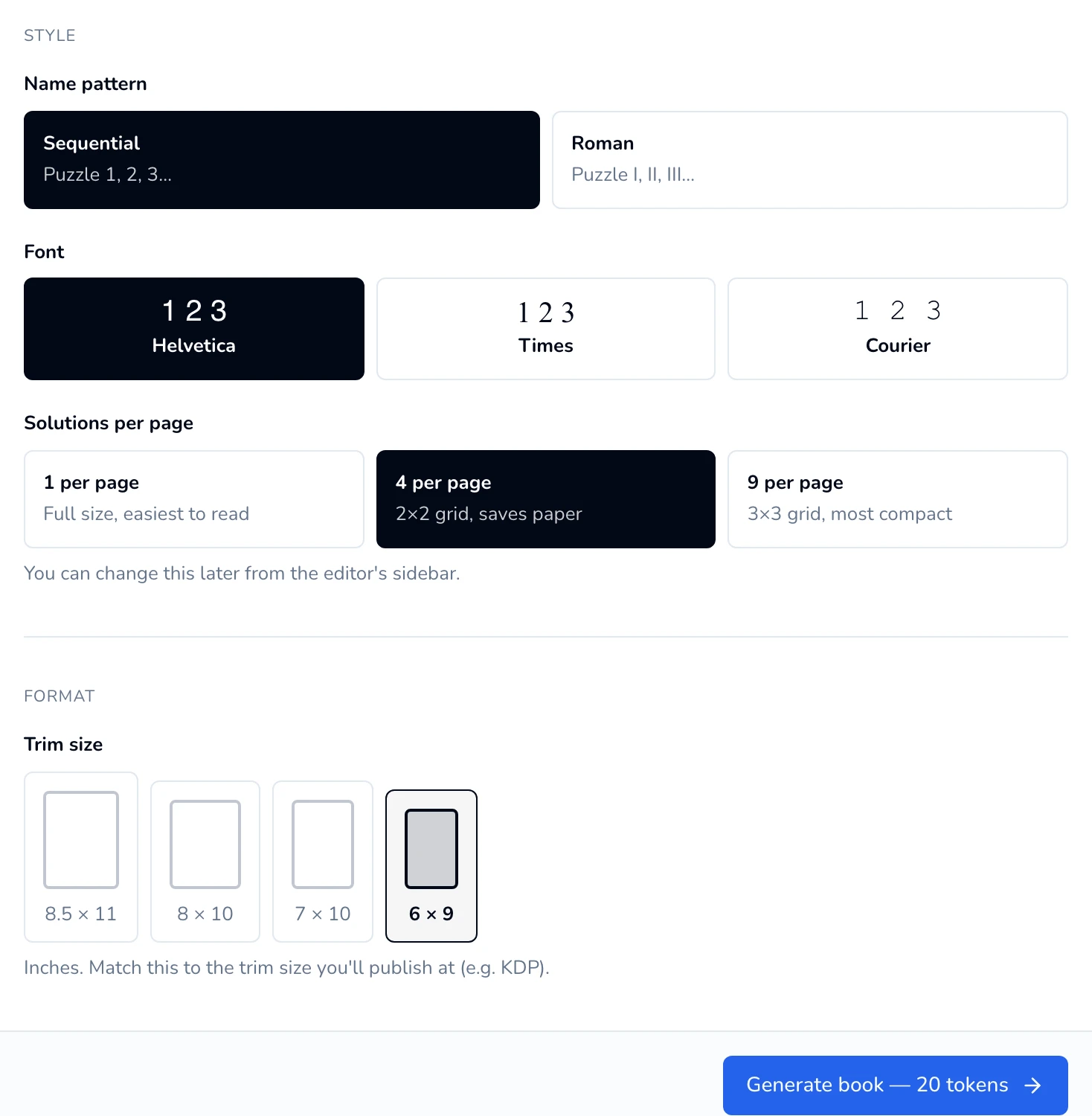
Here 4 per page and the 6 × 9 trim are selected. The button at the bottom always shows the book's price. - 5
Generate the book
Click Generate book — uses N pages at the bottom of the card. The button changes to “Generating…” and a progress bar shows how many puzzles are done.
Keep this tab open until it finishes. Easy and Medium books take a few seconds. Hard and Expert puzzles take a few seconds each, so a big Expert book can take a few minutes.
When it’s done you’ll see “Puzzle book generated” and go straight to the editor. Each puzzle made uses 1 page from your balance.
- 6
Review the book in the editor
The editor opens on Puzzle 1. The page strip along the bottom holds every puzzle first, then the solution pages. If you chose 4 or 9 per page, the solutions are grouped into one tile per printed page (for example “Sol 1–4”).
Puzzle pages can’t be edited: you can’t move the grid or add text or pictures to them. You can drag pages in the strip to reorder them; the numbering updates on its own. You can also add a frame from the right sidebar’s Border section.
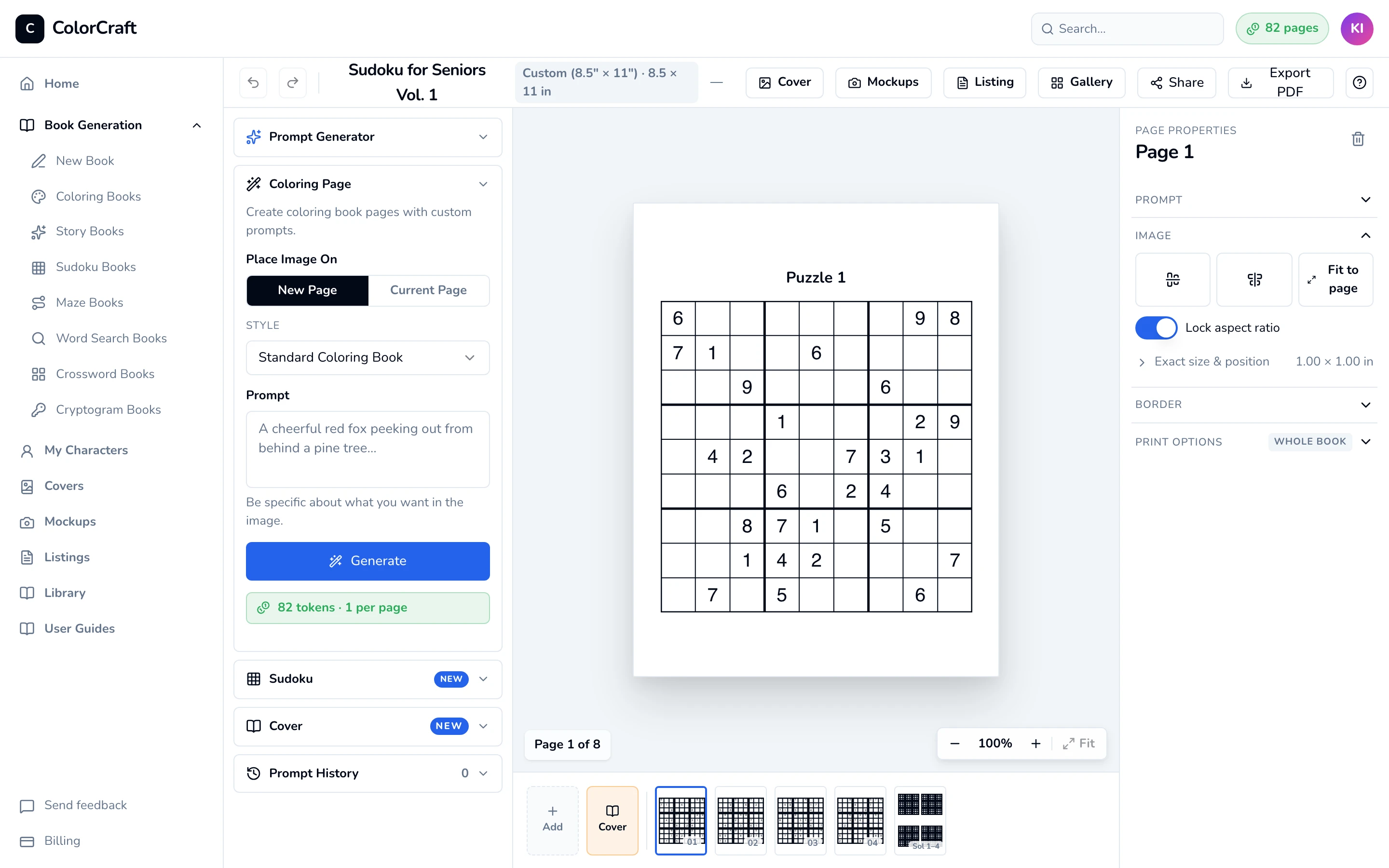
A 4-puzzle book in the editor, open on Puzzle 1. The Sudoku panel is open on the left. 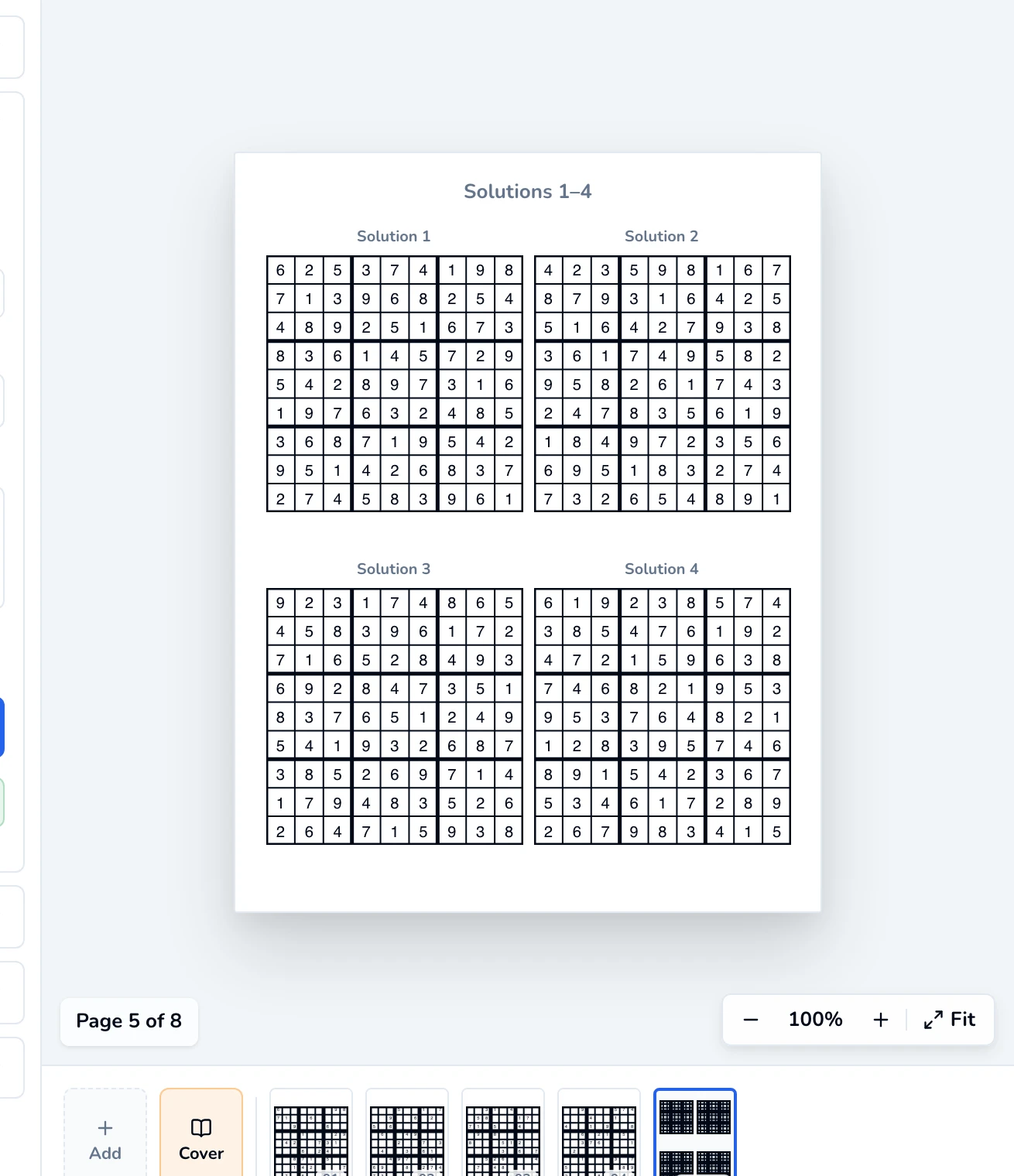
With 4 per page, four solutions share one printed page. - 7
Add puzzles or change the solutions layout (optional)
In the left sidebar, click Sudoku to open its panel. The Coloring Page panel is open by default, so you may need to click Sudoku first.
- Solutions per printed page: click 1, 4, or 9. This is free, applies to the whole book, and the editor and PDF update together.
- To add more puzzles, pick a Difficulty, choose How many (1, 5, 10, 25, 50, or type up to 50), and click Add to book. The line above the button shows the price, e.g. “Adds 5 puzzles + 5 solutions. Uses 5 pages.”
In the editor, new puzzles appear after your existing solution pages. The exported PDF still prints every puzzle first and every solution after.
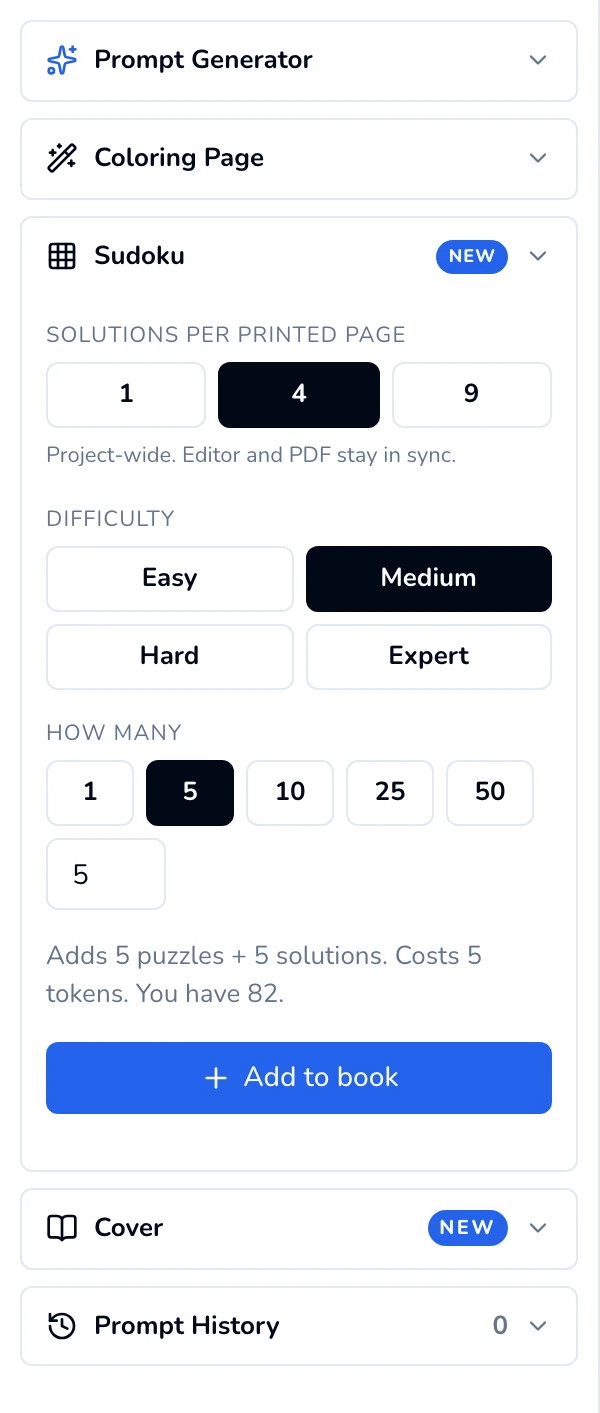
The Sudoku panel in the editor's left sidebar. - 8
Export the PDF
Click Export PDF in the top bar. The PDF prints every puzzle, then a page titled Solutions, then the solutions in the layout you chose. Exporting doesn’t use your balance. After a print-ready export, the Upload to Amazon KDP guide opens with the settings to use on KDP.
Trial downloads are watermarked previews. The print-ready file comes with your plan, or unlock one book for $24.


Plan your page count
KDP paperbacks need at least 24 interior pages. Your exported page count is the number of puzzles, plus 1 for the Solutions title page, plus the solution pages. That’s one per puzzle, or a quarter or ninth as many when packed. The total is rounded up to an even number.
- 20 puzzles, 4 solutions per page: 20 + 1 + 5 = 26 pages, using 20 from your balance.
- 12 puzzles, 1 solution per page: 12 + 1 + 12 = 25, printed as 26 pages, using 12 from your balance.
- 50 puzzles, 9 solutions per page: 50 + 1 + 6 = 57, printed as 58 pages, using 50 from your balance.
If something goes wrong
“This book needs N pages; you have M.”

- Generate book is greyed out with no message. The Project title is empty. Type a title.
- “Generation failed” with “Start your free 7-day trial to use puzzle books…” Puzzle books need an active trial or plan. Start the trial, then come back.
- “Your free trial has ended. Choose a plan to keep using puzzle books.” Pick a plan on the Billing page, then try again.
- “Your last payment didn’t go through.” Update your card on the Billing page.
- You closed the tab, or the connection dropped, mid-way. The browser tab drives generation, so it stops. The book already exists on your dashboard with the puzzles that finished, each with its solution. You were only charged for those. Open it and use the Sudoku panel’s Add to book to make up the rest.
- “Could not add sudokus” with “Puzzles cannot be added to a storybook.” Storybooks don’t take puzzle pages. Add sudoku to a coloring book or a Sudoku book instead.
Build a Sudoku book
Pick a difficulty and how many puzzles. The solutions section is built for you.
ColorCraft’s 7-day trial needs a card.