Paige (AI assistant)
Paige for comic books
Paige turns an idea into a comic book of 8 to 48 pages. You choose who it’s for, the art style and the characters. Paige writes the story panel by panel, you read it and change anything you like, and then Paige draws every page and letters the speech balloons. The finished comic opens in the editor, where every panel and every line stays editable.


Before you start
- An active free trial (card required) or subscription. A new trial includes a balance of 40 pages, enough for a 20-page comic.
- Characters are optional, up to 8. Saved characters stay consistent from panel to panel, because their photos or picked look are the reference. You can create them inside the wizard, or set them up first in My Characters.
- Each drawn comic page uses 2 pages from your balance, however many panels it has, so an 8-page comic uses 16 pages. Your balance has to cover the whole comic before it starts. Writing and rewriting the story is free.
Your work is kept in this browser
Step by step
- 1
Open the comic wizard
In the left menu, click Book Generation, then Comic Books. Or go to /paige/new, click Comic book, then Next.
At the top, choose how to make it: Paige writes it (this guide) or I’ll make it myself, which starts you on blank pages (see Make it yourself below).
- 2
Say what it's about and who it's for
Under What’s your comic about?, write a sentence or two: who, where, what goes wrong and how it ends. The more you say, the closer Paige follows you; you can even list what happens on each page.
Under Who is it for?, pick Ages 6–8, Ages 9–12, Ages 13–17, and Adults. It sets the reading level and what the action may show: teen and adult comics can have fights, chases and crashes, but nothing is ever gory.
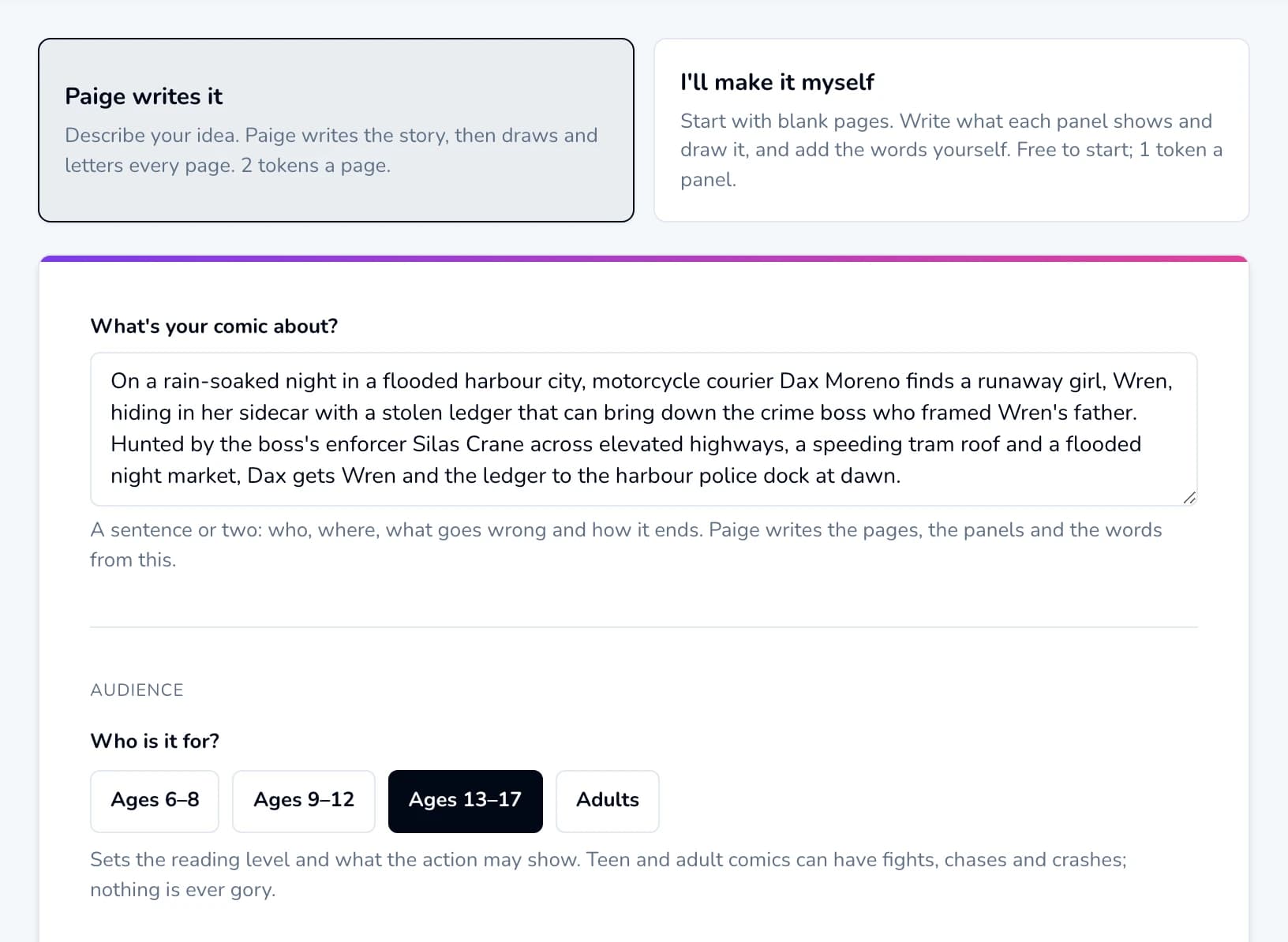
Start with the idea and the readers. - 3
Pick an art style
Under Pick a style (required), click one of the 6 styles: American action, Kids' cartoon, Manga, black & white, Manga, colour, Clean line, and Painted graphic novel. Each card says the ages it usually suits. Every panel, the cover and the lettering follow this style, and it can’t change once drawing starts.
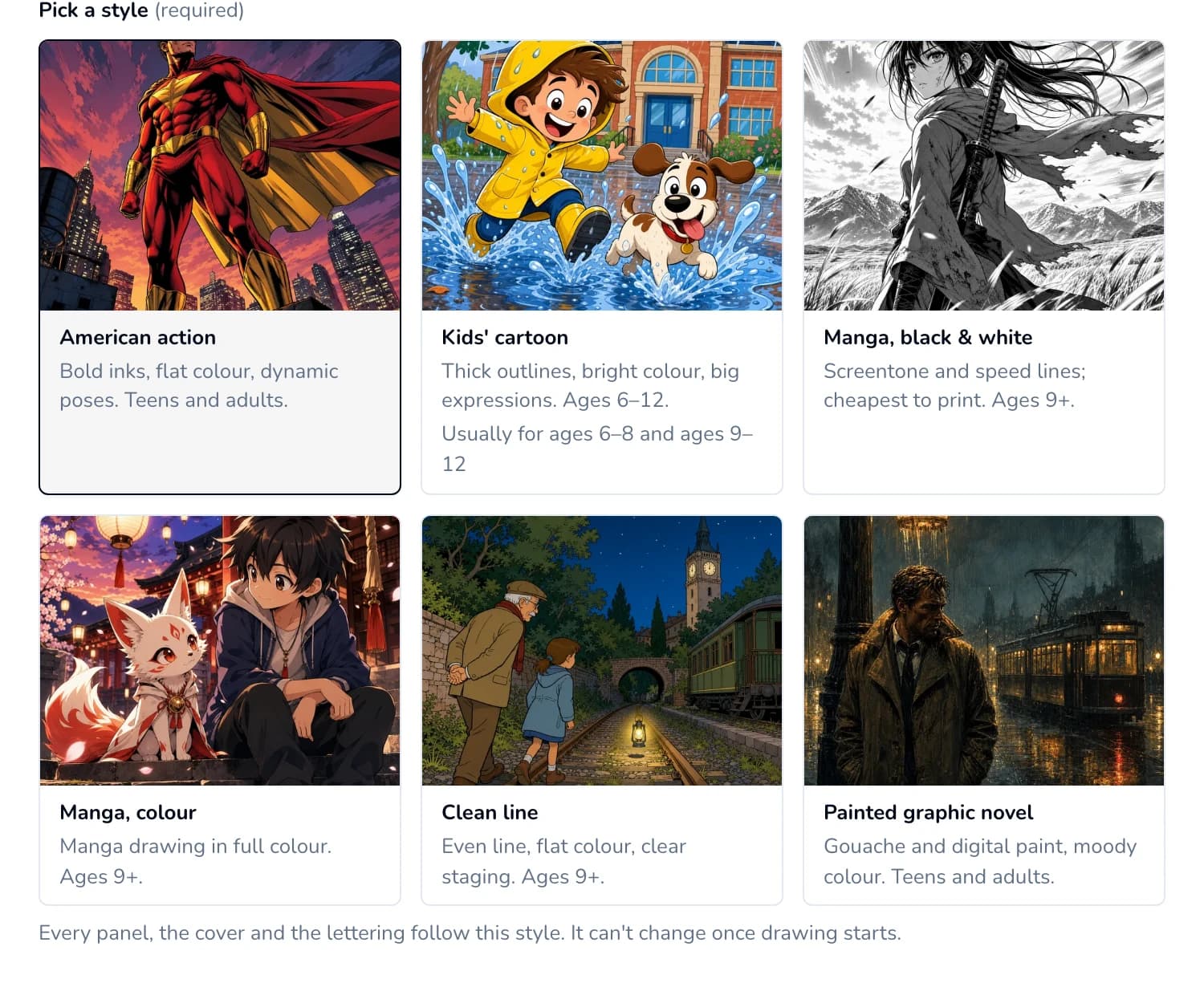
- 4
Optional: title, genre, tone and characters
Open More options. Its summary line shows what’s set so far.
- Title: leave it empty and Paige suggests one.
- Genre: Superhero, Sci-fi, Fantasy quest, Mystery, Slice of life / humour, Spooky (PG), Sports, and Fairy tale retold; leave it and Paige picks the one that fits. Tone is optional too.
- Characters: Add from library, Create new or Add a cast set. A new character needs a name and a description; click Generate 3 looks, click the one you like and Save character. A saved character with no look in this comic’s style shows Needs a look: click it to choose one. Give each a Role if you like.
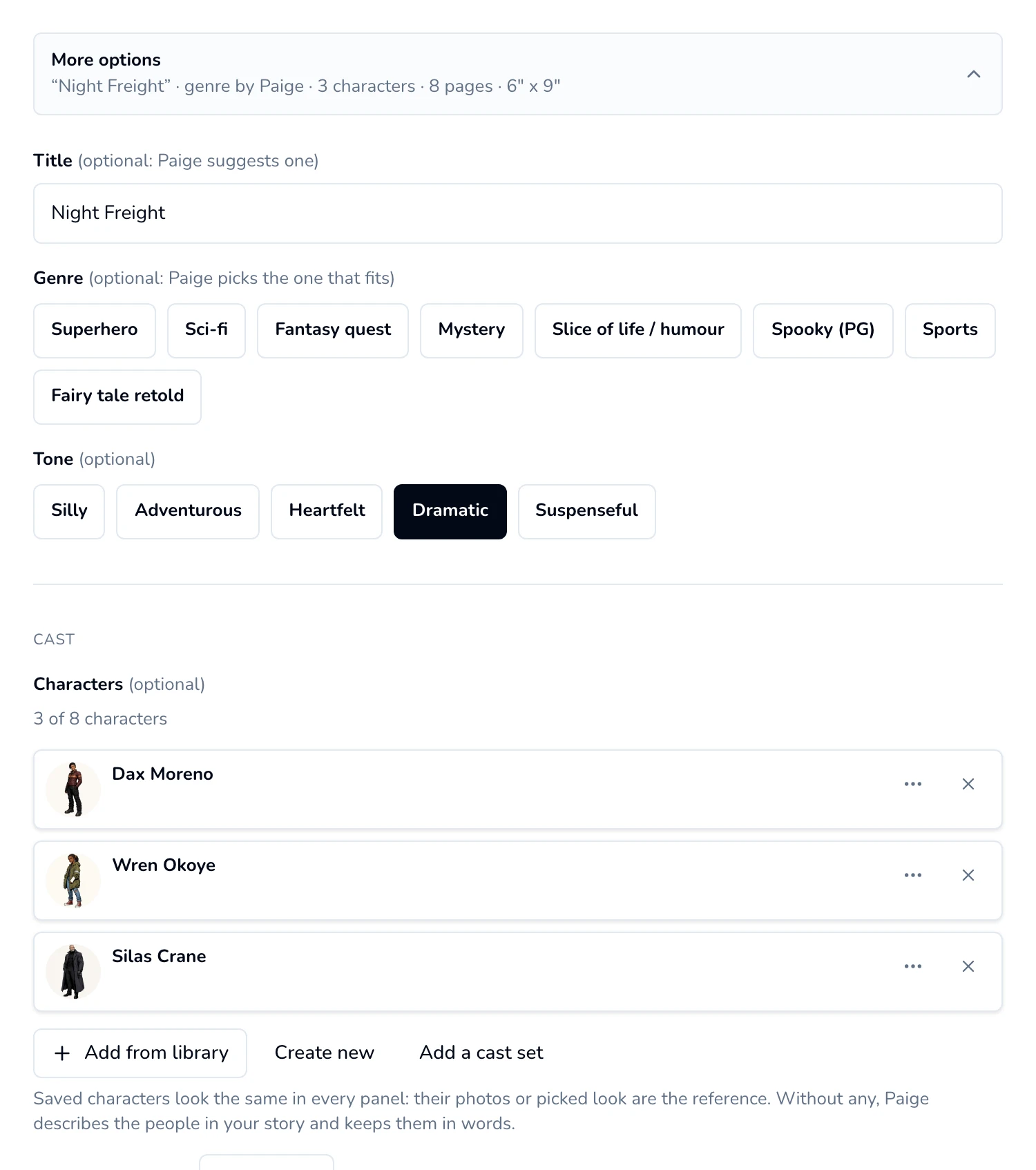
Characters you create here are saved to My Characters too. - 5
Choose the length, the panels and the size
- Page count: 8 to 48 pages, an even number for print. KDP paperbacks need at least 24 interior pages, so choose 24 or more for a KDP paperback.
- Panels per page: Light · 2–3 panels a page, Standard · 3–5 panels a page, and Dense · 5–6 panels a page. It changes how the pages look, not what they cost.
- Trim size: 6 × 9, 7 × 10, and 8.5 × 11 inches. 6 × 9 suits manga-style digests; 7 × 10 and 8.5 × 11 suit kids’ comics.
- Leave Draw pages … first ticked to see two finished pages before the rest are drawn. Only those two come out of your balance until you continue.
The bar at the bottom shows the page count and what it uses from your balance. Click Write the story (it names the page count). Paige takes a minute or two for a short comic and several minutes for a long one; keep the tab open until the story appears.
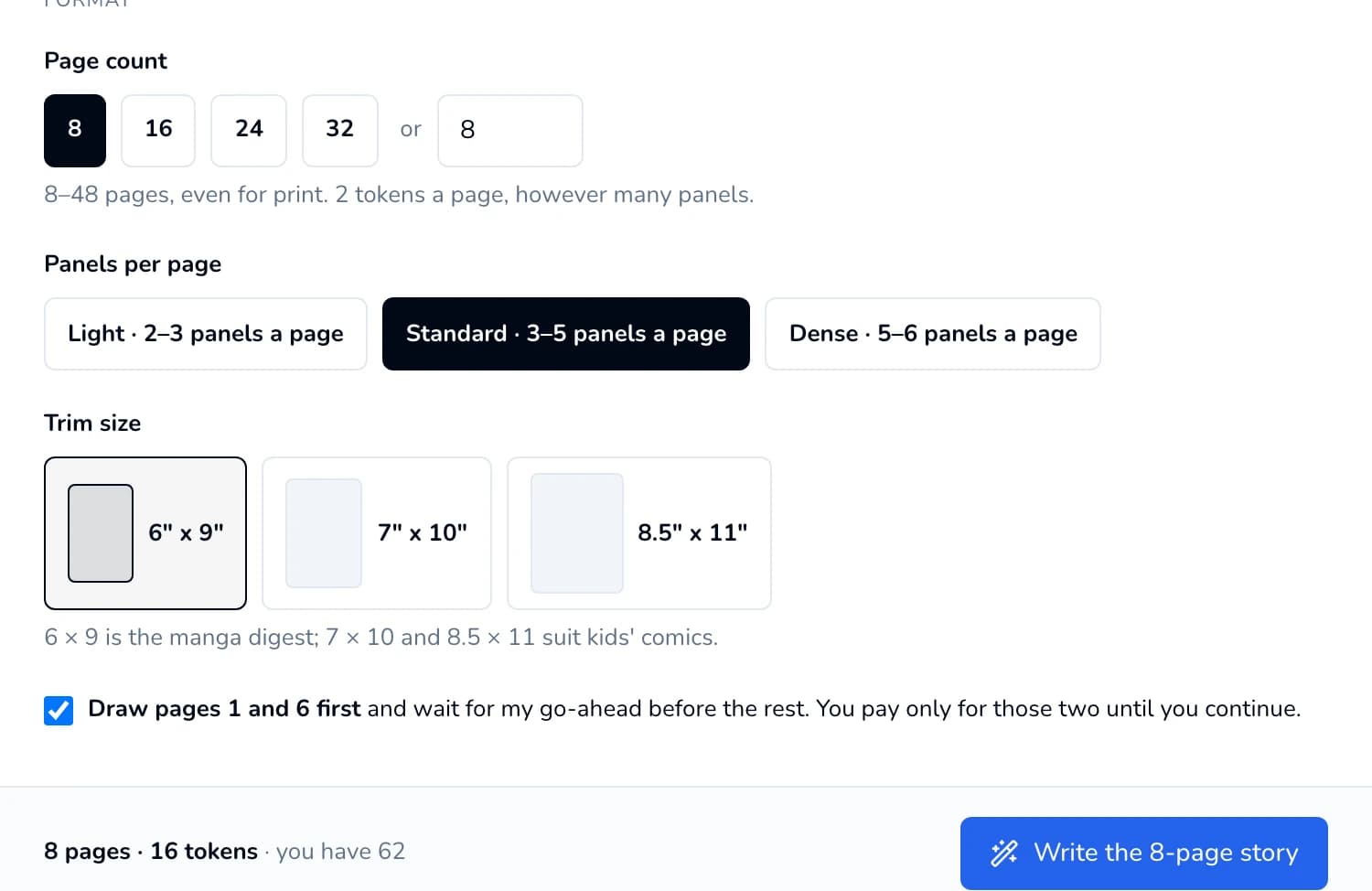
- 6
Read the story and change anything
Review your story opens with the title, the genre and the Story plan: the problem, the turning point and the resolution. Before you see it, Paige checks the whole story; Paige checked the story lists any picture it corrected and anything it wants you to look at, such as a line that repeats.
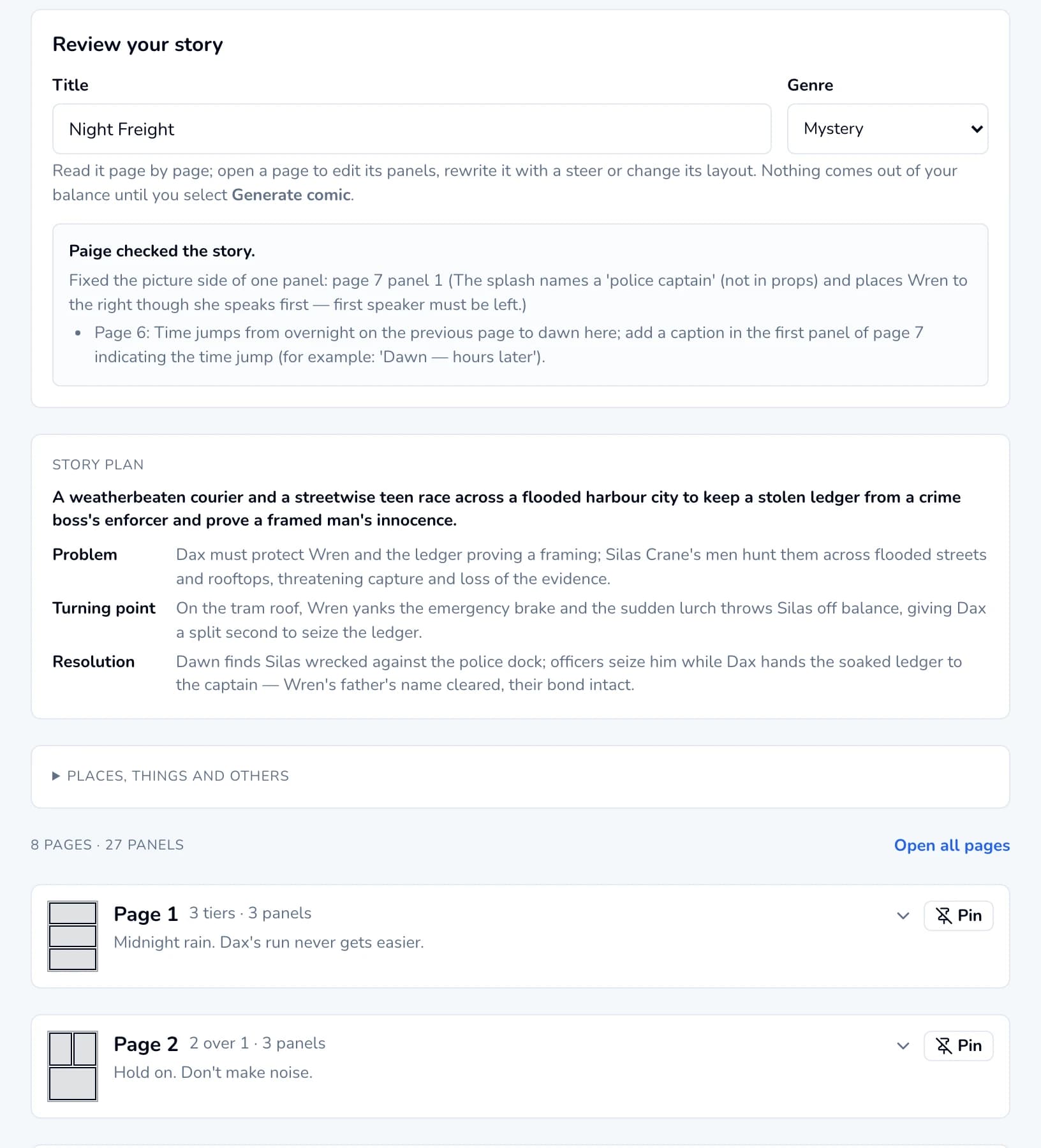
Click a page, or Open all pages, to see its panels. For each page you can:
- Type a steer and click Rewrite page for a fresh version, or Polish dialogue to tidy its words.
- Use Change layout to pick another arrangement of panels.
- Edit what each panel shows, its place and its time of day, and its words. Click + Add words for a speech, thought or shout balloon, a caption or a sound effect (up to 3 a panel).
- Pin a page you’re happy with: it’s kept as it is if you have Paige rewrite the story.
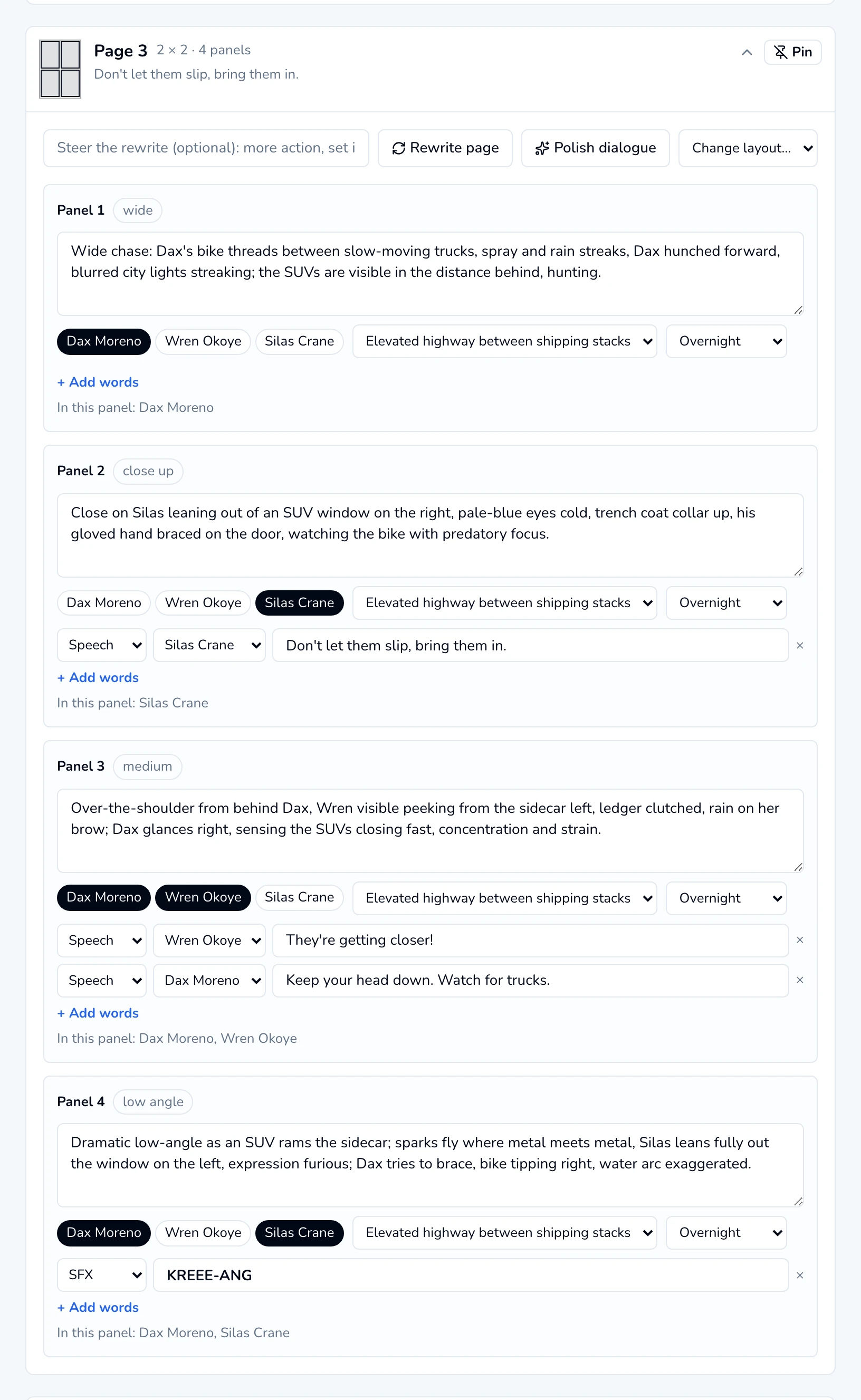
Fix the story before it's drawn
Changing words or pictures here is free; redrawing a panel later isn’t. Read each page for who is where and what happens next, and make sure every action happens once. - 7
Generate, and check the preview
Click Generate comic. Drawing runs on our servers, so you can leave the page. Paige draws each panel with your characters, then letters it: each balloon goes beside the character speaking, its tail aimed at them, plus captions and sound effects.
With two preview pages ticked, Paige stops when they’re done and shows Your preview is ready. Check the characters, the style, the lettering and the setting, then click Looks good — generate the rest, or Stop and edit the comic in the editor to change something first.
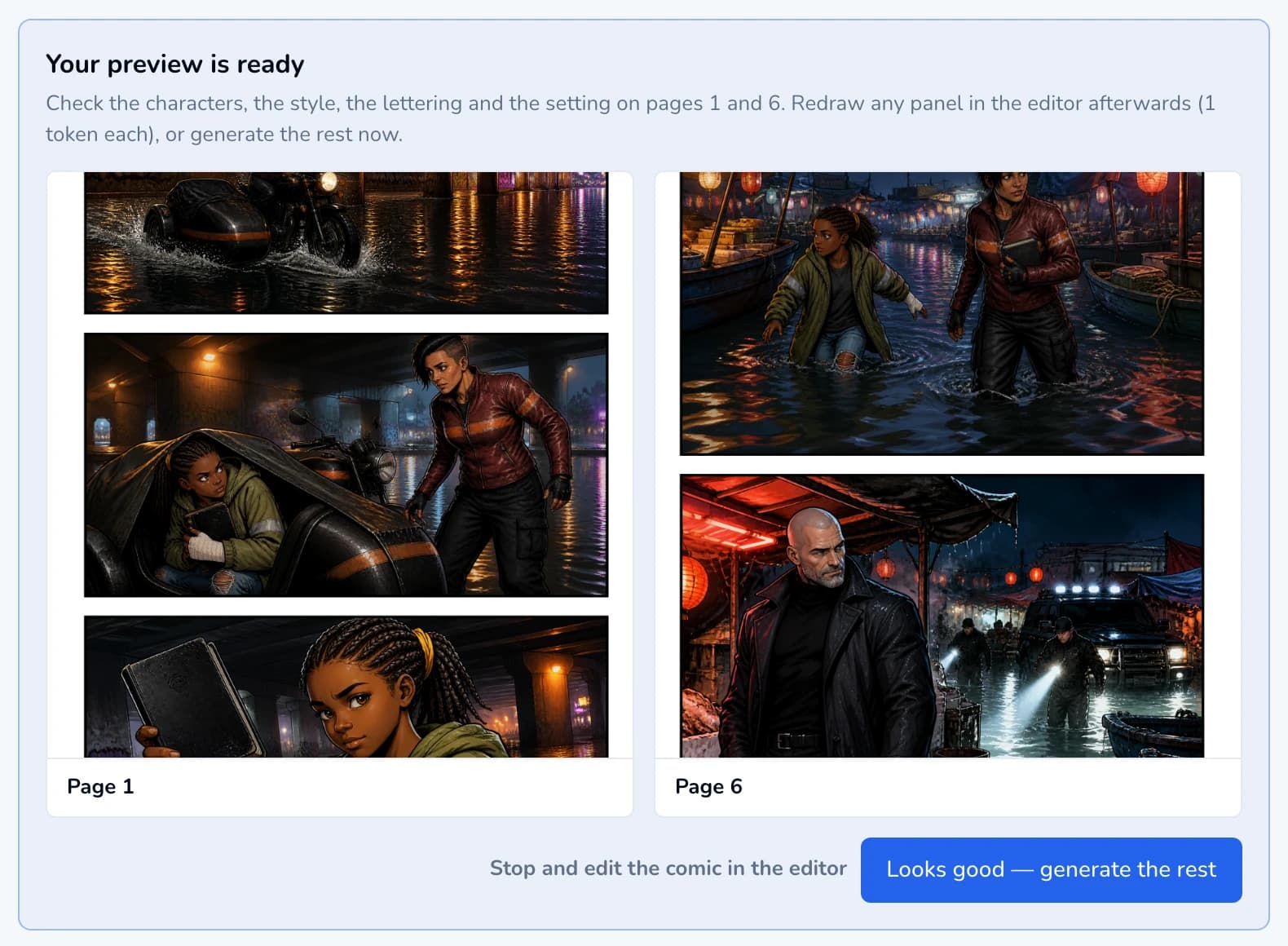
After drawing, Paige checks every picture against its page and lists any page that may need a look.
- 8
Edit in the comic editor
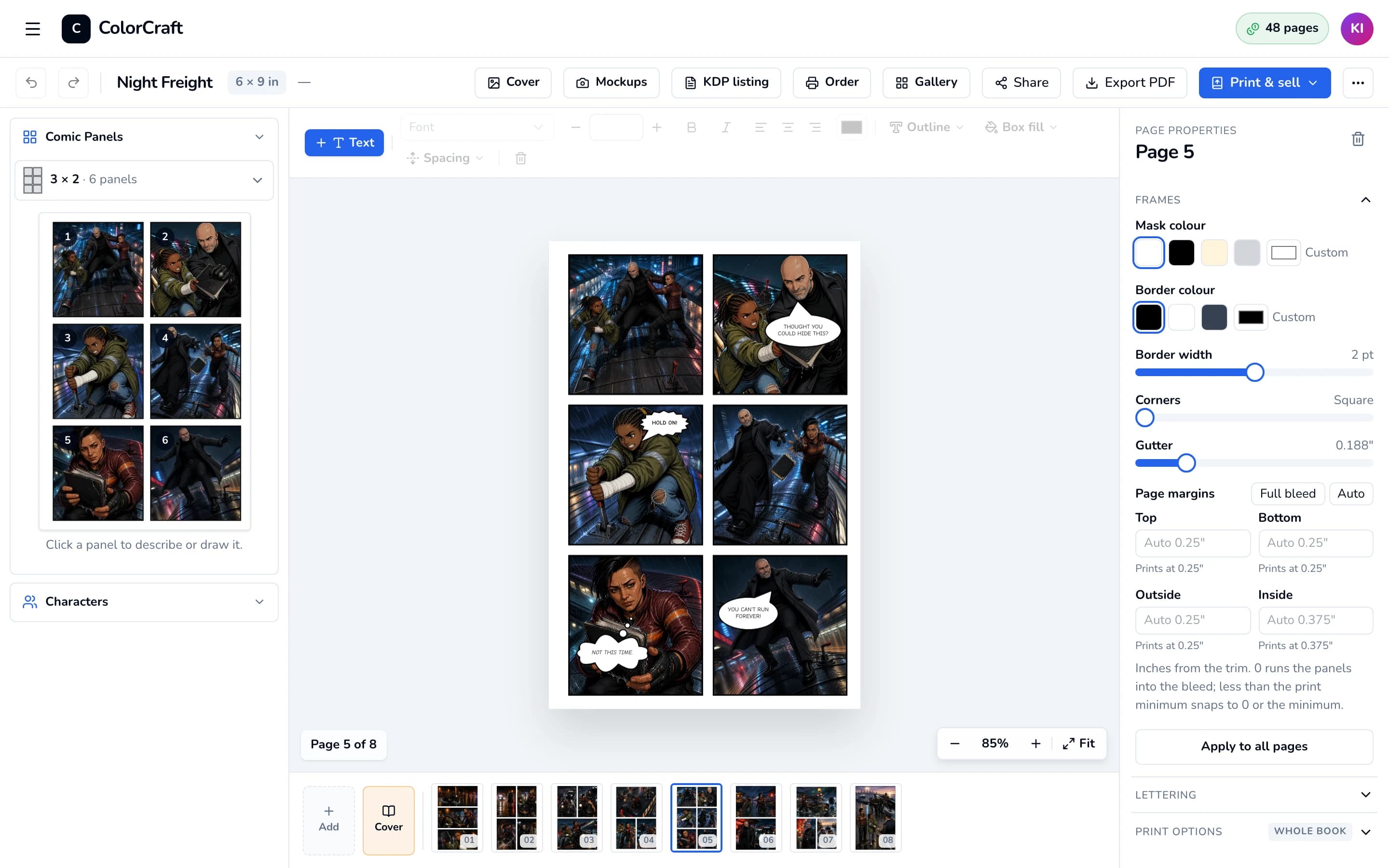
The comic opens in the editor. Comic Panels on the left shows the current page’s panels; click one to change what it shows, who is in it and its time of day, then click Redraw to draw just that panel (1 page from your balance). Adjust picture moves and zooms the art inside its frame; drag a frame’s edge to resize it, or drag a panel onto another to swap them.
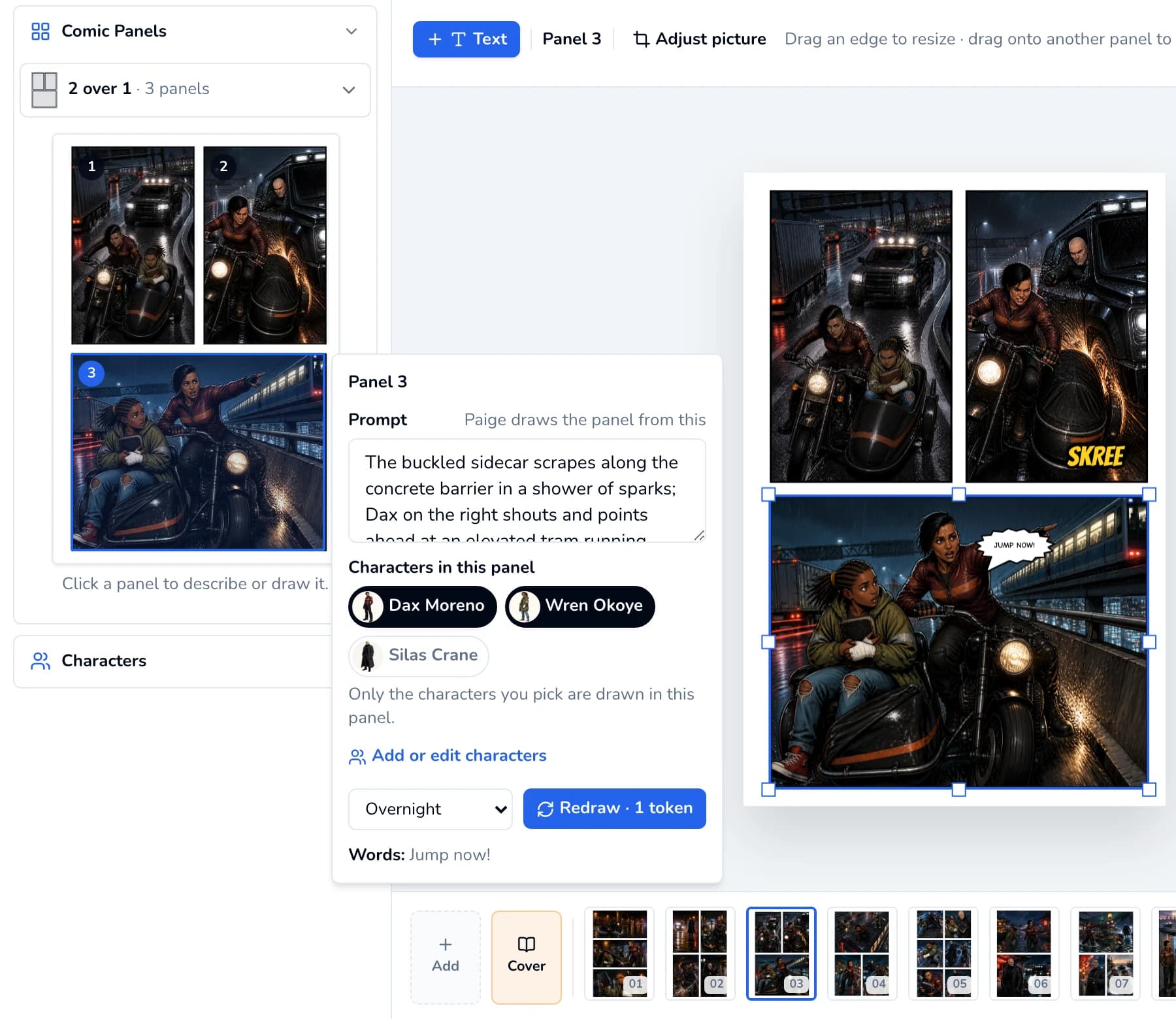
Every balloon, caption and sound effect is a text box. Click one to retype it or change its font and size; drag it, or the end of its tail, to move it. Click + Text to add another, and open Lettering under Page properties for the whole page’s lettering.
- 9
Export and publish
Click Export PDF for the print-ready interior at your trim size. The Cover, Mockups and KDP listing buttons work as they do for every book; see Cover editor and Upload your book to KDP.


Make it yourself
Choose I’ll make it myself in step 1 to skip the story. Give the comic a title, a page count, a style and its readers, and it opens in the editor with blank pages laid out in panels. Click a panel in Comic Panels, describe what it shows and who is in it, and draw it when you’re ready. Add your own words with + Text.
Starting is free. Each panel you draw uses 1 page from your balance, when you draw it.
What it costs
- Each drawn page uses 2 pages from your balance, however many panels it has. See Pages & billing for how your balance works.
- Redrawing one panel uses 1 page, and so does each panel you draw in a comic you make yourself.
- Free: writing, rewriting and polishing the story, changing layouts, creating characters and their looks, and editing the lettering.
Start a comic
Give Paige an idea and your characters, and read the whole story before anything is drawn.
ColorCraft’s 7-day trial needs a card.