Skip to content
ColorCraft
Browse docs

Puzzle books

Word search

Make a book of themed word searches. Each printed page has a letter grid and a word bank, and the solutions section marks every hidden word in red. You choose the grid size, the theme, and which directions words can run.

At a glance

  • Cost: each puzzle uses 1 page from your balance. Solution pages and exporting are free. The free trial includes 40 pages. See Pages & billing.
  • Size: 1 to 100 puzzles per book. Three grid sizes, three difficulty levels, four KDP trim sizes.
  • Words: from a built-in theme. Nothing to type, and no AI.
  • Where it lands: the standard editor, ready to review and export.

Make a word search book

  1. 1

    Open the Word Search wizard

    In the left menu, click Book Generation to expand it, then click Word Search Books. You can also start from Paige’s product chooser: under Puzzle books, click the Word search card and then Next.

    Paige product chooser with the Puzzle books row: Sudoku, Maze, Cryptogram, Word search, Crossword, and a Next button.
    The Paige chooser, shown here with Sudoku selected. Click Word search instead, then Next.
  2. 2

    Name the book and pick how many puzzles

    In Project title, type your book’s title (up to 100 characters). It starts as “Word Search Volume 1”.

    Under Number of puzzles, click 10, 20, 30, 50, or 100. You can also type 1 to 100 in the box after “or”, or drag the slider. The line underneath reads “Each puzzle uses 1 page. Solutions are free. You have N pages.”

  3. 3

    Pick the grid size, theme, and difficulty

    Under Grid size, pick one:

    • 15 × 15, Quick solve: up to 12 hidden words
    • 20 × 20, Standard (the default): up to 20 words
    • 25 × 25, Large print: up to 28 words

    Under Theme, click a word list:

    • Animals (48 words)
    • Christmas (35 words)
    • US states (39 words)
    • Sports (35 words)
    • Food (39 words)
    • Body parts (34 words)
    • Music (40 words)

    Under Difficulty, choose which ways words can run:

    • Easy: right + down only. Good for kids and beginners.
    • Medium: plus diagonals (the default). A good middle ground.
    • Hard: all 8 directions + reversed. The puzzle-magazine standard for adults.

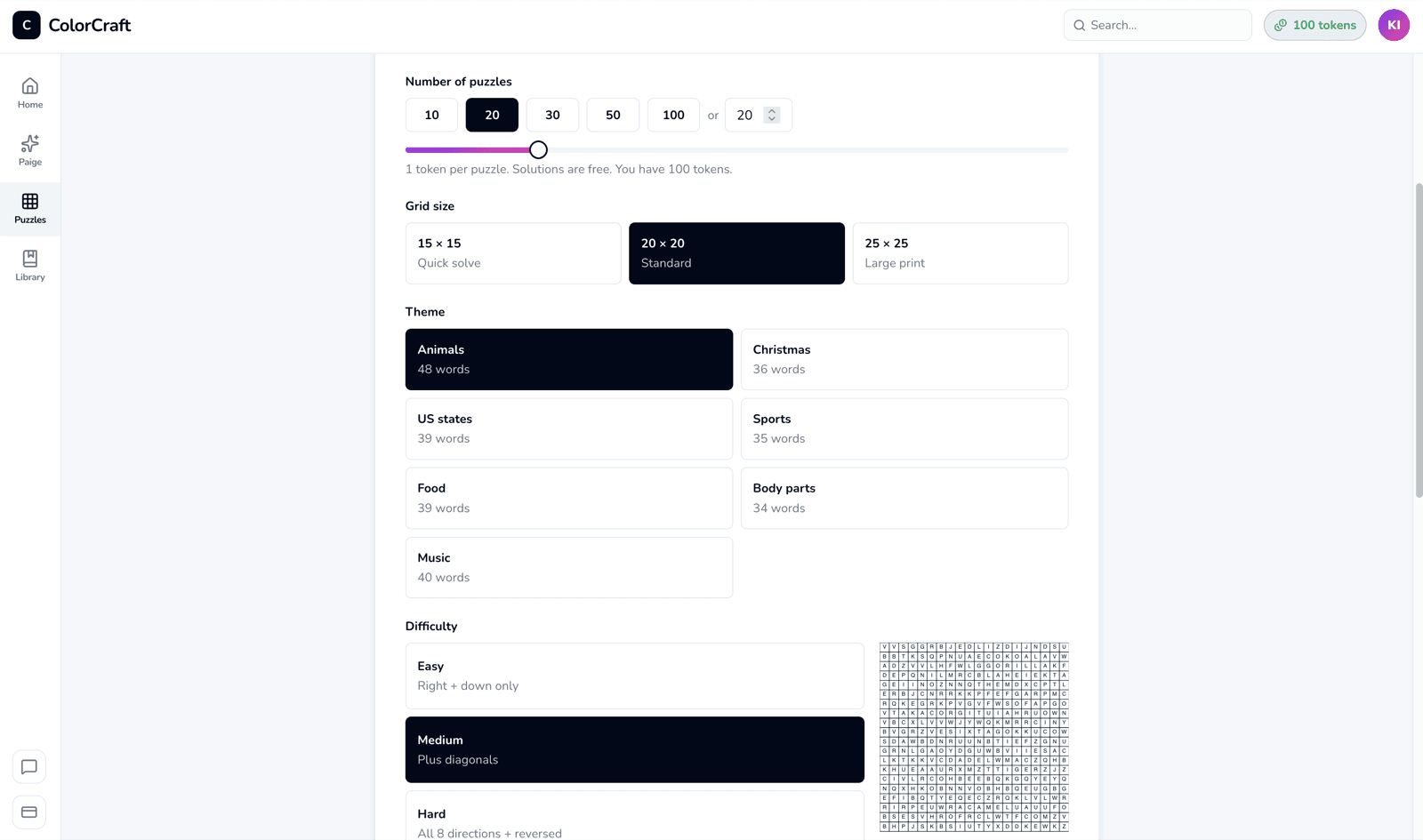
    The sample grid on the right redraws when you change any of these, and New sample shows another one for free.

    Word Search wizard Setup section: Project title, Number of puzzles, Grid size, Theme cards with Christmas selected, and Difficulty Easy / Medium / Hard beside a sample word search grid.
    The Setup section with the Christmas theme selected and a sample grid on the right.
  4. 4

    Pick the solutions layout and trim size

    Scroll down to Solutions per page and choose 1 per page (full size) or 4 per page (a 2×2 grid that saves paper). There’s no 9-up option, because answer grids get too small to read. You can’t change this after the book is made.

    Under Trim size, pick 8.5 × 11 (the default), 8 × 10, 7 × 10, or 6 × 9 inches to match your KDP trim.

    Name pattern sets how pages are numbered: Sequential (“Word Search 1”, “Word Search 2”, …) or Roman (“Word Search I”, “Word Search II”, …); solutions follow the same pattern. Font sets the typeface for the puzzles and solutions: Helvetica, Times or Courier. The PDF embeds a matching open font (Arimo, Tinos or Cousine) so KDP accepts the file.

  5. 5

    Generate the book

    Click Generate book — uses N pages at the bottom of the card. The button changes to “Generating…” and a progress bar counts the finished puzzles.

    Keep this tab open until it finishes. Most books take a few seconds.

    When it’s done you’ll see “Word search book generated” and go straight to the editor. Each puzzle made uses 1 page from your balance.

  6. 6

    Review the book in the editor

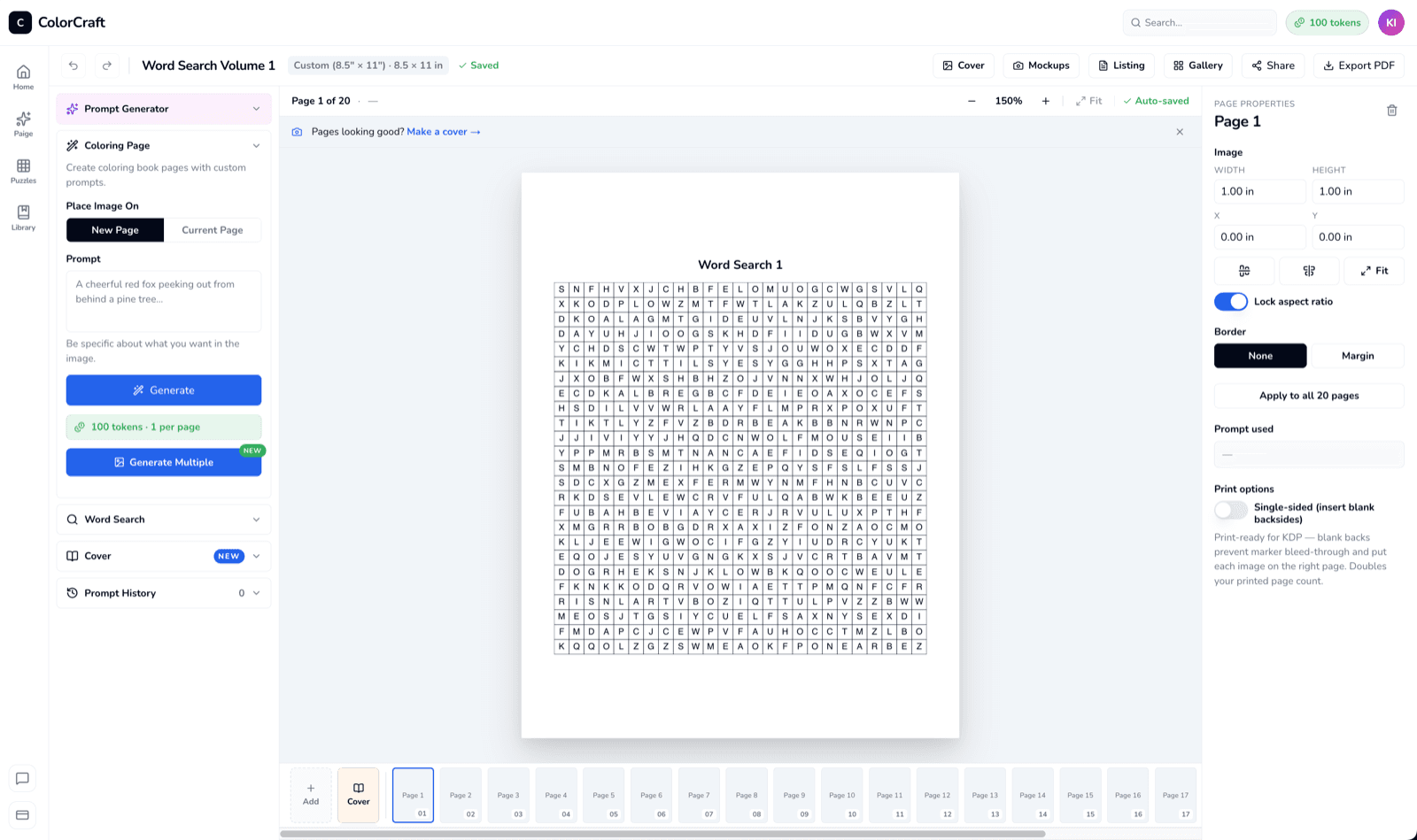
    The editor opens on Word Search 1, showing the letter grid. The word bank isn’t shown in the editor, but it’s printed under the grid in the exported PDF. The page strip along the bottom holds every puzzle first, then the solutions. These tiles show a page number instead of a picture, so click one to see the page.

    Word search pages can’t be edited: you can’t change the grid or add text or pictures. You can drag pages in the strip to reorder them, and add a frame from the right sidebar’s Border section.

    Editor showing Christmas Word Search Vol. 1 on Word Search 1: a 20 × 20 letter grid on the page.
    Word Search 1 in the editor. The word bank is added below the grid when you export.
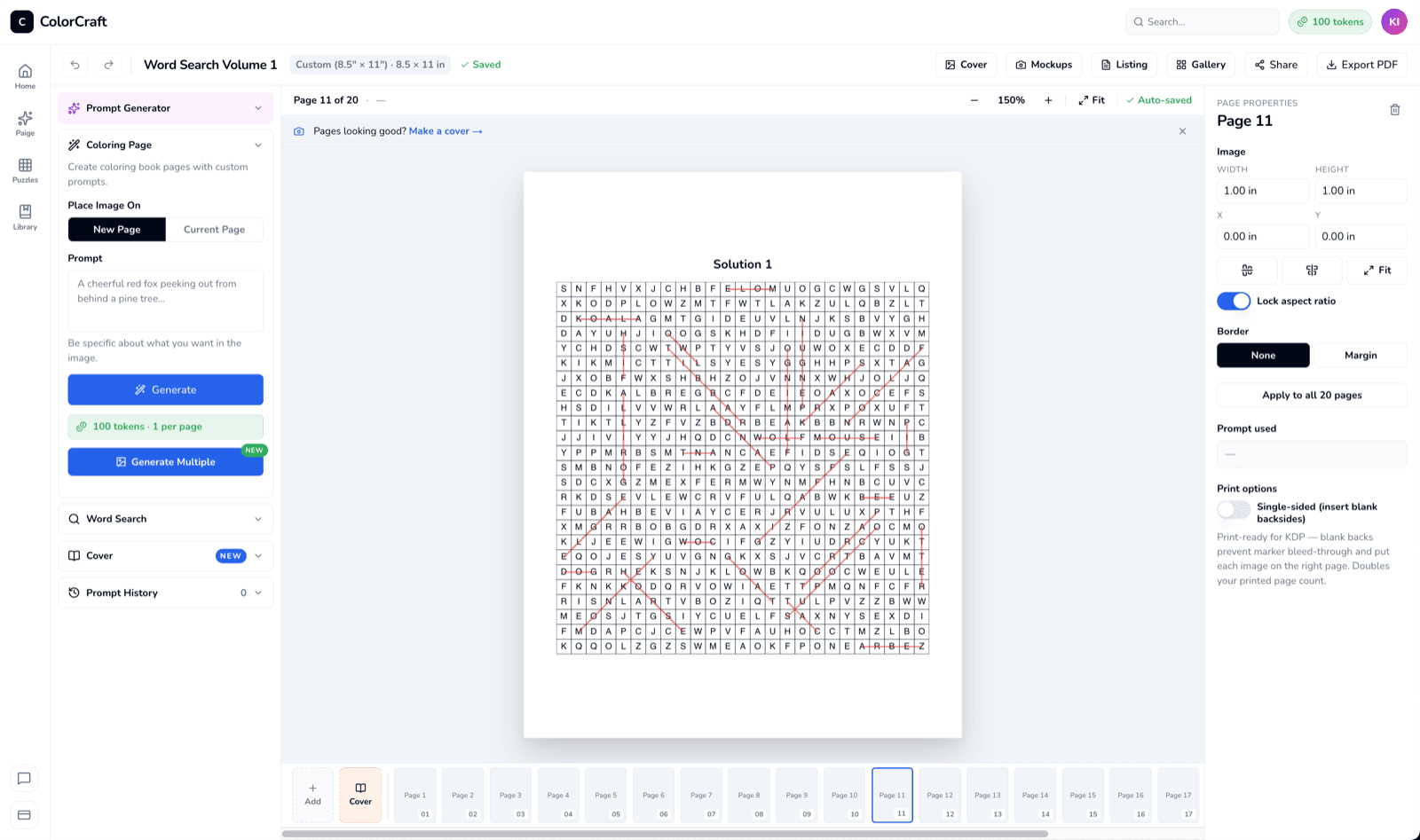
    Solution 1 page showing the letter grid with a red highlighter stroke through every hidden word.
    Solutions mark each hidden word with a red highlighter stroke.
  7. 7

    Add more puzzles (optional)

    In the left sidebar, click Word Search. The Coloring Page panel is open by default, so click Word Search to switch. New puzzles use the book’s theme, grid size, and difficulty. Choose How many (5, 10, 20, or type up to 50) and click Add to book. The line above the button shows the price.

    Word Search panel in the editor's left sidebar: a note that new puzzles use the book's settings, How many presets and a box, a cost line, and Add to book.
    The Word Search panel in the editor's left sidebar.
  8. 8

    Export the PDF

    Click Export PDF in the top bar. Each puzzle page prints the title, the letter grid, and the word bank. After the puzzles comes a page titled Solutions, then the marked-up grids. Exporting doesn’t use your balance. After a print-ready export, the Upload to Amazon KDP guide opens.

    Trial downloads are watermarked previews. The print-ready file comes with your plan, or unlock one book for $24.

Good to know

One word list per batch

When you click Generate, ColorCraft picks the words for the whole book from your theme once. On a 20×20 grid that’s 20 words, or every word if the theme has fewer. Every puzzle made in that batch hides the same list in a fresh grid. Puzzles you add later from the sidebar get a new pick. For different words on every page, make separate books with different themes or grid sizes.
  • Page count. KDP paperbacks need at least 24 interior pages. Your book has one page per puzzle, plus 1 for the Solutions title page, plus the solution pages (one per puzzle, or a quarter as many at 4 per page). The total is rounded up to an even number. For example, 12 puzzles at 1 solution per page print as 26 pages, using 12 from your balance.
  • One kind of puzzle per book. A word search book only holds word searches. You can’t add them to a coloring book.

If something goes wrong

  • “This book needs N pages; you have M. Reduce the count or get more pages.” Generate book stays greyed out. Lower the number of puzzles, or click the button in the red box to get more: Upgrade now on a trial, Upgrade plan on a plan.
  • Generate book is greyed out with no message. The Project title is empty. Type a title.
  • “Generation failed” with “Start your free 7-day trial to use puzzle books…” or “Your free trial has ended…” Puzzle books need an active trial or plan. Start one from the Billing page and try again.
  • You closed the tab, or the connection dropped, mid-way. Generation stops. The book is on your dashboard with the puzzles that finished, each with its solution, and you were only charged for those. Use the Word Search panel’s Add to book to make up the rest.

Build a word search book

Pick a theme, grid size, and difficulty. The solutions section is built for you.