Sell in the Bookstore
Put a book on sale
The ColorCraft Bookstore sells printed copies of your book to anyone. Each copy is printed when a buyer orders it and shipped to them, and you earn a royalty on every copy. You set the book up once, we review it, and then it’s on sale.
Your books in the Bookstore are listed under Publishing in the left menu, then Books for sale.

Before you start
- A finished book with a cover. A book without one shows Your book needs a cover and Open the cover editor. See the cover guide.
- A paid plan or a free trial. On a trial we review your book as usual, and once it’s approved it goes on sale when your plan starts with its first payment. If your plan’s payment has failed, or your trial or plan has ended, the page says Selling in the Bookstore is part of a paid plan and offers See plans.
- Payouts set up, so we can pay you for every copy sold. Payouts are for individuals in the United States. You can set them up from the same page; see Earnings & payouts.
- No characters made from photos of real people. A book with them can’t be sold in the Bookstore, but you can still order printed copies of it for yourself.
There’s no charge to list a book.
Open the Sell page
- On Home, click Sell on the book’s card. Once you’ve sent the book for review, the button says Manage sale.
- In the editor, click Print & sell in the top bar, then Sell in the Bookstore.
- On the book’s cover, mockups or KDP listing page, click Sell in the row of buttons at the top.
- On Books for sale, click Manage this book next to a book you’ve already sent.

Put your book on sale
Your details, mockups and price save as you type, so you can leave and come back. Work down the page from the top.
- 1
Set up your author profile
Under Your author profile, fill in your Author name (your name or pen name, as buyers will see it), a Web address for your author page (colorcraft.ai/authors/your-name: lower-case letters, numbers and hyphens) and, if you like, About you (up to 600 characters). Click Save profile.
You do this once. Your author page lists all your books, and a change shows on every one of them. To change it later, click Edit profile here or on Books for sale.
- 2
Set up payouts
Click Set up payouts in the panel at the top of the page and add your details and a bank account on our payments partner’s secure page. You come back here when you’re done. The panel says Payouts are set up once it’s finished. More about payouts.
- 3
Choose the format and make print files
Under Format & print files, pick the format buyers get: the binding, the size and the number of pages, with an estimate of what each copy costs to print. One is marked Recommended. Then click Make print files. We make print files just for the Bookstore, which takes a few minutes; the page says Your print files are ready when they’re done, and How your book prints shows every page as it will print.
If something in the book would stop it printing, it’s listed under Fix these before selling this book. Items under Worth a look don’t stop you, but check them. If the files couldn’t be made, click Try again.
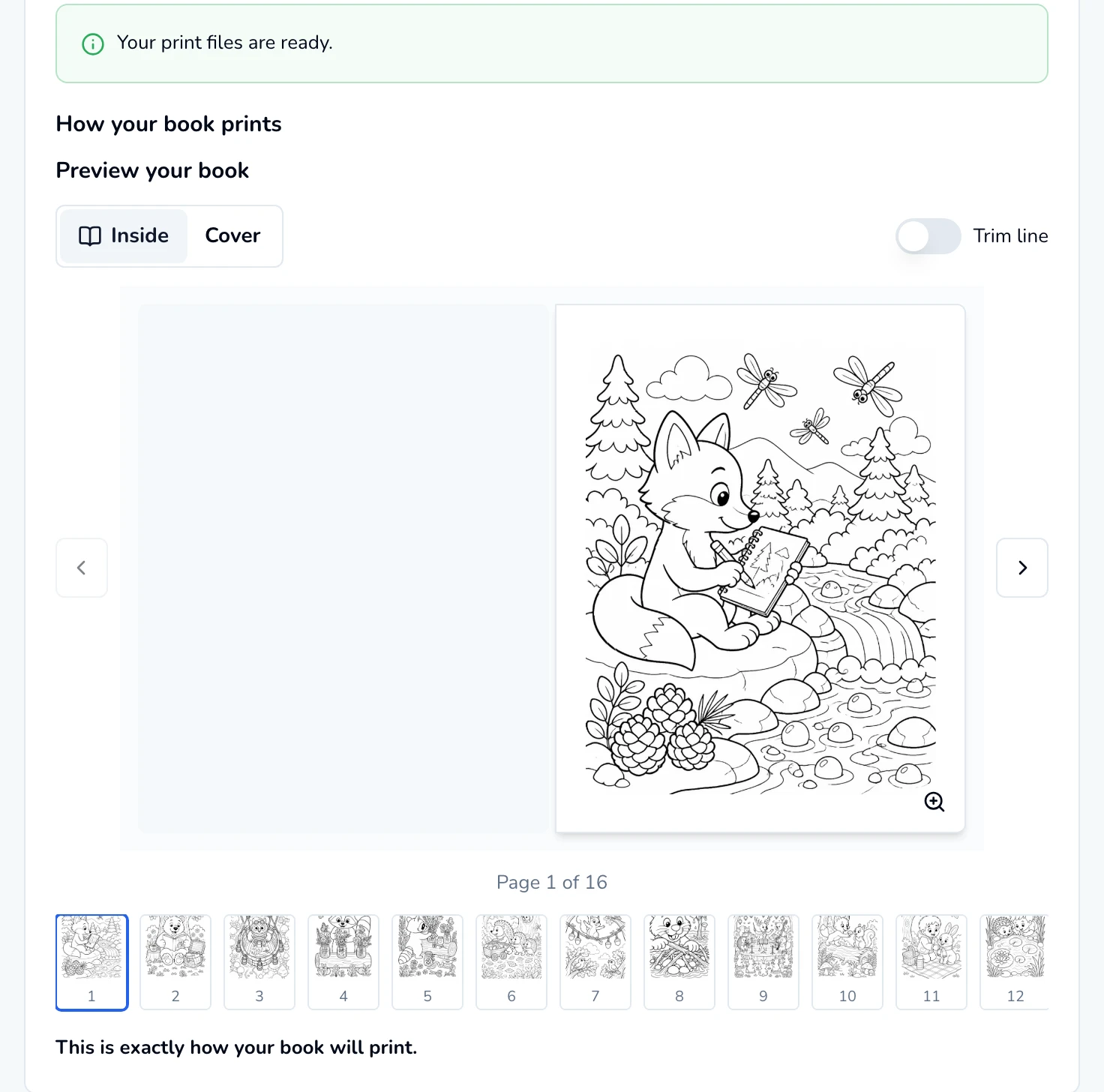
Print files ready, with a preview of every page. - 4
Fill in the details
Under Details, write what buyers see on your book’s page. Changes save as you type.
- Title, and an optional Subtitle.
- Description: 40 to 4,000 characters. Plain text works; you can also use the HTML tags
<b>,<i>,<p>,<ul>and<li>. Other formatting is removed. - Category: one of Animals, Fantasy & Magic, Patterns & Mandalas, Holidays & Seasons, Nature, Vehicles, For Little Kids, More Coloring Books, Storybooks or Puzzle & Activity Books.
- Tags (optional): words buyers might look for, separated by commas, up to 10.
- Author name on this book: starts as your profile’s name.
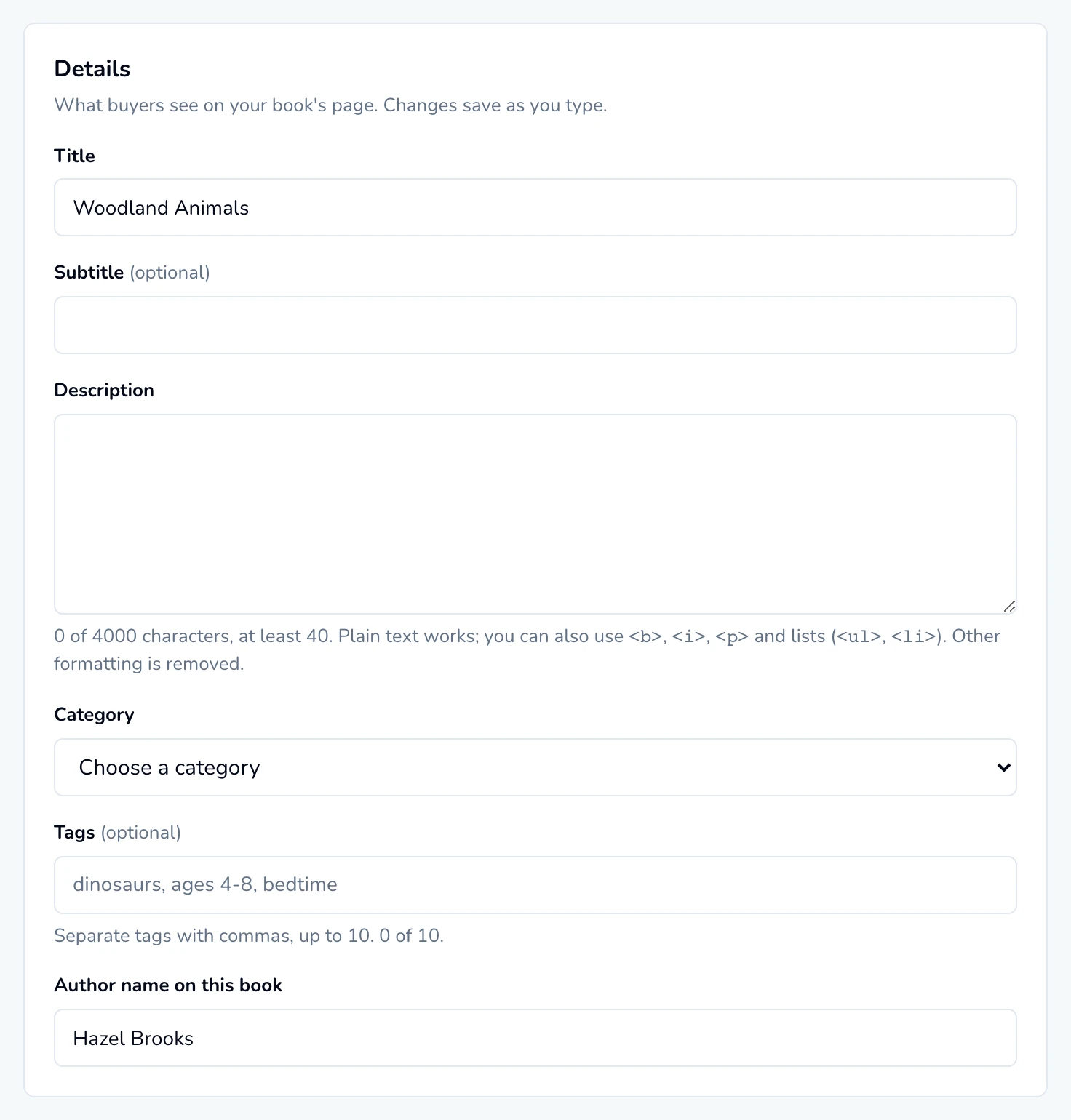
Details: what buyers read on your book's page. - 5
Pick your mockups (optional)
Under Mockups, click up to 3 of the book’s mockups. Buyers see them right after the cover, in the order you pick them, without a watermark. No mockups yet? Click Make mockups to open the mockup studio in a new tab, then Check for new mockups when you’re back. See Mockups.
- 6
Set your price
Under Price, type what buyers pay in Price in US dollars. Any price from $5.99 to $49.99 works, as long as it earns you at least $1 a copy, and the page shows The lowest price for this book.
Under the price, the page works out each copy: Price, less Printing, Card processing (estimate) and the ColorCraft fee, is Your royalty per copy. Shipping is paid by the buyer on top, so it never comes out of your royalty. How your royalty is worked out.
- 7
Review and submit
Under Review & submit, Before this book can go on sale lists anything still missing, each with a link that fixes it. Then tick every statement under Please confirm:
- I made this book with ColorCraft, and I have reviewed and edited every page myself.
- It does not use characters, logos or artwork that belong to someone else (for example cartoon or movie characters, brands, or celebrities).
- It does not show real people from photos.
- I give ColorCraft permission to print, sell and show previews of this book in the Bookstore, and to let its print partner print it.
- That you agree to the Bookstore Seller Agreement, including the ColorCraft fee on every copy sold.
Click Submit for review in the bar at the bottom of the page. Until everything is done, the bar says what’s left; when it says Everything is ready, the button works. Sending can take a minute while we make the pictures for your book’s page.
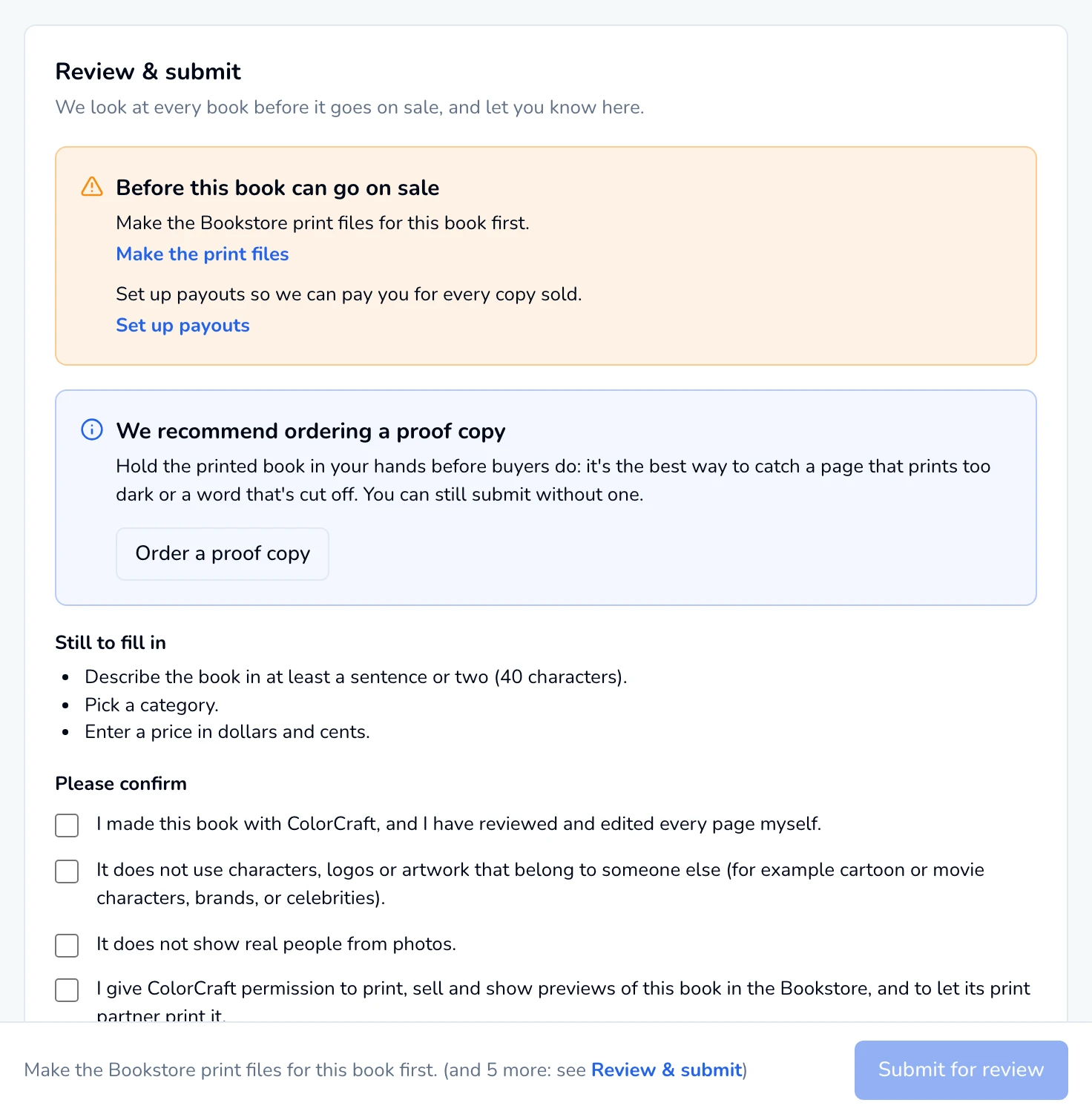
Review & submit lists anything still missing. Tick every statement, then Submit for review.


Order a proof copy first
After you submit
We look at every book before it goes on sale. The result shows on the book’s Sell page, and the badge under its title says where it stands:
- Waiting for review: we have it. To change something, click Withdraw submission, edit, and submit again.
- Live: it’s on sale. View in the Bookstore opens its page, where buyers see the cover, your mockups, a few sample pages with a watermark, and a link to your author page.
- Changes requested: our note says what to change. Make the changes and submit again.
- Approved, not on sale yet: approved while you’re on a trial, or without a paid plan. It goes on sale by itself when your plan starts.
- Paused: you paused it, and buyers can’t find it until you resume.
- Taken down: we took it down, and the page says why. If you think it’s a mistake, or want to fix it and sell it again, click Contact us.
The book’s card on Home shows the same, such as In review or On sale.
Manage a book that’s on sale
Books for sale lists every book you’ve sent, with its status, its price and, once it’s on sale, Copies sold, Royalties earned and On sale since. Click Manage this book to open its Sell page, where you can:
- Change the price. Type a new one and click Update price. It applies right away, with no review.
- Pause it. Pause sales hides the book from the Bookstore; Resume sales brings it back.
- Edit the details. Click Edit details, make your changes, then Submit changes. We review them again, and the book keeps selling as it is until we approve them. Discard changes drops changes you haven’t sent.
To take a book out of the Bookstore for good, contact us. If your plan ends, your books stay on sale, and you can still pause them and change their price. Sending a new book, or changes to one, needs a paid plan again.
Sell your book
Put a finished book in the Bookstore and earn a royalty on every copy.
ColorCraft’s 7-day trial needs a card.