KDP publishing
Niche Research
Niche Research is ColorCraft’s KDP niche research tool. It helps you decide which book to make: search a niche and see whether readers are buying, how hard it is to enter, and what a copy could earn. Then start the book straight from the report.
To open it, click Publishing in the left menu, then Niche Research. Across the top are five tabs: Search, History, Opportunities, Keywords and Watchlist.
Research a niche
- 1
Type a niche
On Search (“Find a book worth making”), type a niche such as cozy cottage coloring book for adults. You can also paste an Amazon link or an ASIN to look up one book.
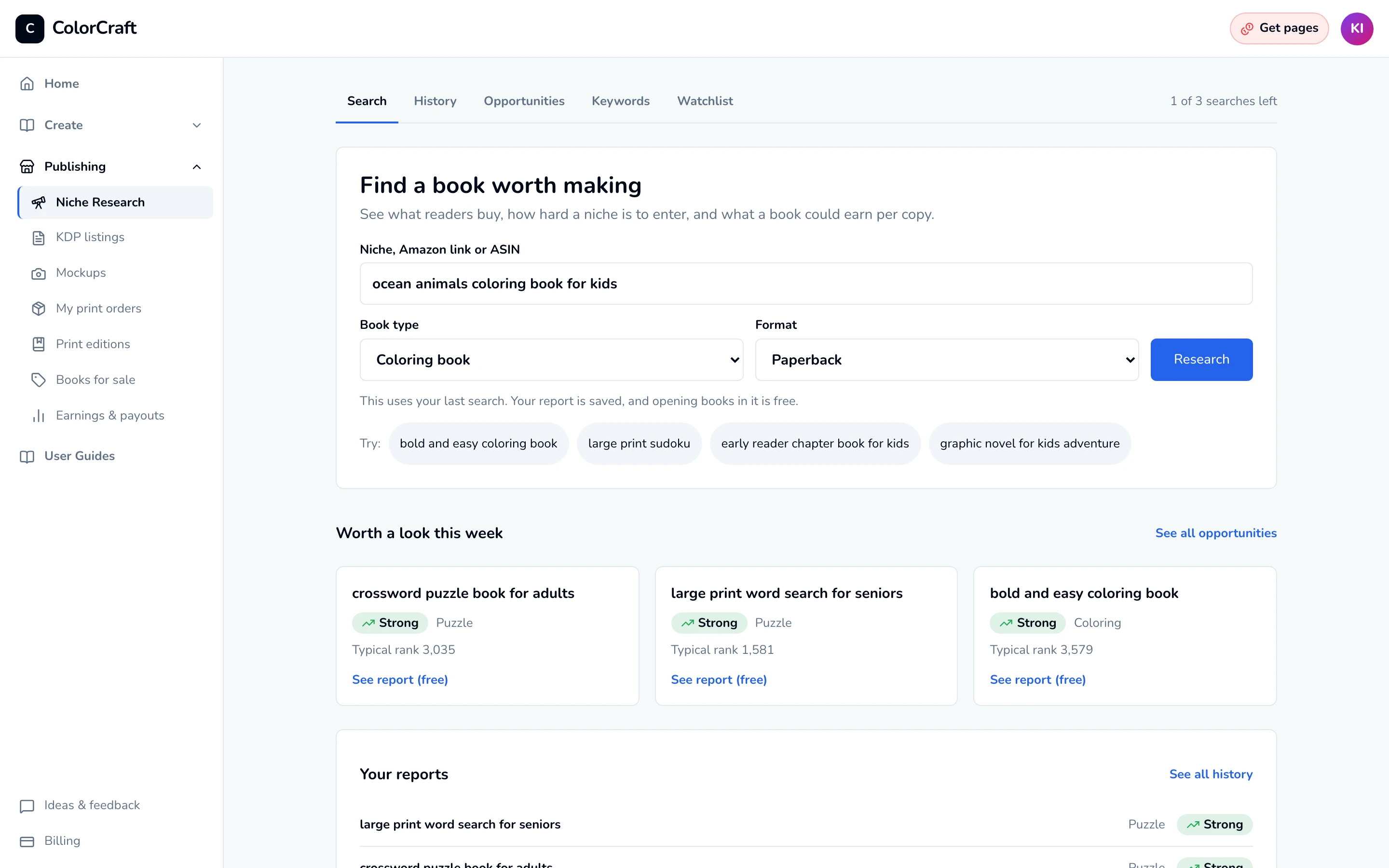
Search: type a niche, check the book type and format, then click Research. - 2
Check the book type and format
Book type (Coloring book, Storybook, Puzzle book or Comic book) is picked for you from the words you typed; change it if it’s wrong. Format is Paperback or Hardcover.
- 3
Click Research
The line under the button says how many searches you have left. If you already have a current report for that niche, the button reads Open my report and opening it is free. On your last search the button changes to Use my last search, so you can check the niche first. The report opens right away and fills in when the market data is ready.

Read the report
The report opens on Our verdict, with the reasons for and against and What to do next.
- Strong and Open mean smaller publishers are getting in.
- In season means most of the demand is seasonal, so timing matters. What to do gives a date to publish by.
- Competitive means established books hold most of the demand, so you'll need a clear angle.
- Very competitive means big publishers, licensed characters or another format hold the top spots, so a new book has little room.
- Weak demand means few books hold a strong rank.
- Not enough data means there were too few books to judge. See below for when that search is given back.
When the verdict says to look elsewhere, Related niches doing better suggests nearby niches to try.

Below the verdict
- Your book spec suggests a price and length from the books selling well, and A copy earns shows your royalty after printing. When enough of those books charge $9.99 or more, it suggests $9.99, where Amazon pays 60% instead of 50%. Earnings assume an 8.5 × 11 in paperback. Try other prices in the Profit calculator.
- Where competitors are listed: the Amazon categories the books sit in. You pick your own categories when you publish in KDP.
- Keywords competing books use: see Keywords, below.
- Books you could beat: books selling well on few reviews or a low rating, from publishers a new book can compete with. Click one to see its rank, sales pace and reviews.
- Competing books: the top books for your search, which you can sort by any column. More detail opens every reason, the formats and publishers, where the books rank and where they’re shelved.

How a report is judged
A report reads two things. For most coloring and puzzle niches, demand and newcomers are counted across every Amazon book with the niche’s words in its title: how many sell well, and how many self-published books from the last year have broken in. Who holds the top spots, formats and licensed characters come from the top books for your search, the ones a new book would sit beside. When the top books rarely use the search’s words, as with many picture books and comics, the report judges the niche on its top books alone and says so.
- Amazon’s Best Sellers Rank is not a sales count, and a lower rank is better. “Sells well” means a 90-day average rank under 100,000. Reports estimate each book’s print sales from its 90-day average rank, as a range and with how sure the estimate is. “What sells here” leads with newer books from smaller publishers, since those are the closest to a new book. Those books reached the top results, so a new book may sell less.
- Reports are a guide, not a promise of sales or earnings. The trademark screen catches common characters, brands and well-known people, but it isn’t legal advice.
Start the book from a report
- 1
Click Start
The button names the book type, for example Start a coloring book or Start a storybook. On a report that says to look elsewhere it reads Start a coloring book anyway.
- 2
Write your angle
What’s your angle? asks for one line on what makes your book different from the top sellers. Type your own, or click one of the suggestions and fill in the blank. A trademarked character, brand or person is refused: describe your own idea without it.
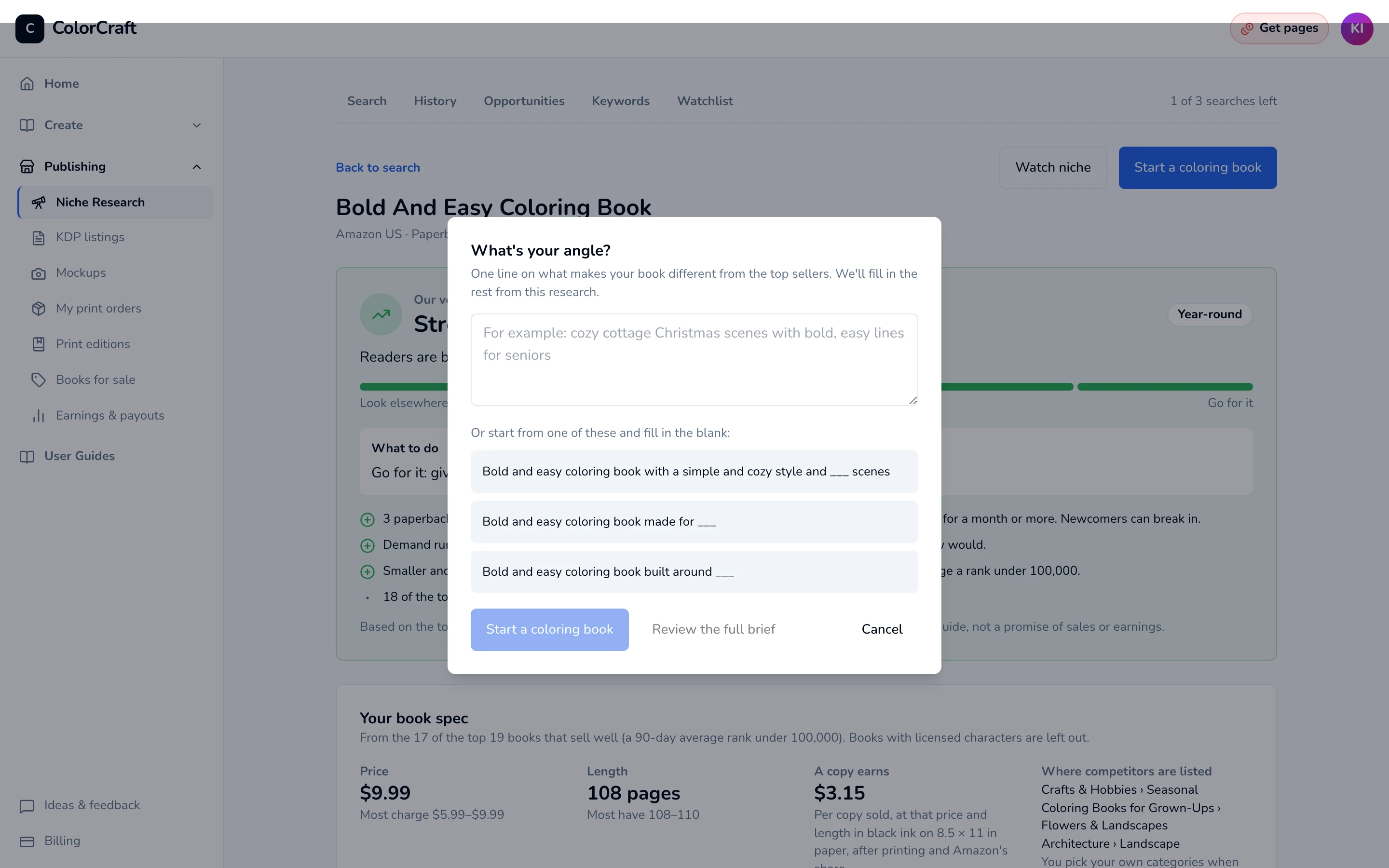
One line on what makes your book different. The rest is filled in from the research. - 3
Start, or review the brief first
Click Start a coloring book (or your book type) to go straight to the book flow with the brief filled in. Or click Review the full brief to check Your book brief first: working title (tap the words competing titles use to add them), your angle, book type, audience, detail level, target price and cover direction. You review every page before export either way.

Find a gap, don't copy
Keywords
Each report lists the phrases the top books use in their titles, descriptions and A+ content. For each phrase we count the Amazon books with the niche’s words and that phrase in their title, and how many sell well, then compare that with the niche as a whole:
- Room to compete: titles with it sell well at least twice as often as the niche, with 3 or more selling.
- About average: about the niche’s rate. Crowded: under half of it.
- None selling yet: 20 or more titles, none selling well. Untested: fewer than 20 titles use it, so there’s no evidence either way.
- In descriptions: competitors use it in descriptions, not titles, so title counts can’t judge it.
The Keywords tab (“Keyword ideas”) starts from a seed word: type it, pick the book type and click Find keywords. That opens the niche’s report on its keywords and uses one search, like any report; for a niche you already have, Open its keywords (free) costs nothing. Keywords from your recent reports shows the best few from reports you already have. Checking a keyword doesn’t use a search.
Amazon keeps the 7 keywords publishers enter in KDP private and shares no search volume, so this shows what competing books visibly target, not what shoppers type. Never use another publisher’s brand or a licensed name as a keyword.

History, Opportunities and Watchlist
History
History keeps everything you’ve searched. Each report opens as you last saw it, and only changes when you refresh it. A report old enough for the niche to have moved offers Refresh · uses 1 search; refreshing uses a search only when there’s new data to fetch. Tick two or three niches and click Compare to see them side by side: comparing doesn’t use a search.

Opportunities
Opportunities lists niches we check every week, strongest first, and you can filter by book type and verdict. Creator and larger plans see the full list, and opening one doesn’t use a search. Free trials, Mini and Starter see the top 3 by name, and researching one uses one of their 3 searches.
Watchlist
On a report, click Watch niche: we check it every week, and the report then always shows the latest data. On a book’s page, click Track this book to see whether its rank holds. Watchlist shows What changed in rank, reviews, price or verdict; click Mark all as read once you’ve seen them, or Remove to stop following one. Items over your plan’s limit show as Paused, over your plan’s limit.

Searches and your plan
| Plan | Searches | Watchlist items |
|---|---|---|
| Free trial, Mini and Starter | 3 in total | 3 |
| Creator | 30 a month | 50 |
| Professional | 100 a month | 200 |
| Studio | 300 a month | 500 |
- The 3 free searches are one total, shared with the trial; they don’t reset. Monthly searches reset on the 1st of each month (UTC).
- Reopening a report you already have and comparing don’t use a search, nor does opening an Opportunity on Creator and larger plans. A report that fails is never counted.
- A report that comes back Not enough data gives the search back, up to 3 times in 7 days. After that, it uses a search like any other.
- Need more? See Subscription & plans.
Research your next book
Search a niche, read the verdict, and start the book from the report.
ColorCraft’s 7-day trial needs a card.
From an AI assistant